

There are three ways to make a custom ringtone on iPhone, each suited to a different starting point. The Files app on iOS 26 sets any audio file as a ringtone in seconds. GarageBand lets you trim a song to the exact section you want before exporting it. Zedge offers a library of millions of ready-made ringtones for anyone who wants to skip the editing entirely.
Method 1: Make a Ringtone Using the Files App (iOS 26)
One of the simplest ways to make your own ringtone is to use an audio file already saved on your device. The Files app in iOS 26 lets you set any compatible audio file as a ringtone directly from the Share sheet that is downloaded from a browser, shared via AirDrop, or saved from a voice memo.
Supported formats: M4R, M4A, MP3, CAF, AAC, AIFF, WAV.
If you need a specific section of a longer audio file rather than the full thing, trim it first using GarageBand (Method 2), then use the Files method to set it.
Steps
- Open the Files app on your iPhone.
- Navigate to the folder containing your audio file.
- Tap and hold the audio file to open the context menu.
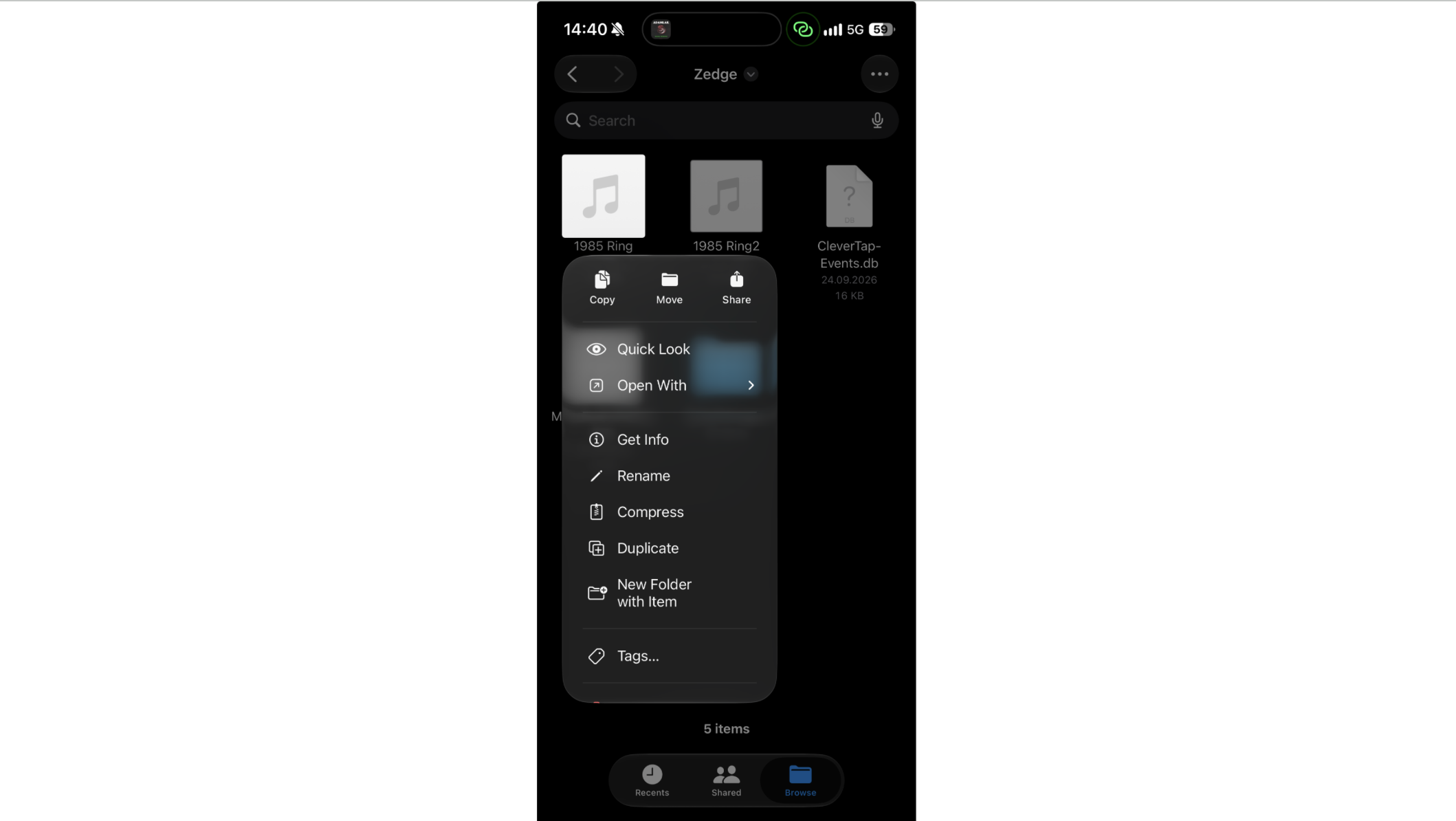
- Tap Share.
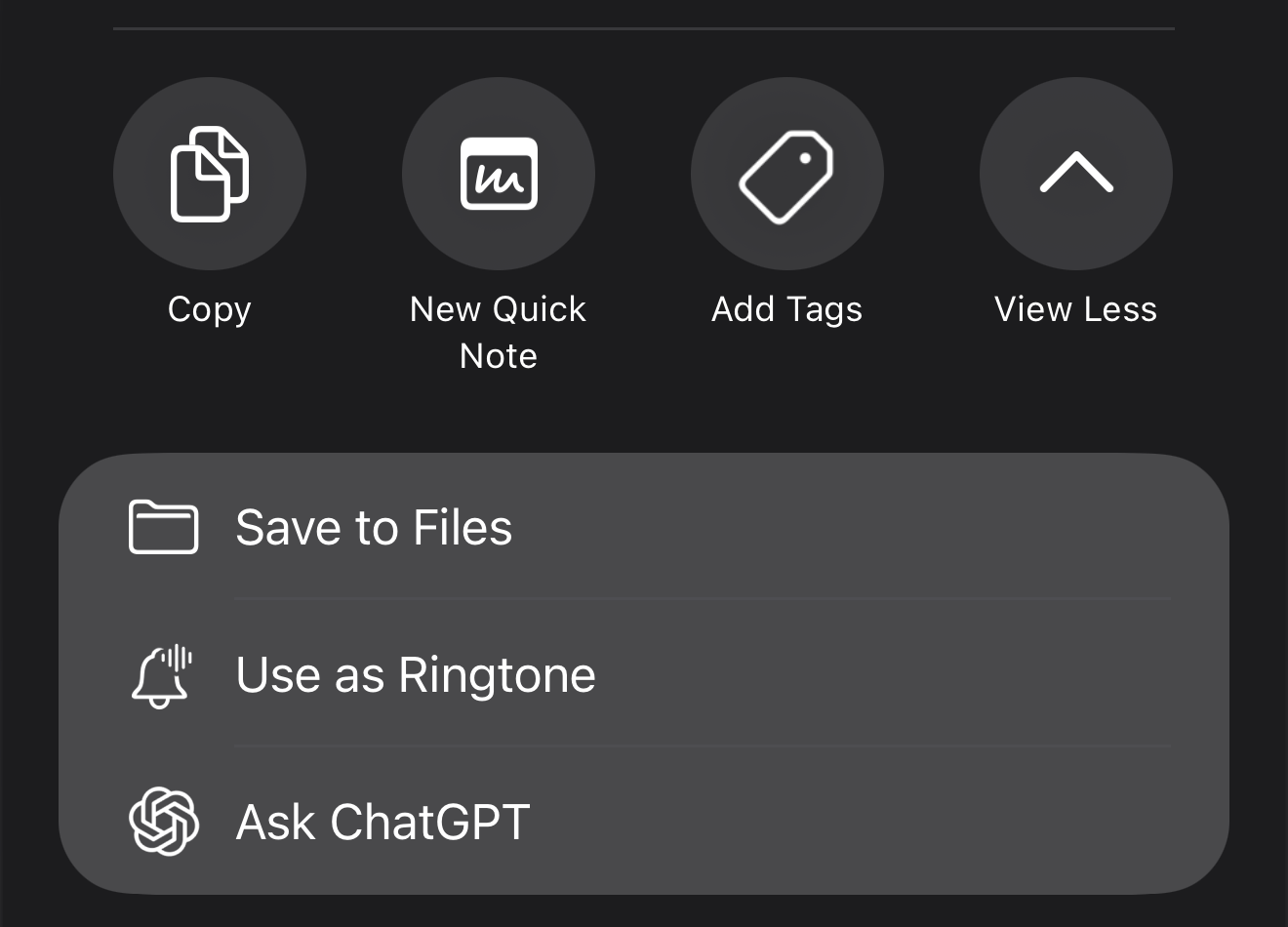
- In the Share sheet, tap Use as Ringtone.
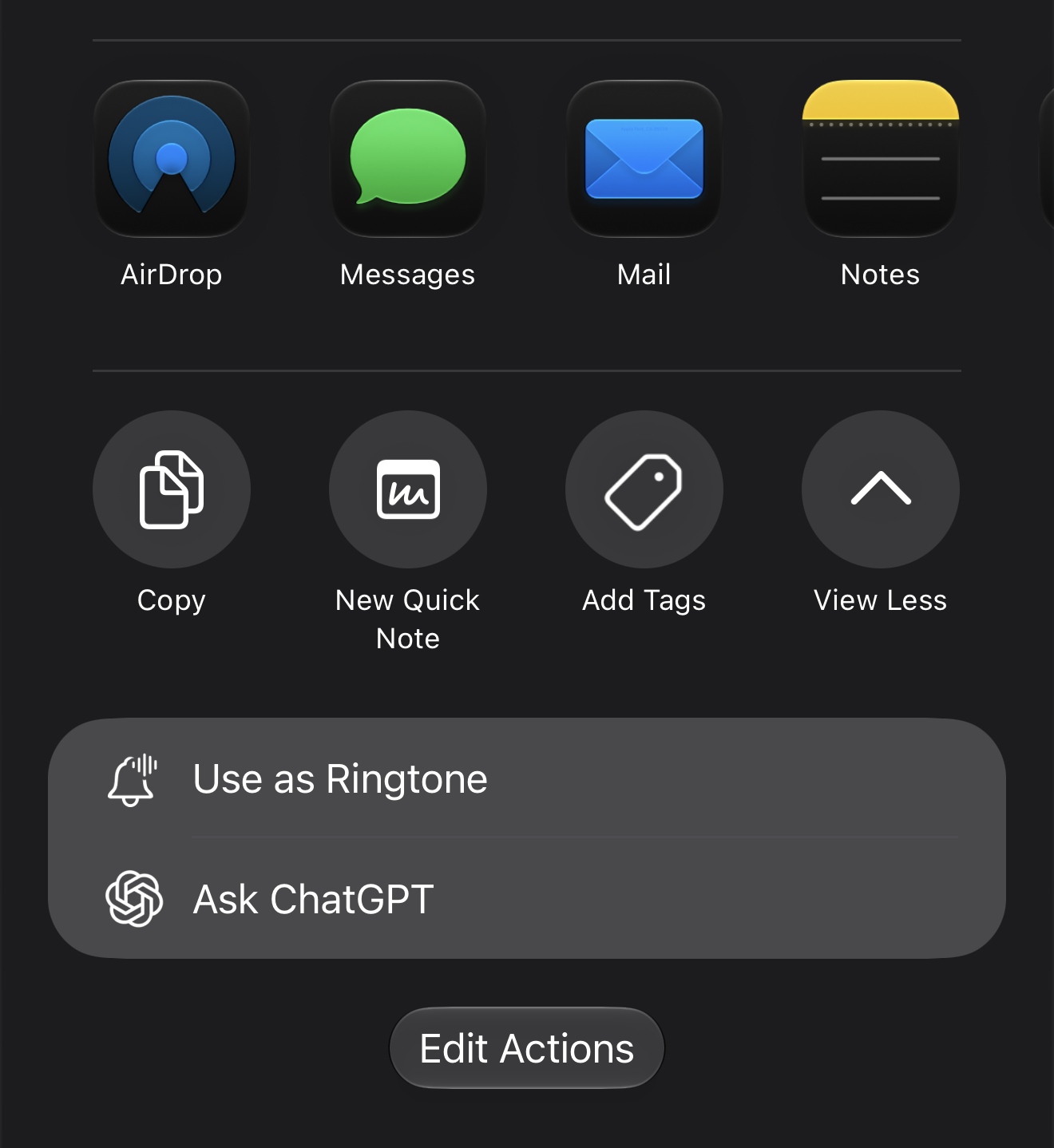
That's it. The audio file is set as your ringtone immediately and appears in Settings > Sounds & Haptics.
Method 2: Make a Ringtone with GarageBand
GarageBand gives you full control over which section of a track becomes the ringtone, and it handles audio trimming, looping, and volume adjustment before export. This method works on any iPhone running iOS 16 or later and does not require a computer.
The maximum ringtone length in GarageBand is 30 seconds.
Steps
- Open GarageBand on your iPhone. If it is not installed, download it free from the App Store.
- Tap the + button to start a new project.
- Swipe to Audio Recorder and tap it.
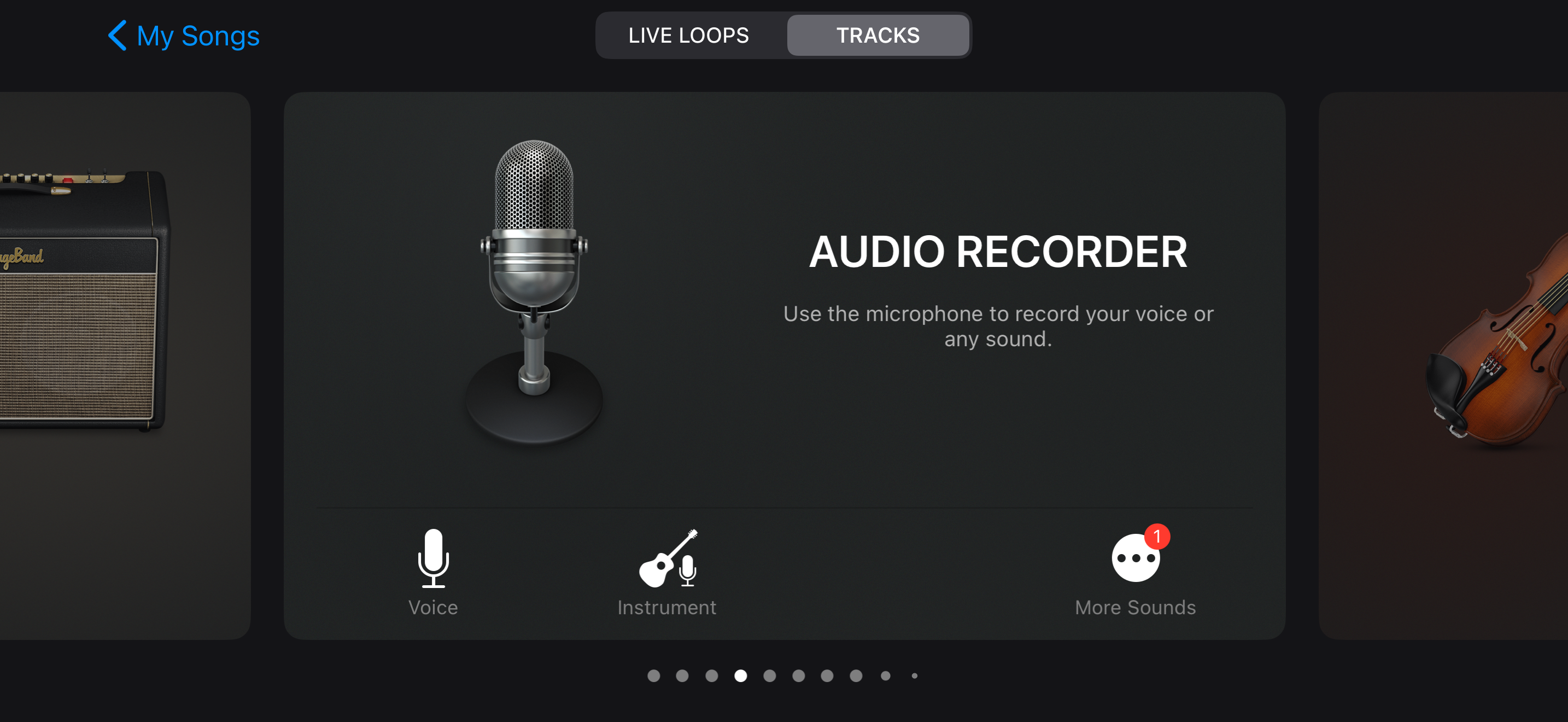
- Tap the tracks view icon (second icon in the top left toolbar) to switch to tracks view.
- Tap the loop browser icon (circle icon, top right) to open the browser.
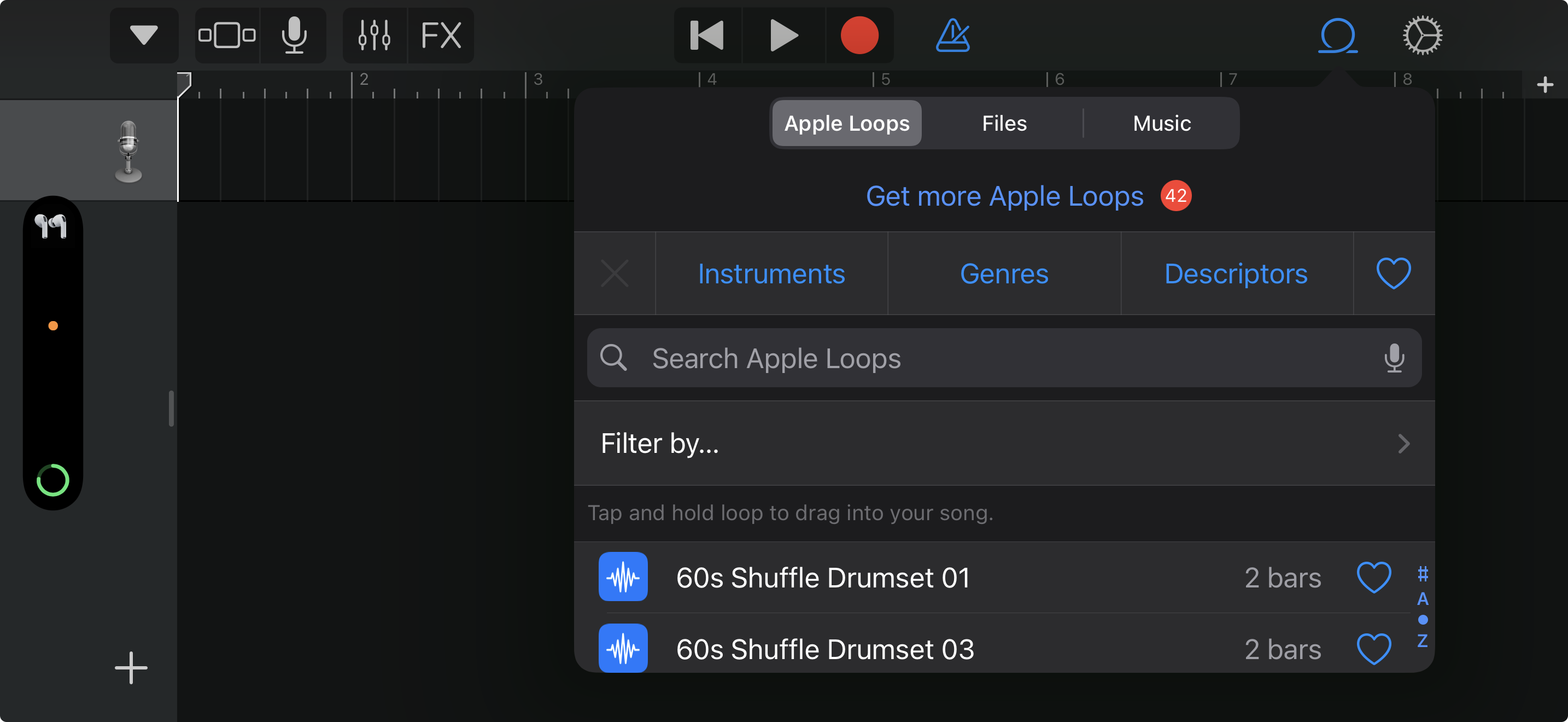
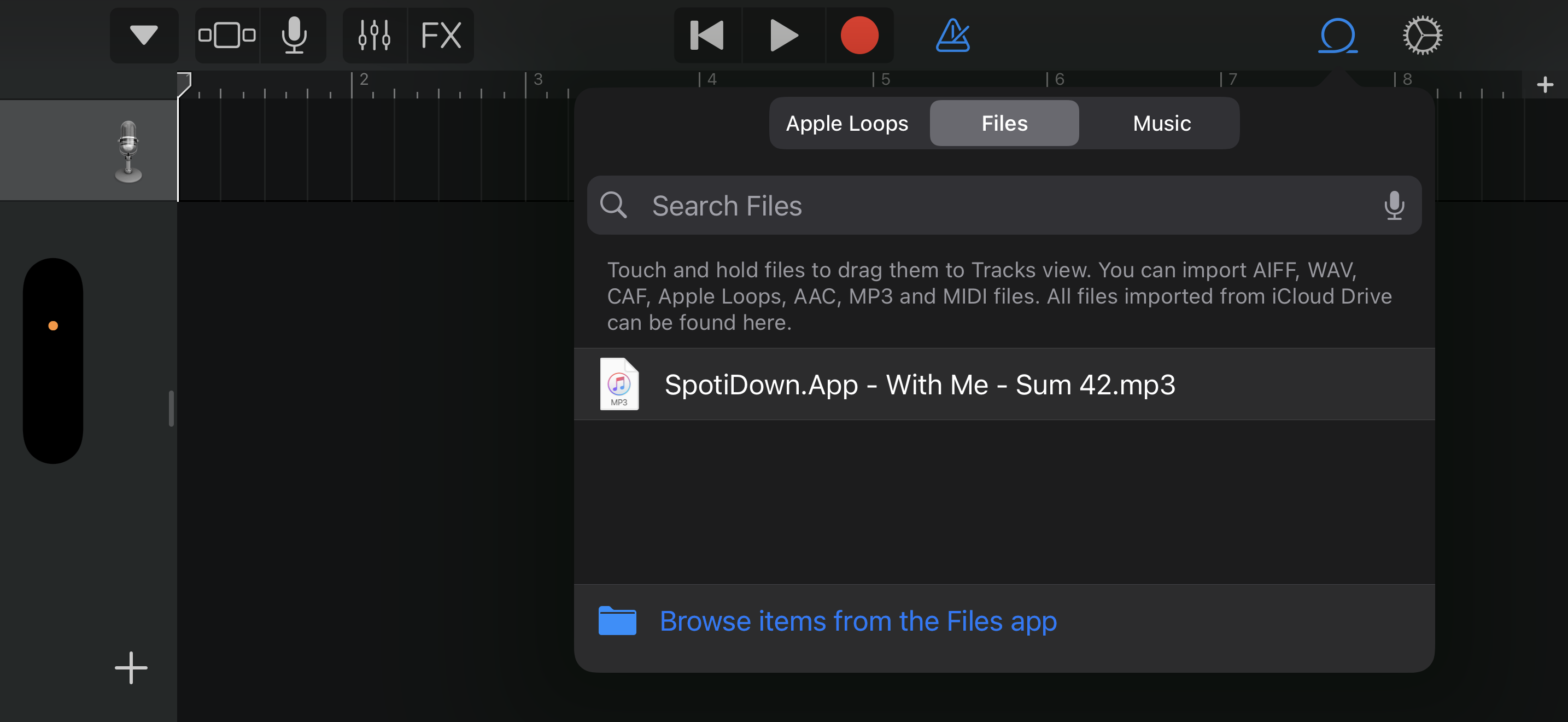
- Tap Files, then tap and hold your audio file and drag it onto the timeline.
- Pinch the timeline to zoom in. Drag the right edge of the audio region to trim the clip to 30 seconds or less.
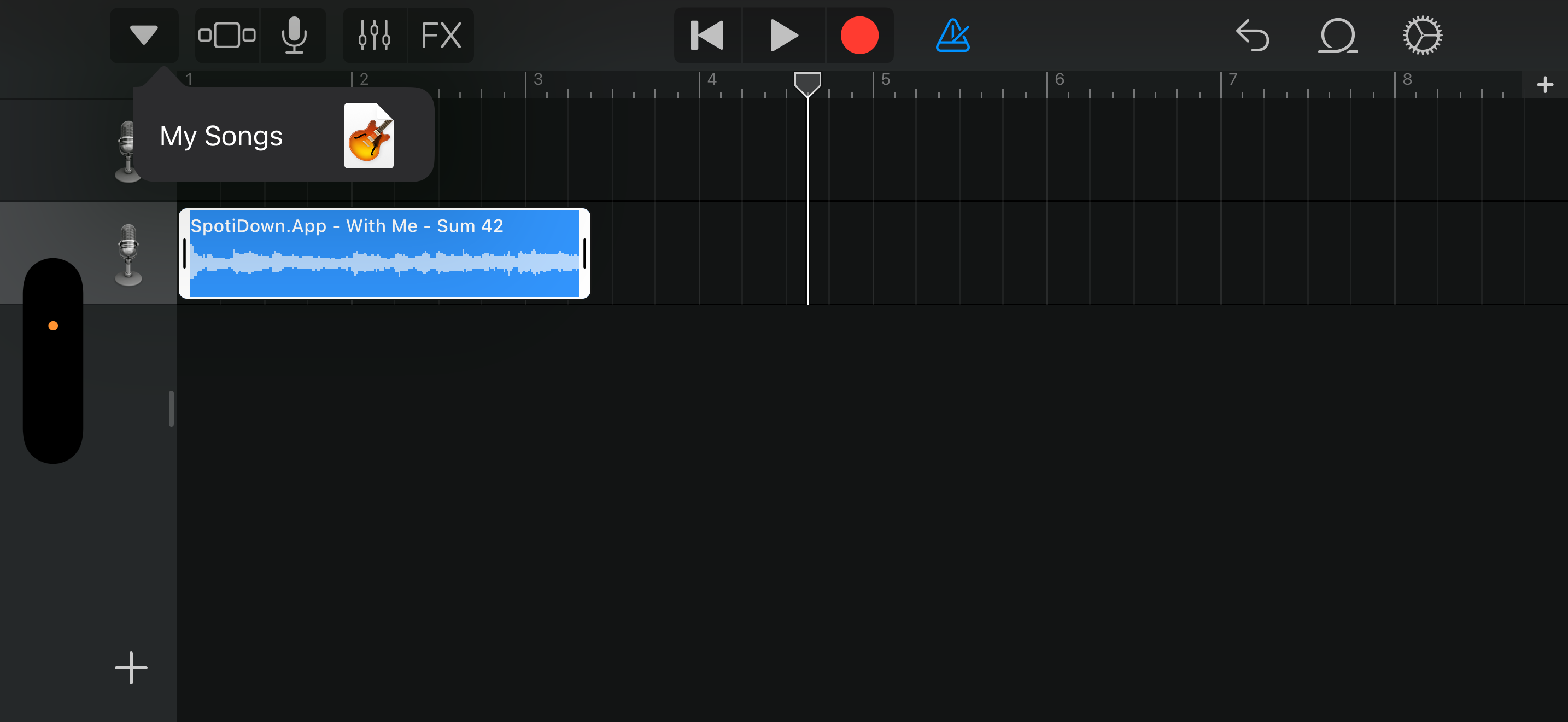
- If you want a specific section rather than the start of the track, drag the left edge to set the start point.
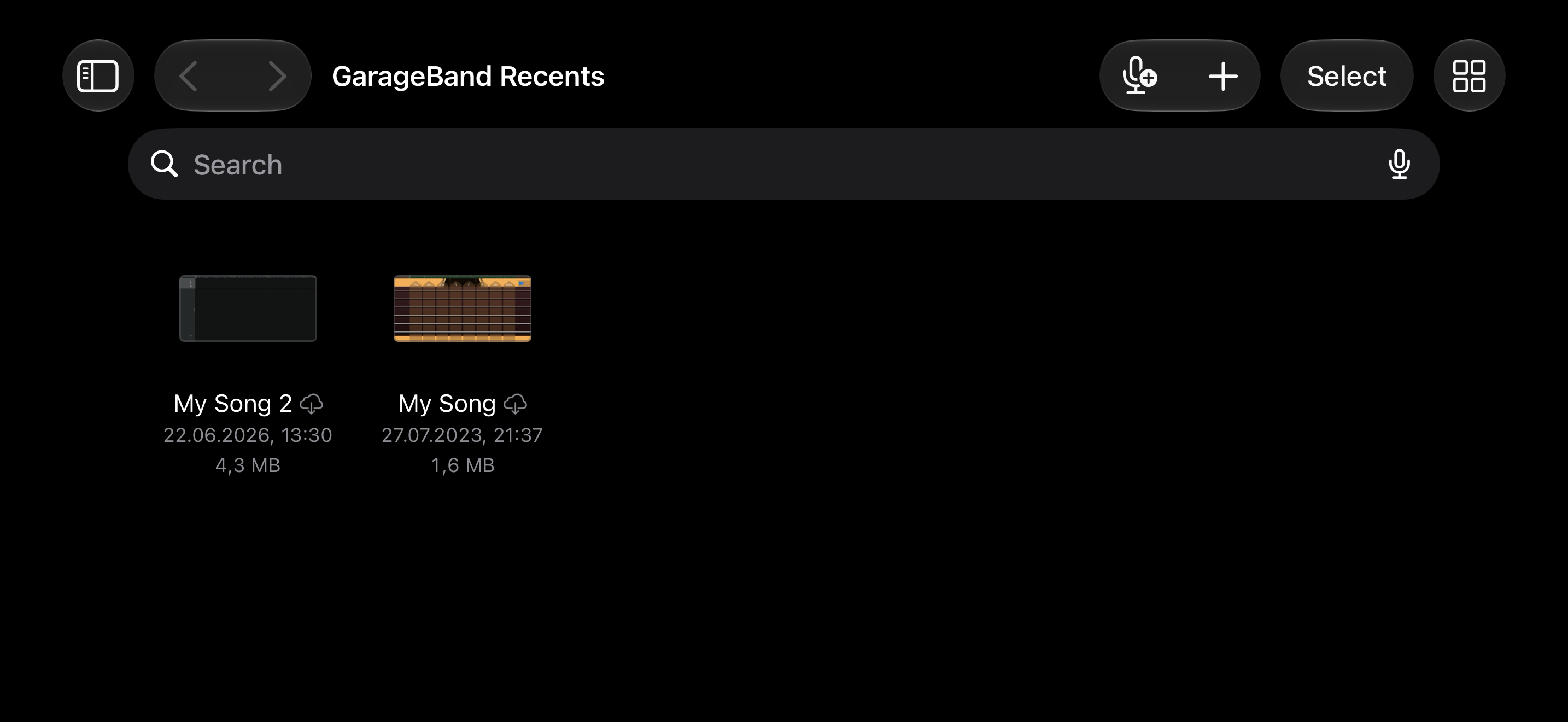
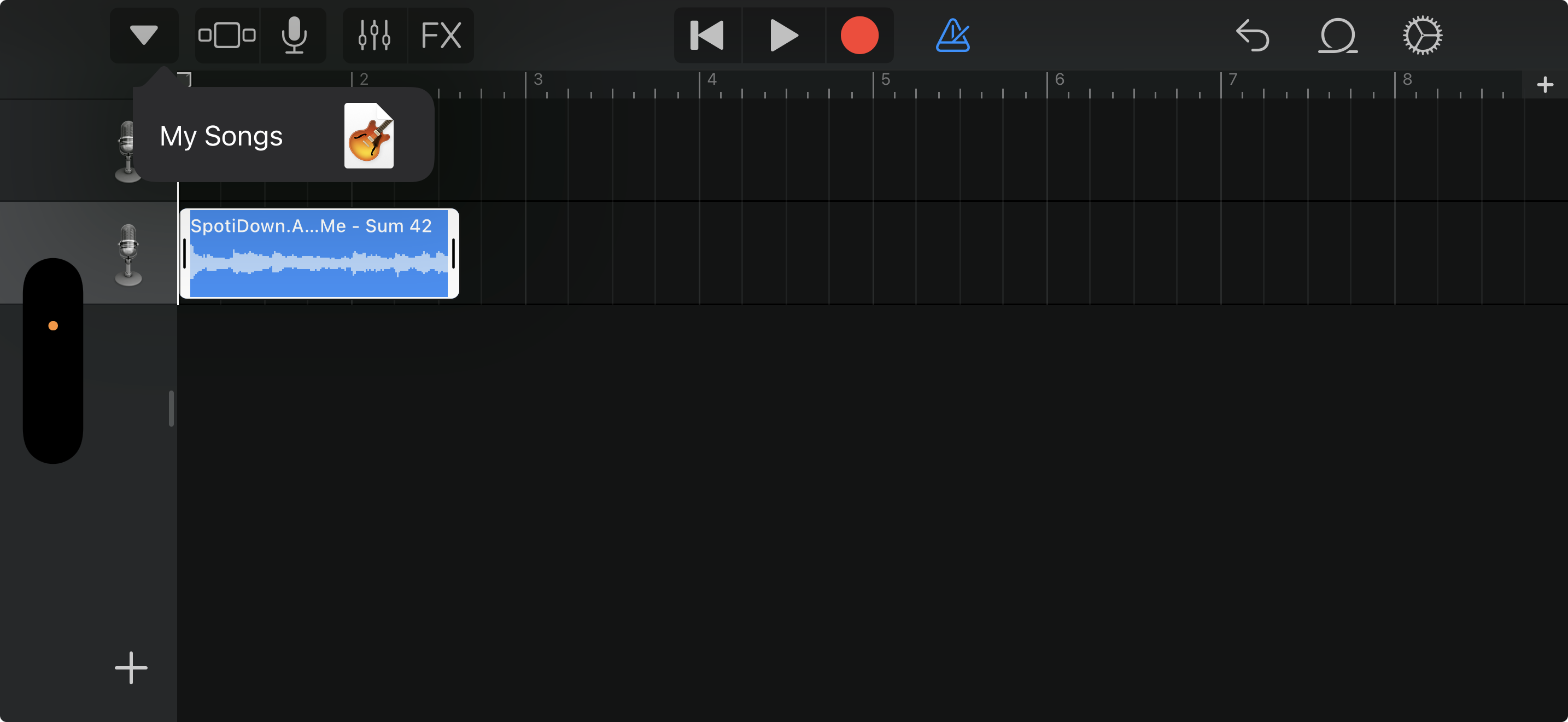
- Tap the downward arrow at the top left and tap My Songs to save the project.
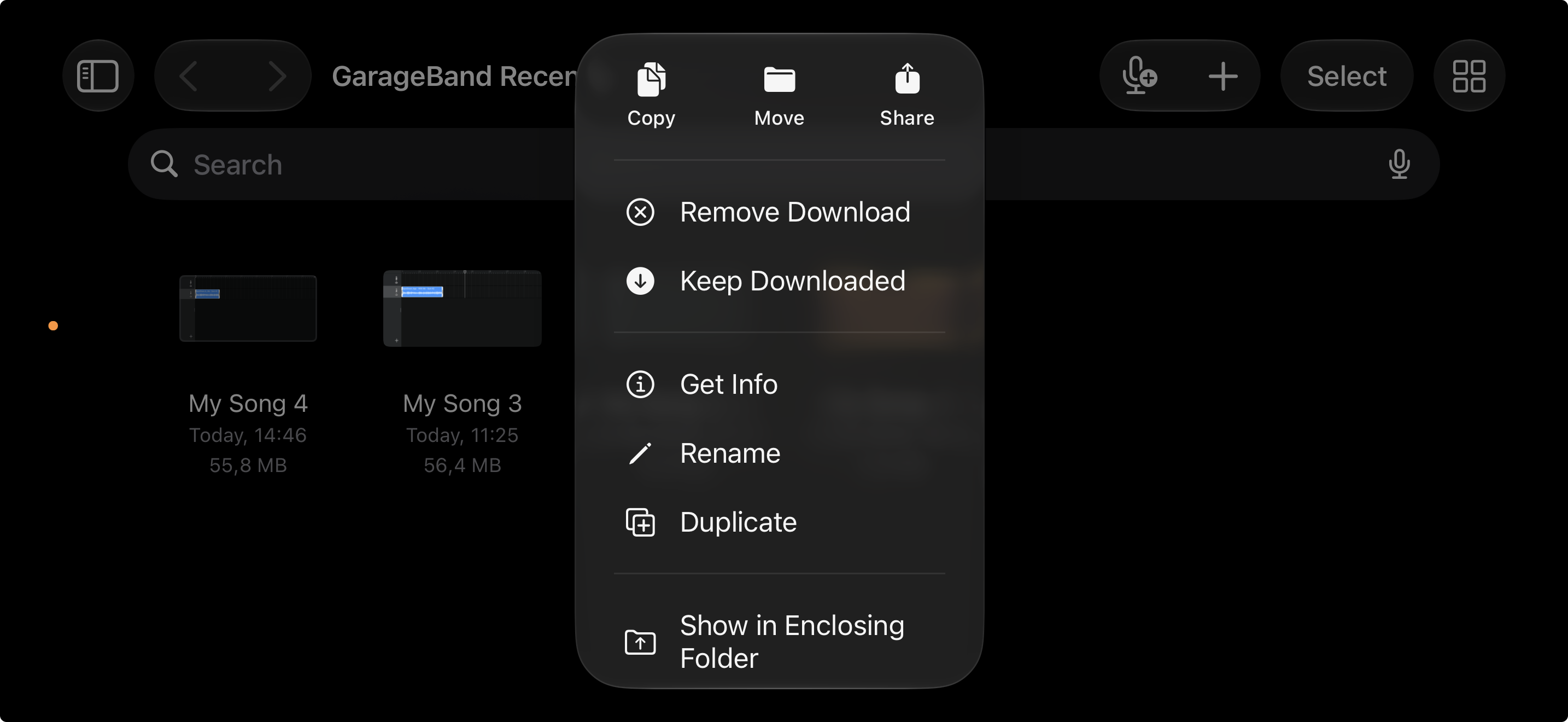
- In My Songs, tap and hold the project tile, then tap Share.
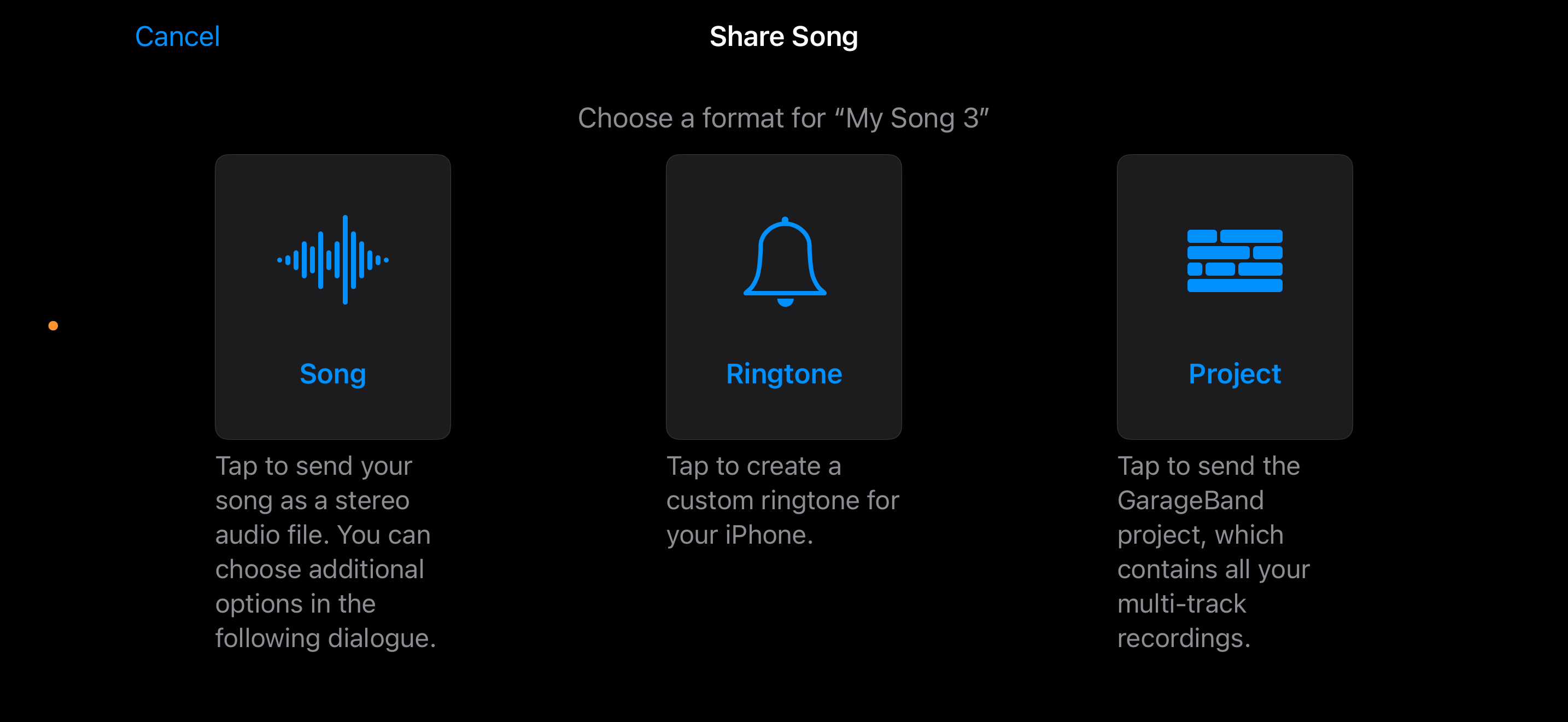
- Tap Ringtone, enter a name, and tap Export.
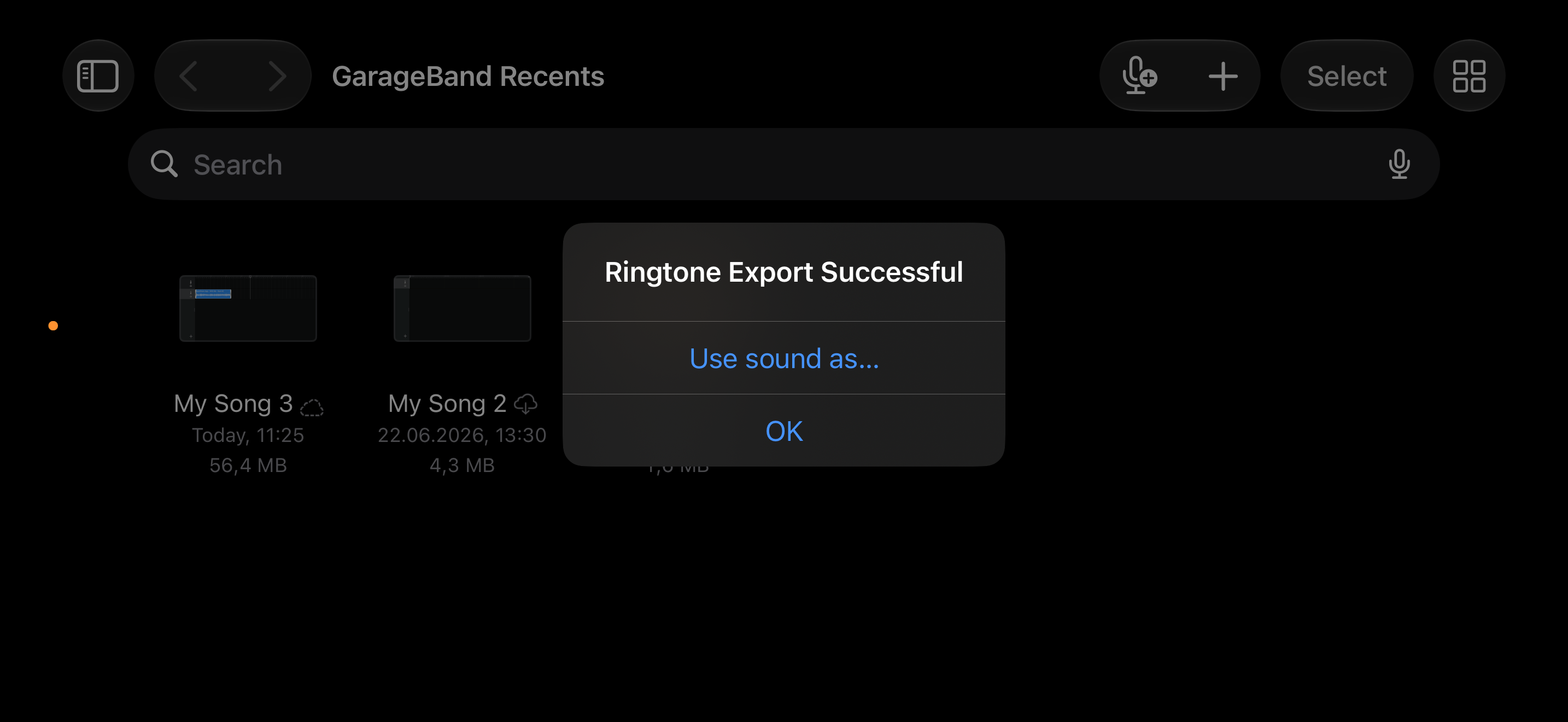
- Once exported, tap Use sound as to set it immediately, or tap Done to save it.
The exported ringtone saves to the same local library as the Files method and appears in Settings > Sounds & Haptics.
After you save a custom ringtone, you can also use it as your alarm by opening the Clock app, editing an alarm, and selecting it under the Sound option.
Method 3: Download a Ready-Made Ringtone from Zedge
If you want a ringtone without editing audio files, Zedge has a library of over 50 million free ringtones formatted for iPhone. Everything in the library is already trimmed to the correct length and saved in M4R format, so there is no trimming or conversion step.
- Download the Zedge app from the App Store.
- Open Zedge and tap Ringtones from the home screen, or browse zedge.net/ringtones in a browser to preview before downloading.
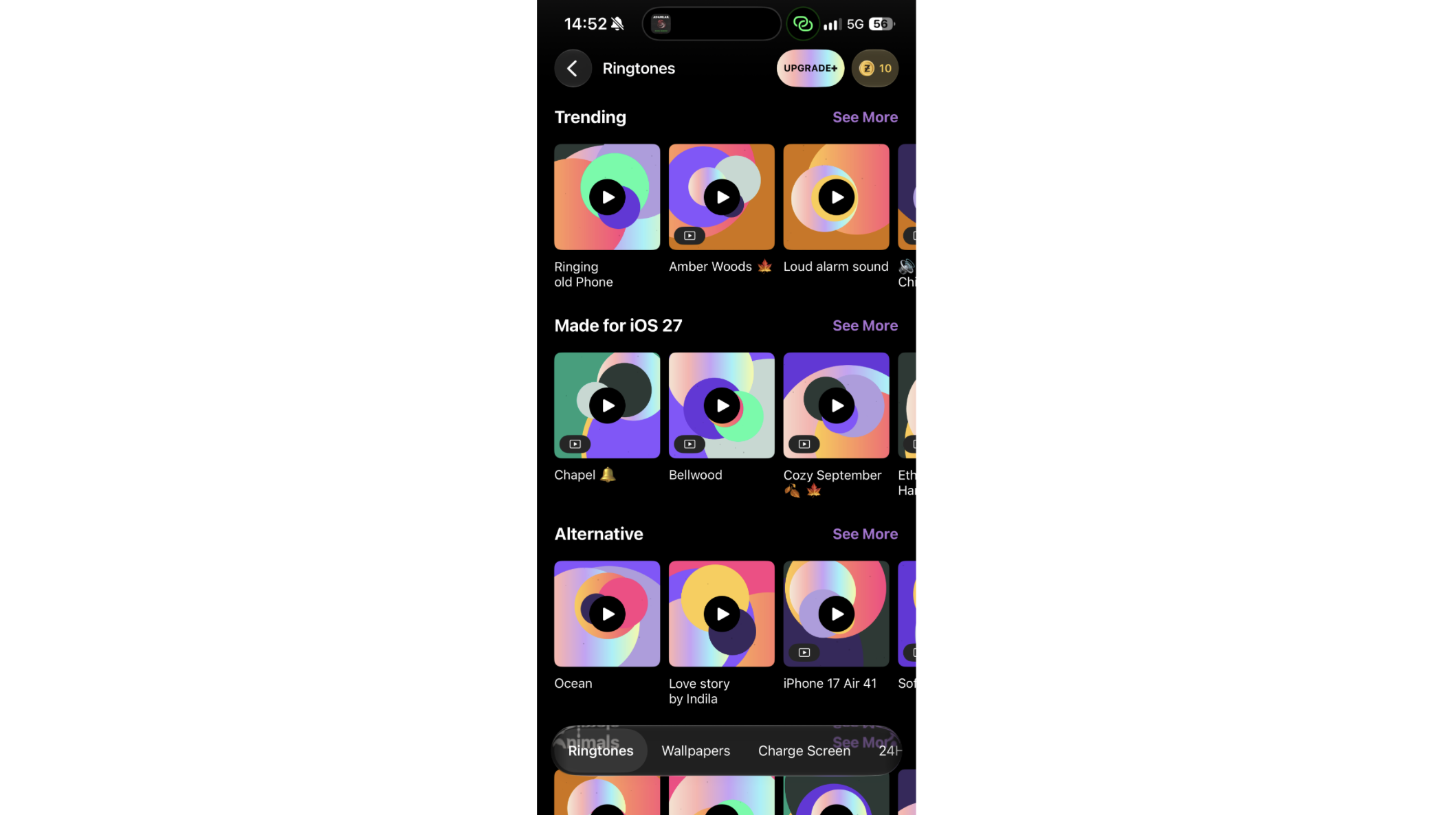
- Search by song title, mood, genre, or artist name. The Zedge iPhone ringtone category filters results to phone-compatible files.
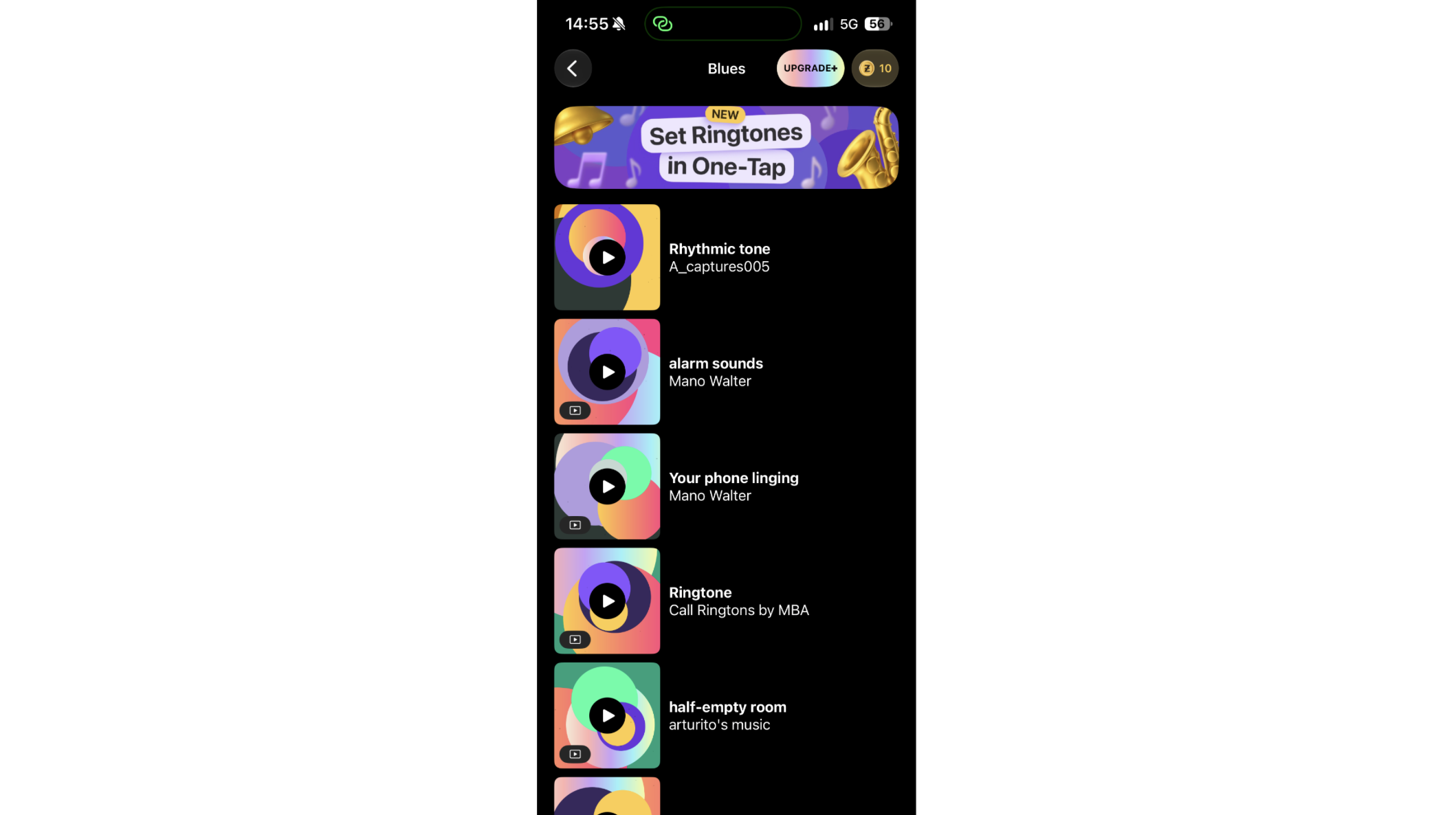
- Tap a ringtone to preview it, then tap Download, and Set on Device.
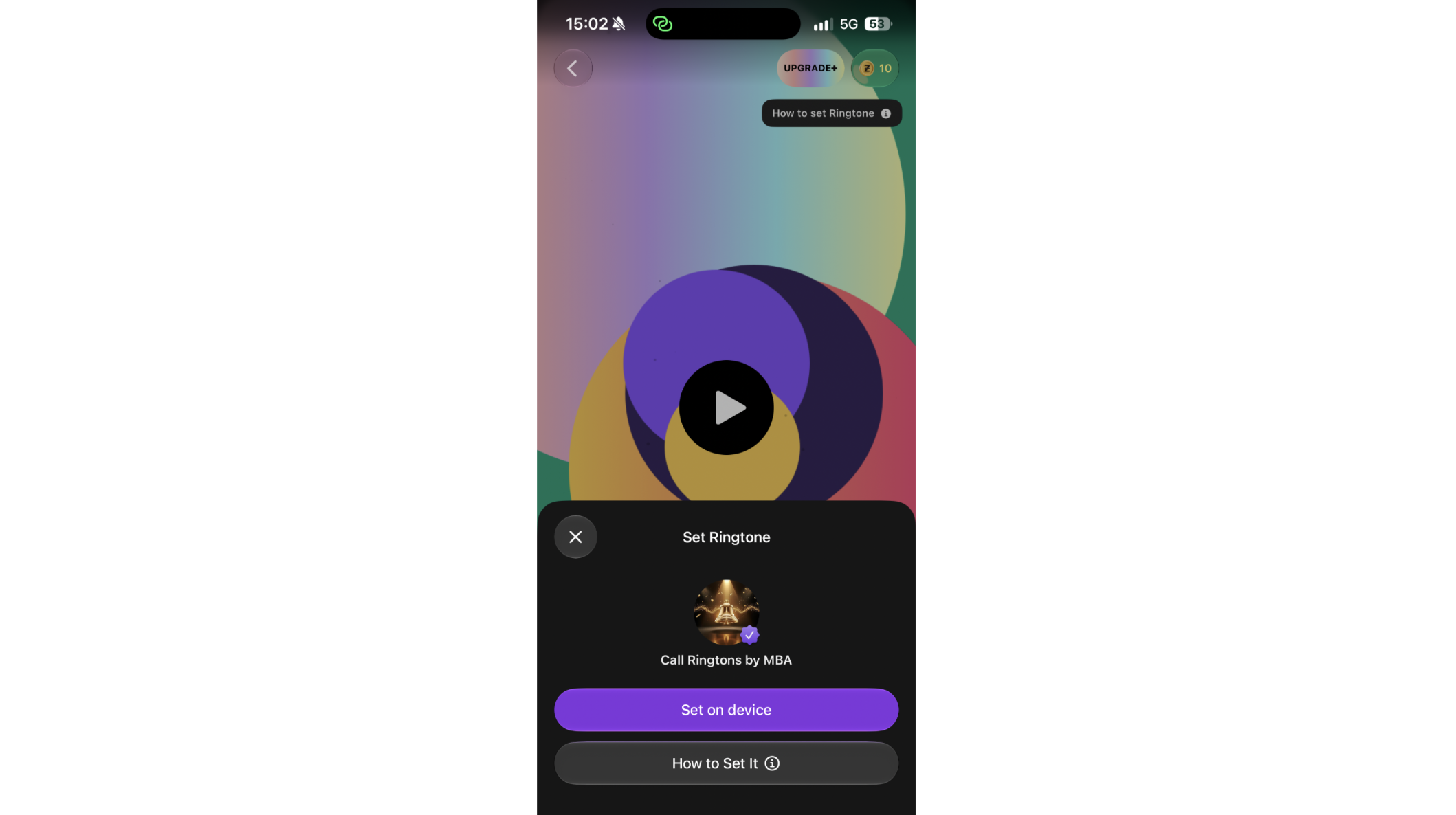
- Then tap Use as Ringtone.
For the widest selection of free options, the best free ringtone apps include Zedge alongside other apps that cover specific genres. If you want to generate a completely original tone from a text prompt or melody idea, an AI ringtone maker can produce a custom audio file you then set using Method 1 or Method 2.
How to Make a Song Your Ringtone
To make a ringtone on iPhone from a specific song, the track needs to be DRM-free, purchased from the iTunes Store rather than streamed through Apple Music or Spotify, which are protected and cannot be exported from the device. Dedicated ringtone maker apps combine sourcing, trimming, and conversion in one step for supported formats.
How to Set the Custom Ringtone
After saving a ringtone using any method above, go to Settings > Sounds & Haptics > Ringtone. Custom ringtones saved to the device appear at the top of the list above Apple's defaults.
To change your ringtone on iPhone for individual contacts rather than system-wide, open the Contacts app, tap a contact, tap Edit, tap Ringtone, and select the custom tone from the list. If the phone does not ring after you set a song as your ringtone, check that the Ring/Silent switch on the side of the iPhone is set to ring mode.
Troubleshooting
The ringtone does not appear in Settings after saving. Close Settings and reopen it. Custom ringtones occasionally take a moment to index. If it still does not appear, open the Files app, locate the audio file, and repeat the "Set as Ringtone" steps.
GarageBand shows the export failed. This usually means the project contains audio from a DRM-protected track. Replace the audio with a file you own and try the export again.
The saved ringtone plays but sounds cut off. The audio file may be shorter than expected. Re-open the file in GarageBand to check its actual length and add silence to extend it if needed.
Zedge ringtones are not appearing in the iPhone ringtone list. Ensure you tapped Use as Ringtone (not just Download) inside the Zedge app. If you only downloaded the file, find it in Files and use Method 1 to complete the setup.
FAQ
How do I make a ringtone on iPhone without a computer?
On iOS 26, open the Files app, long-press any compatible audio file, tap Share, and tap Use as Ringtone. The file is set as your ringtone immediately. No computer or iTunes required. Dedicated apps also show how to make a custom ringtone without any manual file handling.
Can I use any song as a ringtone on iPhone?
You can use any audio file you own or have downloaded as a DRM-free file. Songs from Apple Music or Spotify cannot be used because they are protected and cannot be exported or trimmed on the device.
How long can an iPhone ringtone be?
iPhone ringtones play for up to 30 seconds. Both the Files app and GarageBand enforce this limit during the export step.
Does the Files app method work on older iPhones?
The Set as Ringtone option in the Files app requires iOS 26. On earlier versions of iOS, GarageBand remains the standard on-device method.
Where do custom ringtones save on iPhone?
A custom ringtone saves to the device's local ringtone library and appears in Settings > Sounds & Haptics > Ringtone at the top of the list, above Apple's built-in tones.
Can I set a custom ringtone for one contact?
Yes. Open the Contacts app, tap the contact, tap Edit, then tap Ringtone and choose any saved tone including custom ones.