

Open the Clock app, tap Alarms, tap the alarm you want to change, tap Sound, choose a tone, and tap Back to save. The sections below cover how to use a song, set a custom sound, fix a quiet alarm, and change alarm sounds on Android.
How to Change the Alarm Sound on iPhone (Step by Step)
- Open the Clock app on your iPhone.
- Tap the Alarms tab at the bottom of the screen.
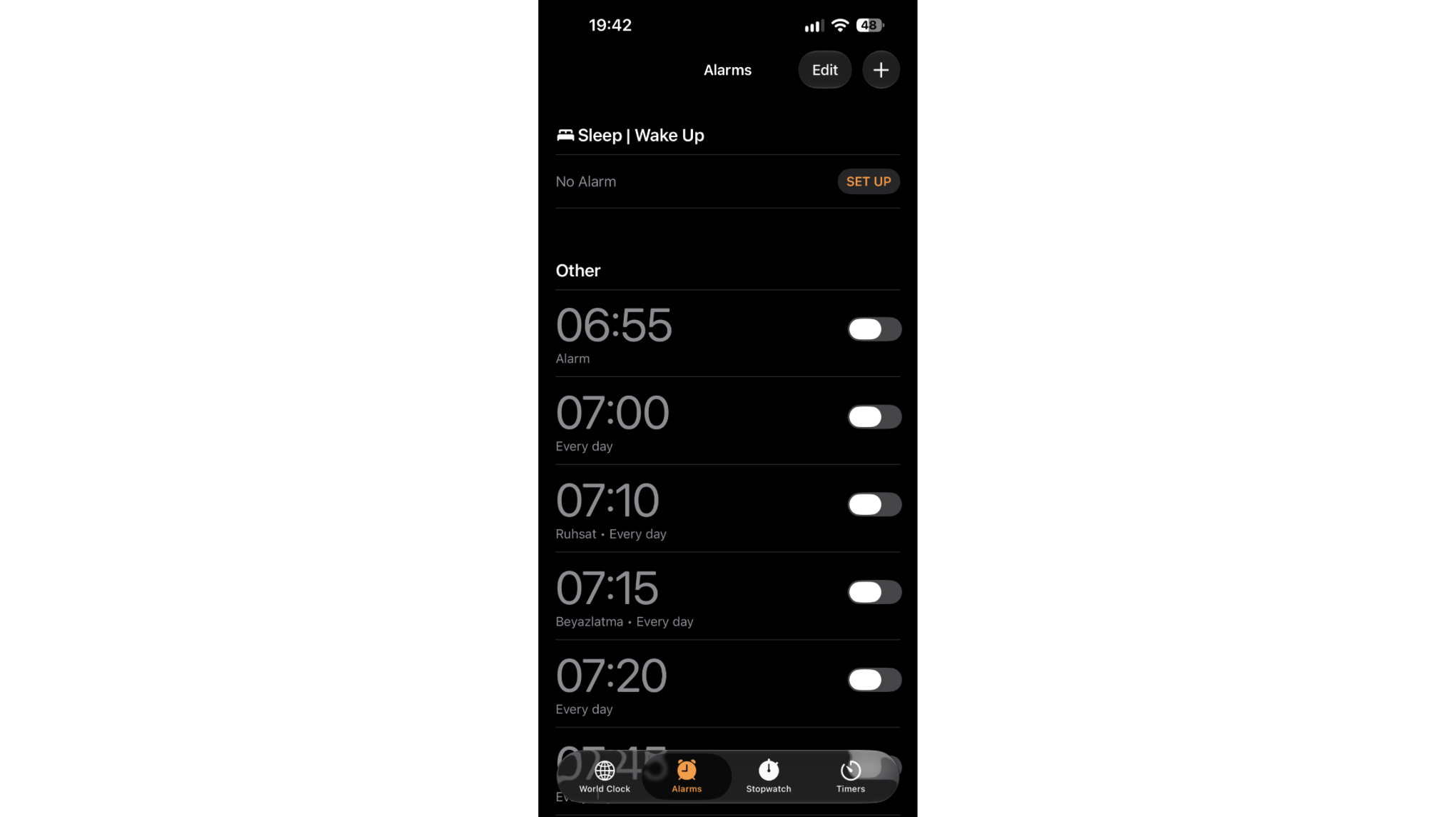
- Tap the alarm you want to edit.
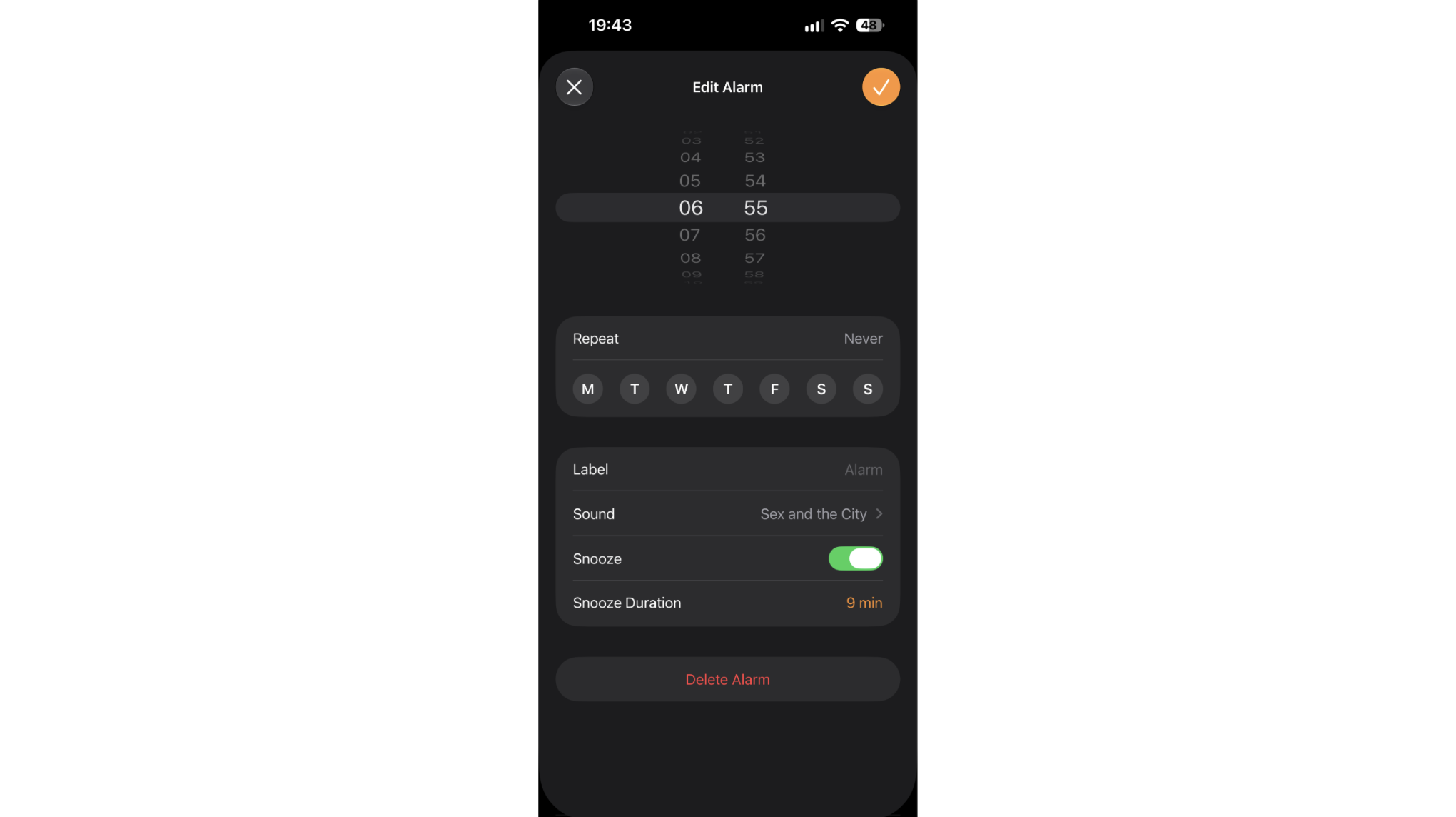
- Tap Sound.
- Browse the list and tap any tone to preview it.
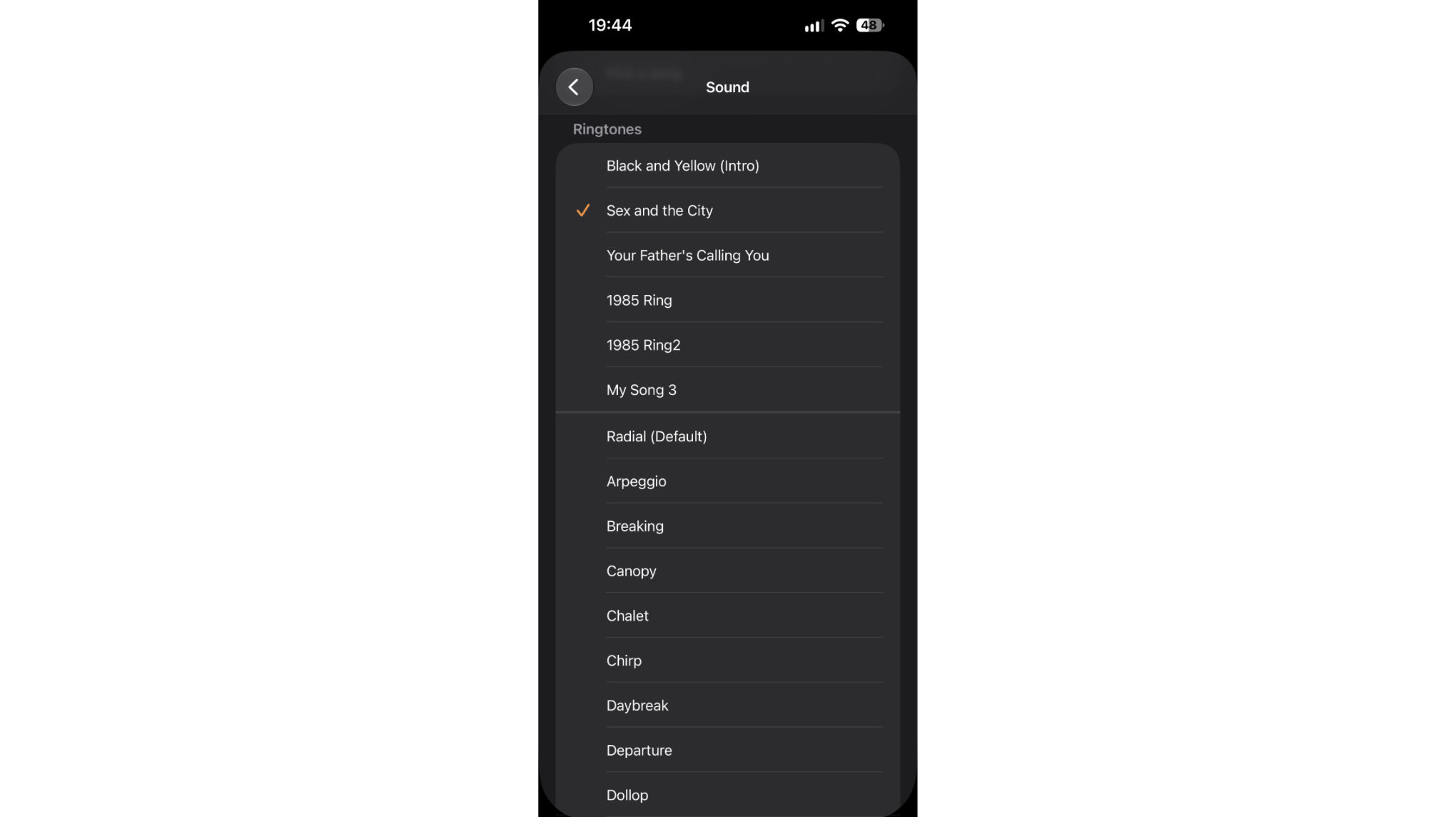
- Tap Back when you hear the one you want. The selection saves automatically.
The alarm plays the selected sound starting with its next scheduled ring. Custom tones you have saved appear at the top of the Sound list above Apple's built-in options, in the same location where you would change your ringtone under Settings.
How to Use a Song as Your Alarm
The Clock app has a built-in option to choose any Apple Music track as an alarm sound. Pick a Song only appears in the Sound list if you have an active Apple Music subscription. If you do not see it, the option is hidden because no subscription is detected on the account.
- Follow steps 1-4 above to open the Sound picker for your alarm.
- Tap Pick a Song at the top of the list.
- Search for a song or browse your Apple Music library.
- Tap the song to select it, then tap Back.
Songs from Apple Music play through the alarm only while your subscription is active. If it lapses, the alarm automatically reverts to the default tone.
For songs you own as downloaded files rather than streamed tracks, you can make a custom ringtone using the Files app or GarageBand on iOS 26, then select it from Custom tones in the Sound list.
How to Set a Custom Alarm Sound
Any tone saved to your iPhone's ringtone library appears in the alarm Sound picker automatically. There are two main ways to get a custom sound onto your device.
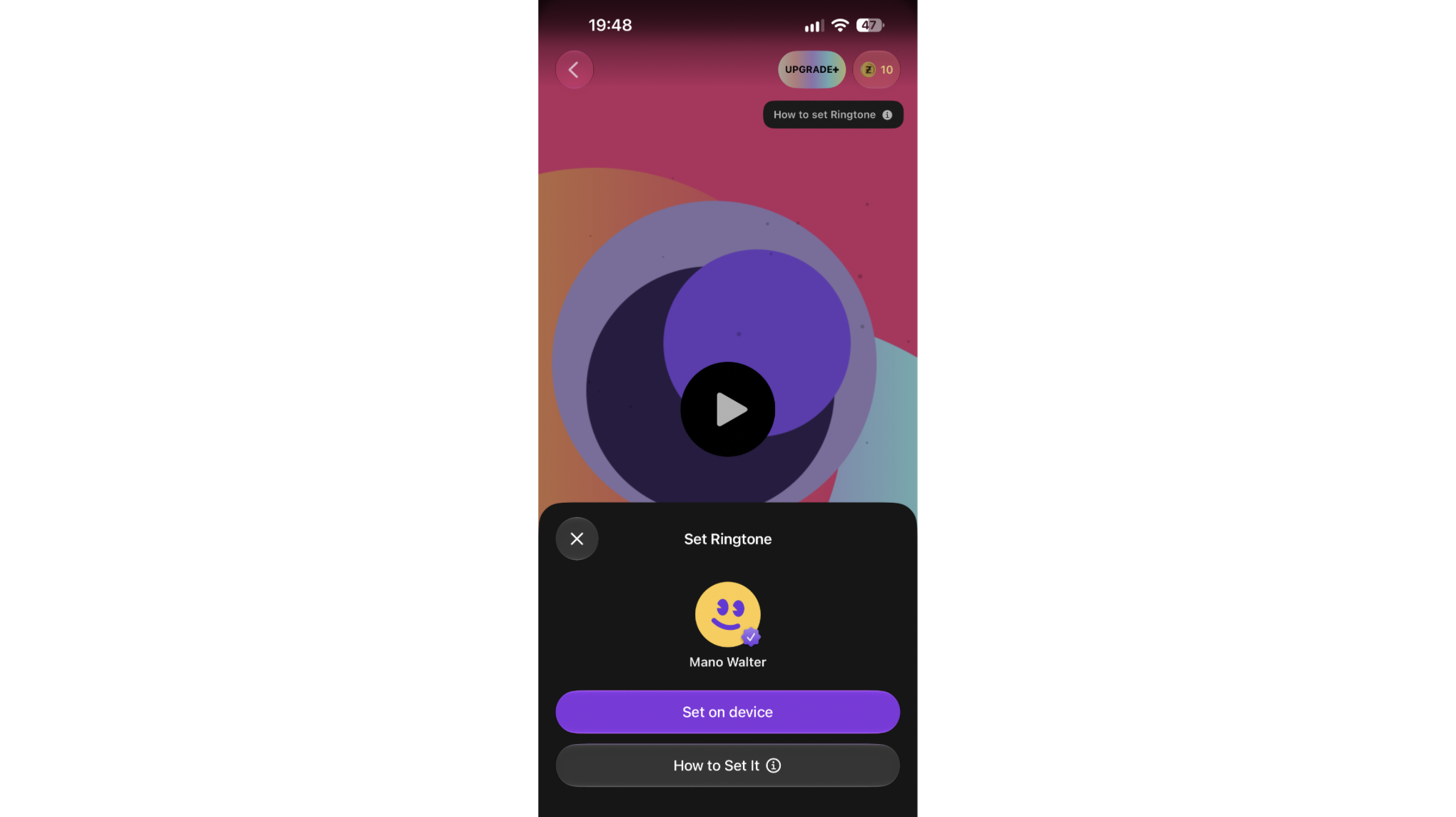
Download a tone from Zedge. Open the Zedge app or browse zedge.net/ringtones to search by genre, mood, or style. When you download the tone from the Zedge app, the tone saves to your ringtone library and appears in the Clock alarm Sound list immediately. Browsing a custom alarm sound library is a fast way to find an option that fits how you want to wake up.
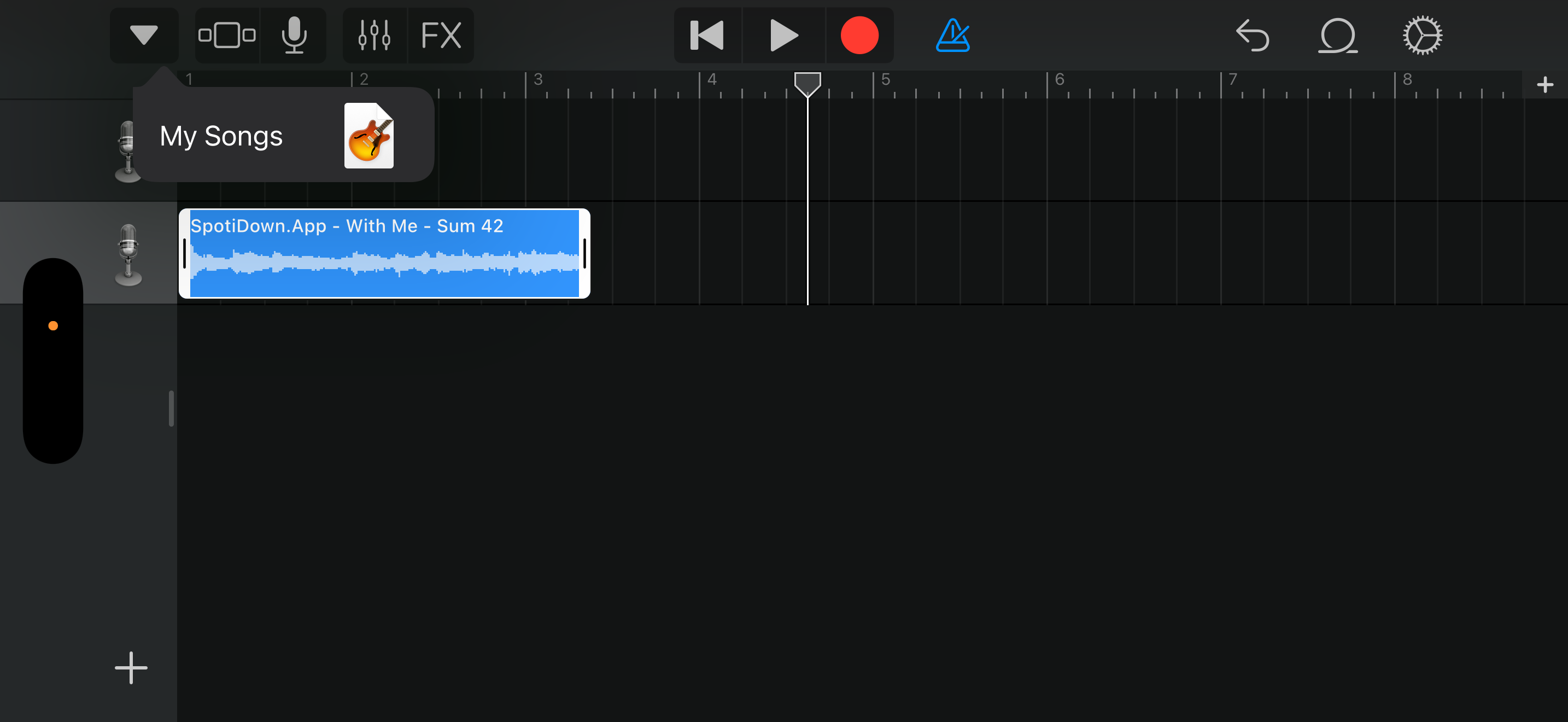
Create one in GarageBand. Import an audio file into GarageBand, trim it to 30 seconds or less, and export it as a ringtone. The exported tone appears in the Sound picker alongside Apple's defaults.
If you want to purchase a specific alarm tone rather than using a free download, the same tone files work for both alarms and ringtones on iPhone and Android.
Once the tone is in your library, go to Clock > Alarms, tap the alarm, tap Sound, scroll to Custom tones at the top of the list, and select it.
Change the Sleep / Wake Up Alarm Sound
The wake-up alarm set through the Health app uses a separate sound setting from standard Clock alarms.
- Open the Health app.
- Tap Browse at the bottom right.
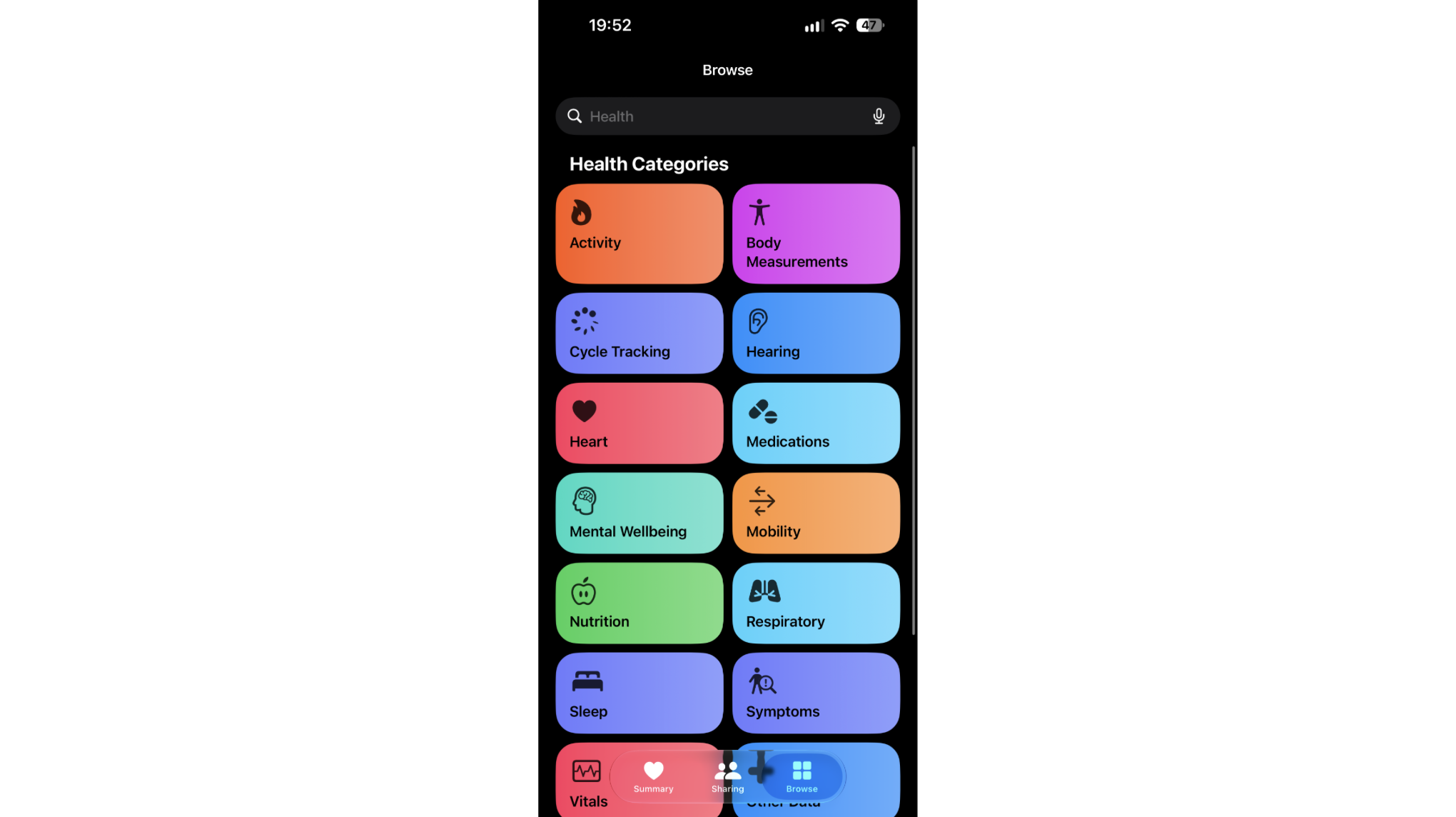
- Tap Sleep.
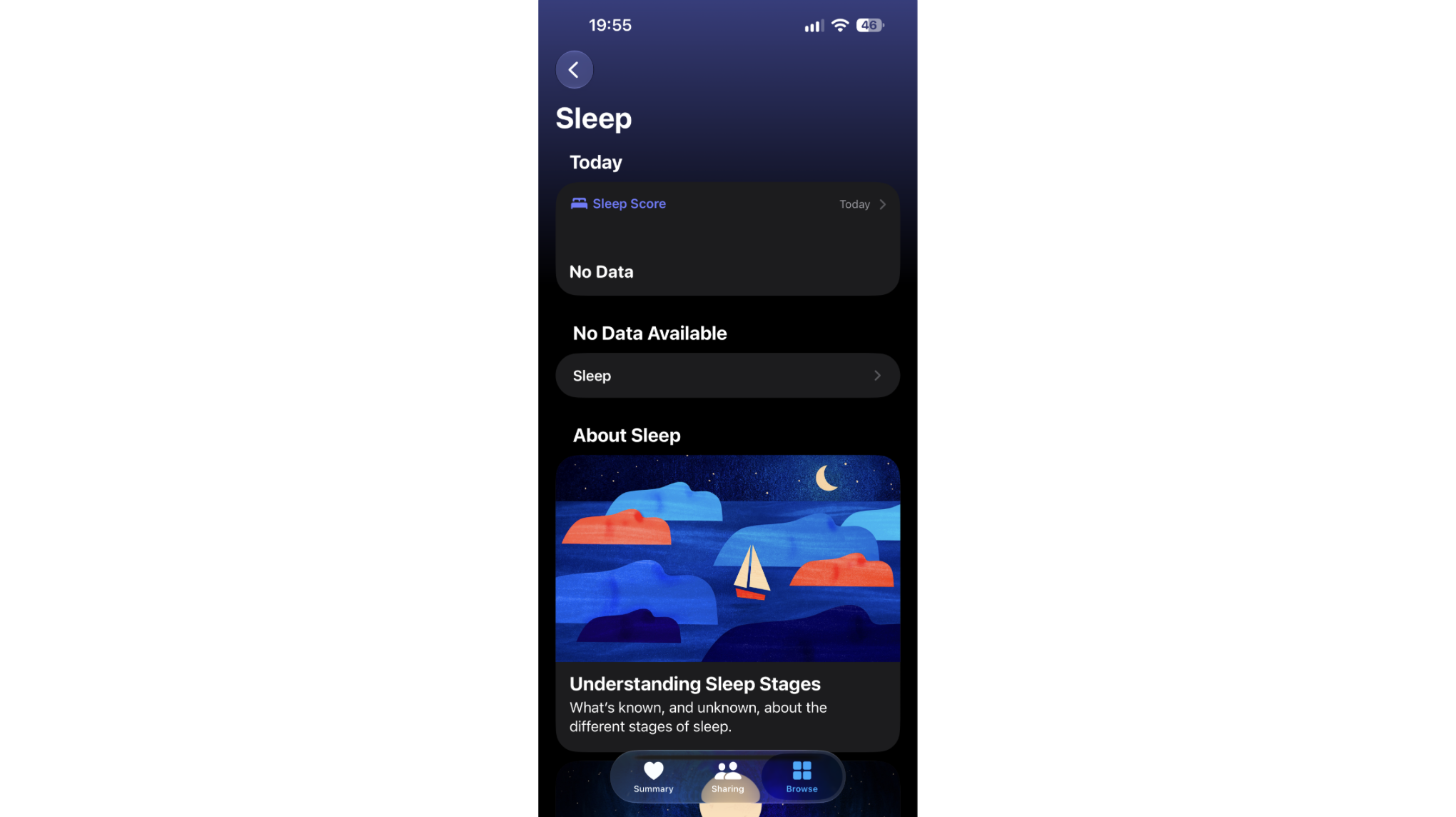
- Scroll to Your Schedule and tap Full Schedule & Options.
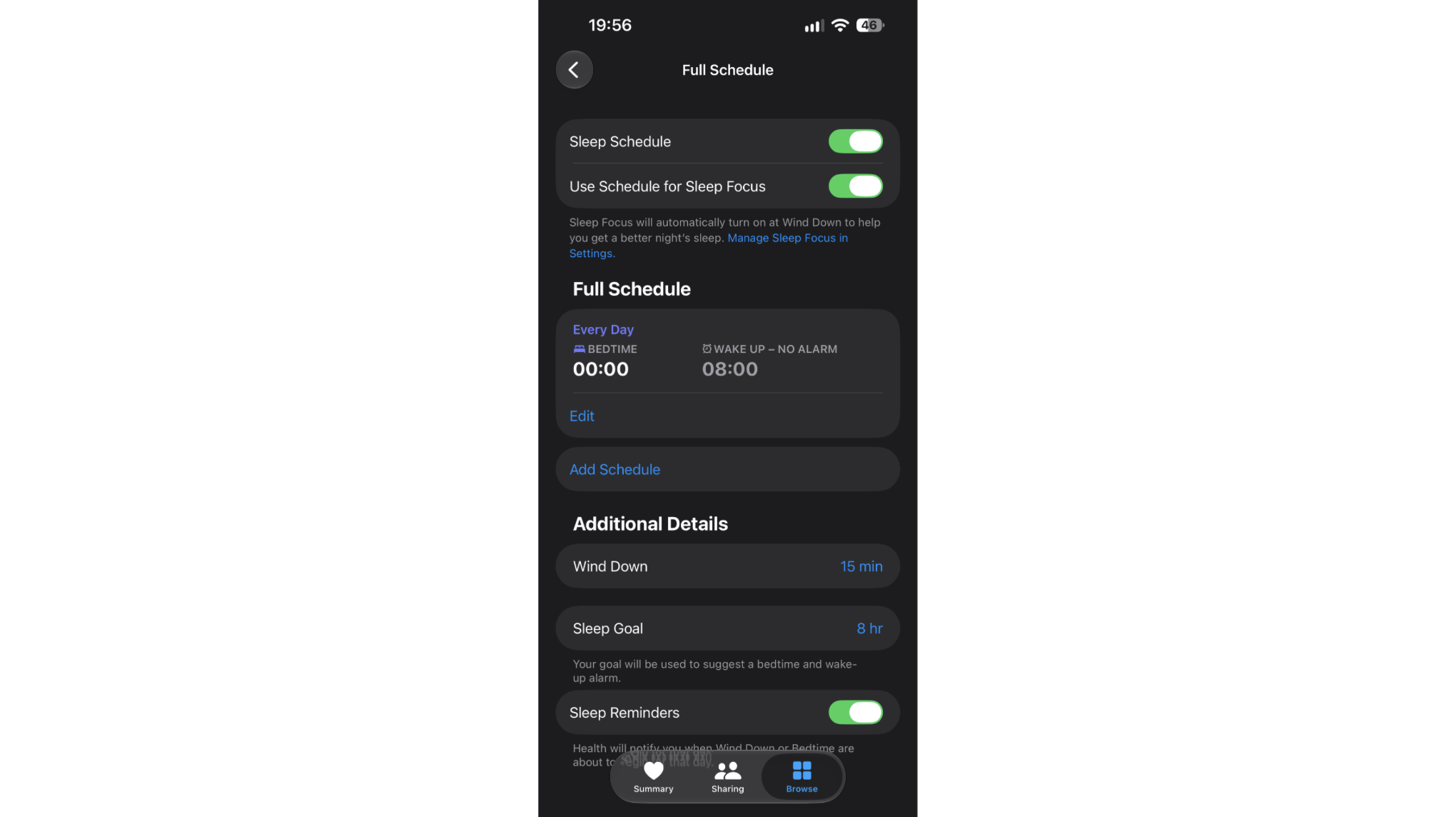
- Tap Edit right under the Full Schedule.
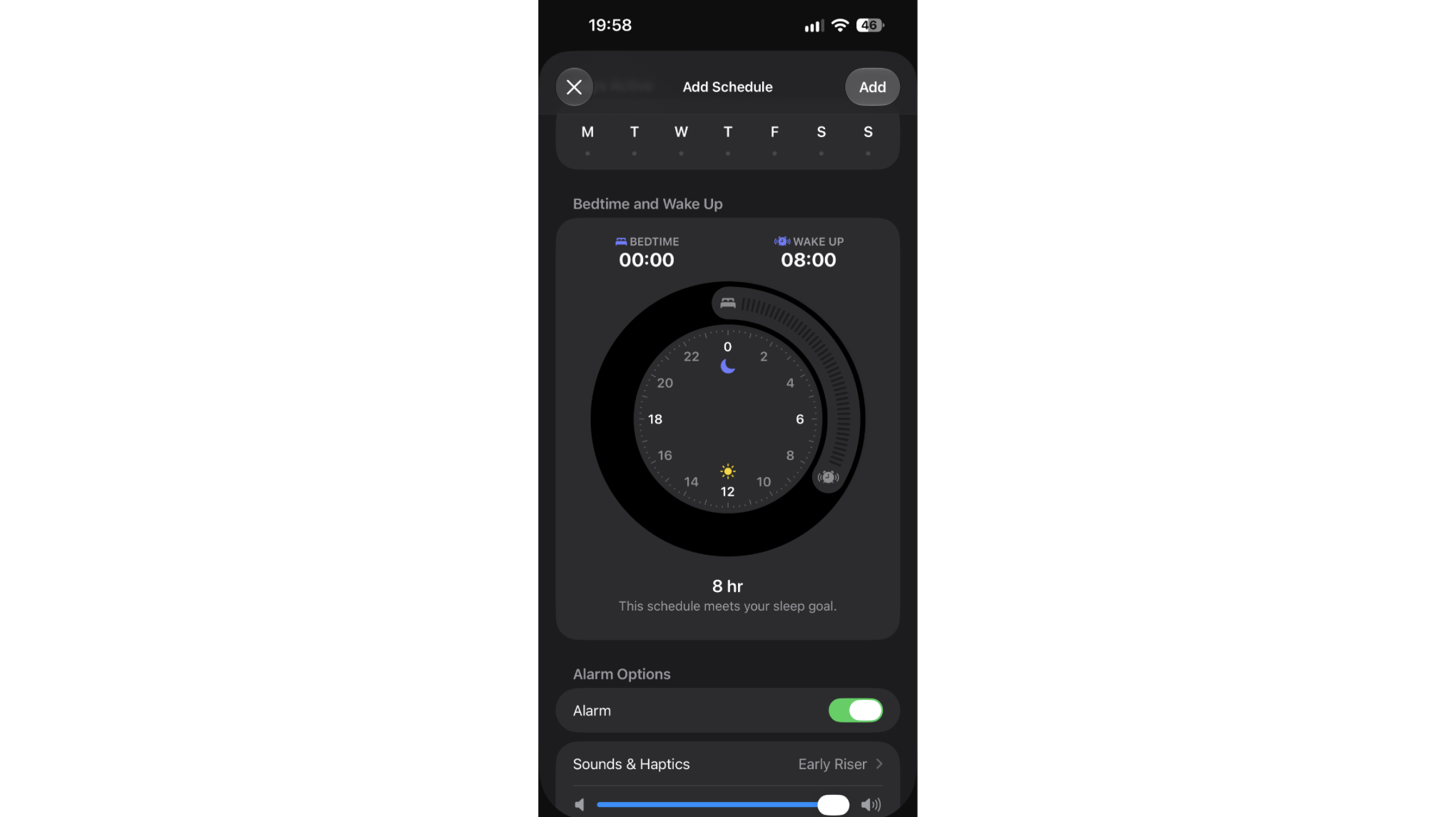
- Tap Sounds & Haptics and choose from the available tones.
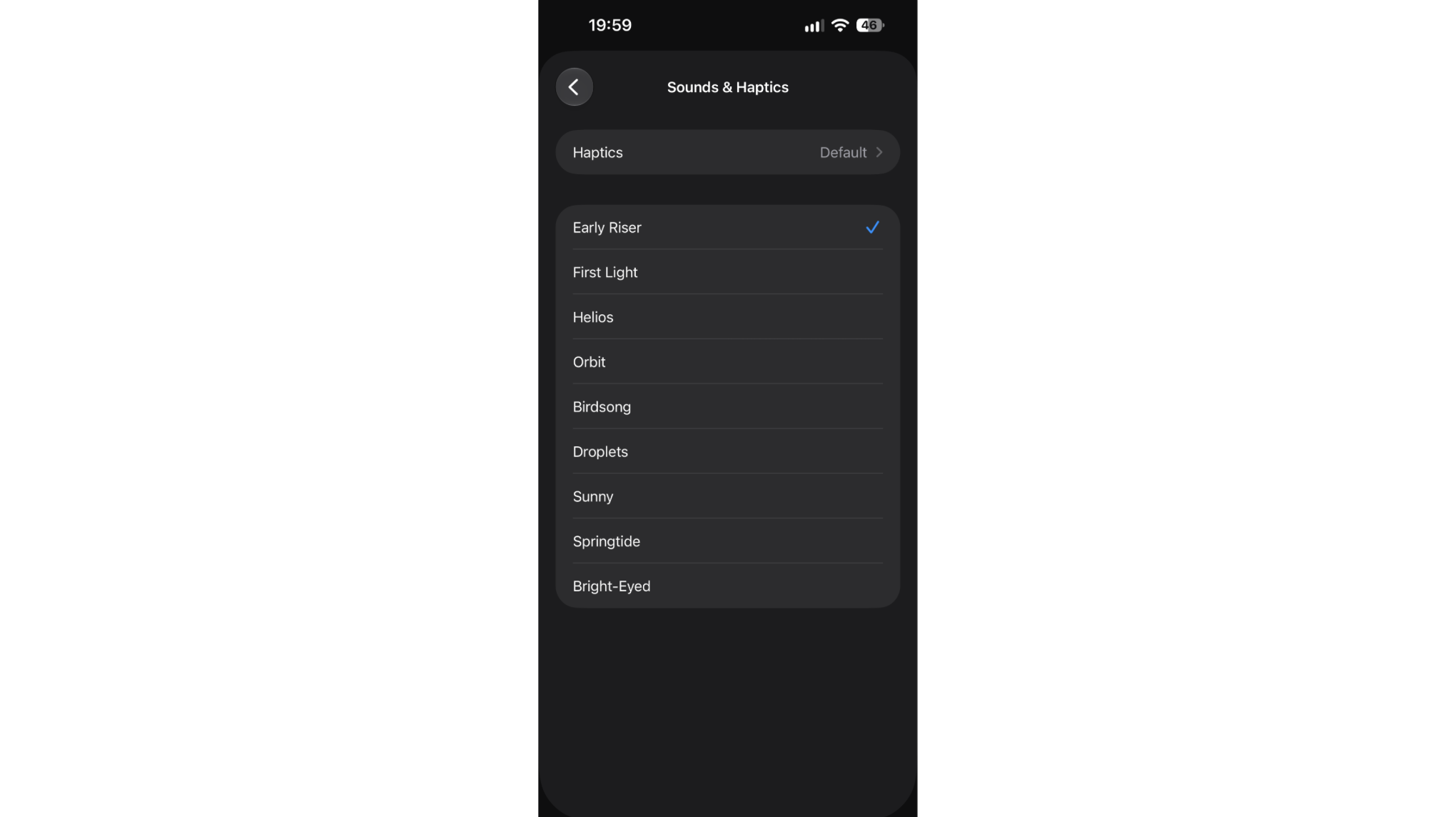
Changes here apply only to the Sleep wake-up alarm. Standard Clock alarms are not affected. The Health app Sound list does not include custom ringtones or Apple Music tracks, only the default system tones.
iPhone Alarm Too Quiet or Not Going Off? Fixes
If your alarm sound is too quiet or not playing at all, the cause is usually one of four settings.
Check ringer volume. Go to Settings > Sounds & Haptics and drag the Ringtones slider to the right. Alarm volume is controlled by this slider, not the media volume buttons.
Disable Change with Buttons. On the same screen, turn off Change with Buttons if it is enabled. With this setting on, pressing the side volume buttons lowers the ringer and alarm volume without any on-screen warning.
Check Focus mode. Some Focus configurations suppress all sounds including alarms. Open Control Center, tap Focus, and turn off any active mode. Or go to Settings > Focus, open the active mode, and verify that alarms are not muted.
Disable Attention Aware Features. iPhone detects when you are looking at the screen and lowers the alarm volume automatically. To stop this, go to Settings > Face ID & Passcode and turn off Attention Aware Features.
If the alarm still does not play after checking these settings, software bugs or Do Not Disturb may be causing your iPhone not ringing, that can also affect alarms.
How to Change the Alarm Sound on Android
The steps vary slightly between manufacturers but follow the same path through the Clock app.
Google Pixel and stock Android:
- Open the Clock app.
- Tap Alarm.
- Tap the alarm to expand it.
- Tap the bell icon or the name of the current alarm sound.
- Choose a sound from the list and tap OK.
Samsung (One UI):
- Open the Clock app.
- Tap the alarm to open its settings.
- Tap Alarm sound.
- Choose Ringtones, Music, or a downloaded file.
- Tap Save.
On both platforms, you can select a song from your downloaded music library by tapping the music note icon or the file browser within the sound picker. Spotify does not integrate directly with the system Clock app on Android, so streaming songs as alarms requires a third-party alarm application.
Best Alarm Sounds to Wake Up To
The right alarm sound depends on how deeply you sleep and how abruptly you want to wake up. The following types all have large free selections on zedge.net:
- Gentle rising tones. Soft chimes or sounds that increase gradually rather than starting at full volume. Good for light sleepers or shared rooms.
- Classic alarm bells. Traditional ringing that cuts through deep sleep reliably. Best for people who need an abrupt wake-up.
- Upbeat music clips. Short loops from pop or electronic tracks. Effective for people who respond better to rhythm than abstract tones.
- Nature sounds. Birds, rain, or ocean waves. Lower stress response than sharp tones, though they may not work for heavy sleepers.
- Notification-style tones. Short repeated beeps that feel familiar and are easy to locate by sound from across a room.
- Custom voice recordings. A message in your own voice or someone else's. Effective as a novelty for especially difficult mornings.
If a gentle option does not wake you reliably, switch to a louder tone and set a backup alarm two minutes later as a safety net.
FAQ
How do I make sure my alarm goes off?
Confirm the alarm toggle is green and the scheduled days are correct. Check that Settings > Sounds & Haptics > Ringtones is above zero. Make sure no Focus mode is active and that the Ring/Silent switch on the side of the iPhone is set to ring mode.
Is it possible to change the alarm volume on iPhone?
Yes. Go to Settings > Sounds & Haptics and drag the Ringtones slider. This is the only control for alarm volume. The side buttons change this volume only when Change with Buttons is turned on under the same screen.
Can I use a Spotify song as an alarm on iPhone?
No. Spotify does not integrate with the iPhone Clock app. You can use an Apple Music track through the built-in Pick a Song option. For Spotify tracks, download a DRM-free version of the audio, save it as a custom ringtone using GarageBand, and then select it in the alarm Sound list.
Why is my iPhone alarm sound different?
The most common reasons are an iOS update resetting the alarm to a default tone, or the sound being changed accidentally. Open Clock > Alarms, tap the alarm, and tap Sound to see what is currently selected. To change the alarm sound on iPhone for every alarm at once, each alarm needs to be updated individually since the Sound setting is stored per alarm, not system-wide.