

On Android, open Settings, tap Sound & Vibration, and tap Notification sound to pick a new tone. iPhone uses a different path through Settings > Sounds & Haptics, and both platforms support custom audio files if the built-in options are not enough.
How to Change Notification Sound on Android
The way you change your notification sound depends on whether you want to update the system default for all apps or set a different sound for a specific one. The steps below cover the system default for the three most common Android configurations.
Samsung Galaxy (One UI 8)
- Open Settings.
- Tap Sounds and vibration.
- Tap Notification sound.
- Browse the list and tap a sound to preview it.
- Tap Done to confirm.
The selected sound applies to all apps that use the default notification channel. Apps with their own in-app sound settings, such as WhatsApp, play their own tones unless you change them separately through the app or its notification categories.
Google Pixel (Android 16)
- Open Settings.
- Tap Sound & vibration.
- Tap Default notification sound.
- Tap a sound to preview it, then tap Save.
Other Android Phones
On most Android phones, the path is Settings > Sound > Notification sound. Some manufacturers label the menu differently: look for Sounds and vibration, Audio, or Ringtone and sound. The notification sound option is always one level below the main Sound menu.
How to Change Notification Sound for a Specific App
Android lets you assign a different sound to each app through its notification categories, which were introduced as notification channels in Android 8.
- Open Settings.
- Tap Apps or Notifications.
- Tap the app you want to change.
- Tap Notifications.
- Tap the notification category; for Messages this is typically Default, for Gmail it may be Email.
- Tap Sound and choose a tone from the system list.
WhatsApp manages its notification sounds inside the app rather than through system settings. Open WhatsApp, go to Settings > Notifications, and choose a tone for Messages, Groups, and Calls independently.
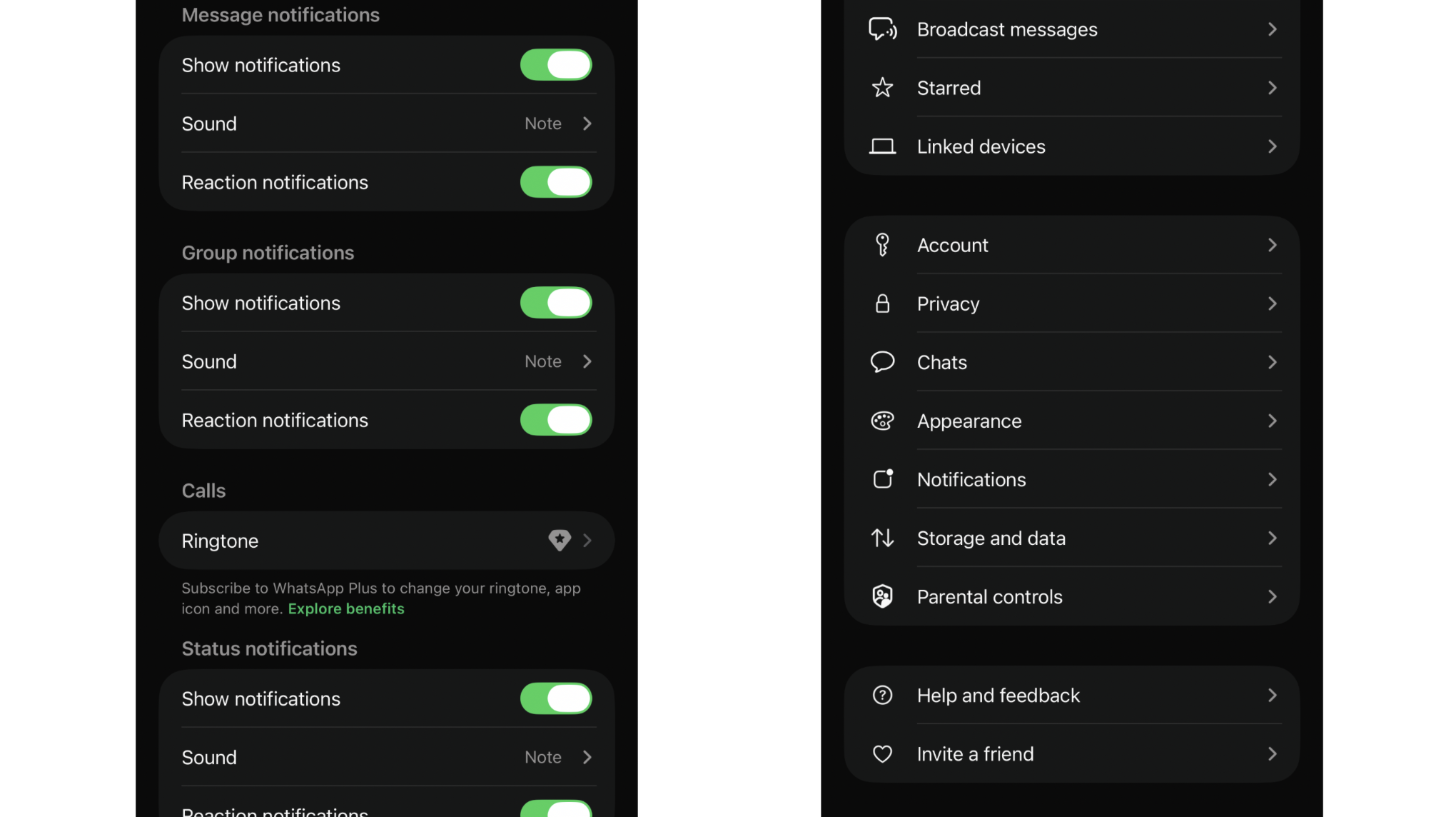
Gmail maps notification categories to Android's system settings. Go to Settings > Apps > Gmail > Notifications, tap a category, and select a sound from there.
The best notification apps for Android let you assign sounds, vibration patterns, and LED colors per sender rather than just per app, going further than the system settings allow.
How to Change Notification Sound on iPhone
iPhone organizes notification sounds by category rather than by individual app. Each system category has its own sound setting.
- Open Settings.
- Tap Sounds & Haptics.
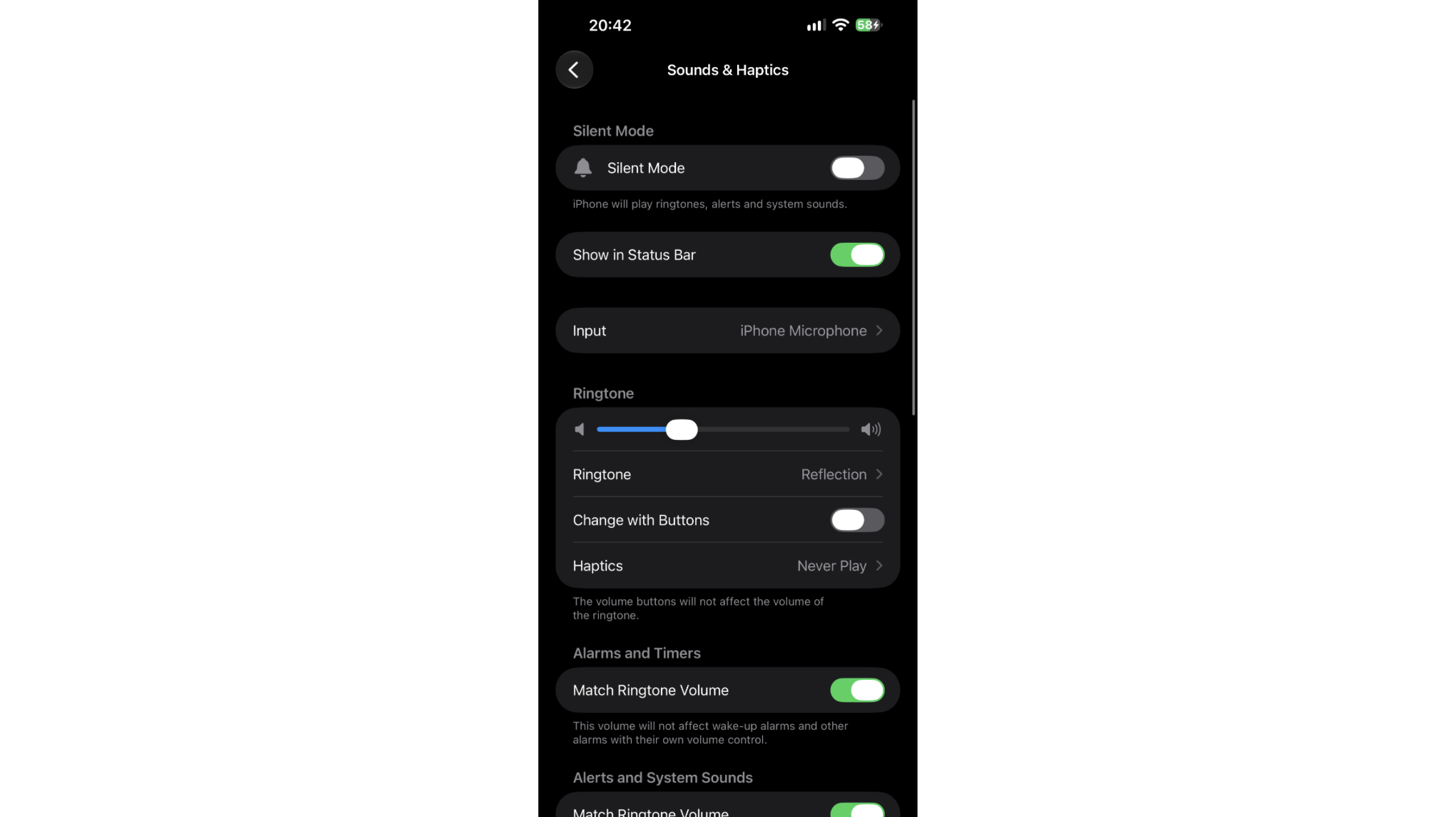
- Tap the category you want to change: Text Tone for iMessages and SMS, New Mail for email, Reminder Alerts for reminders, and so on.
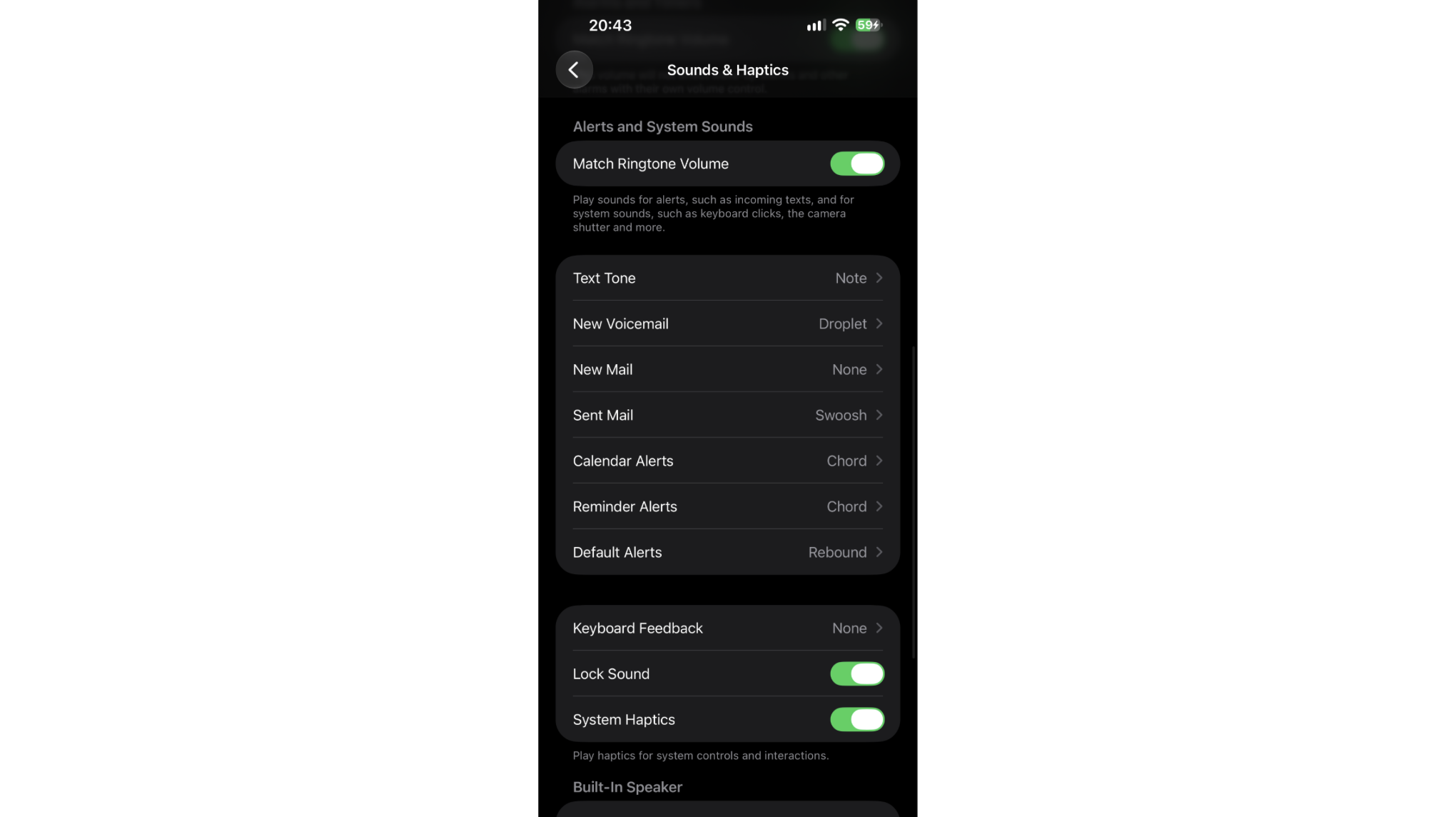
- Tap a sound to preview it.
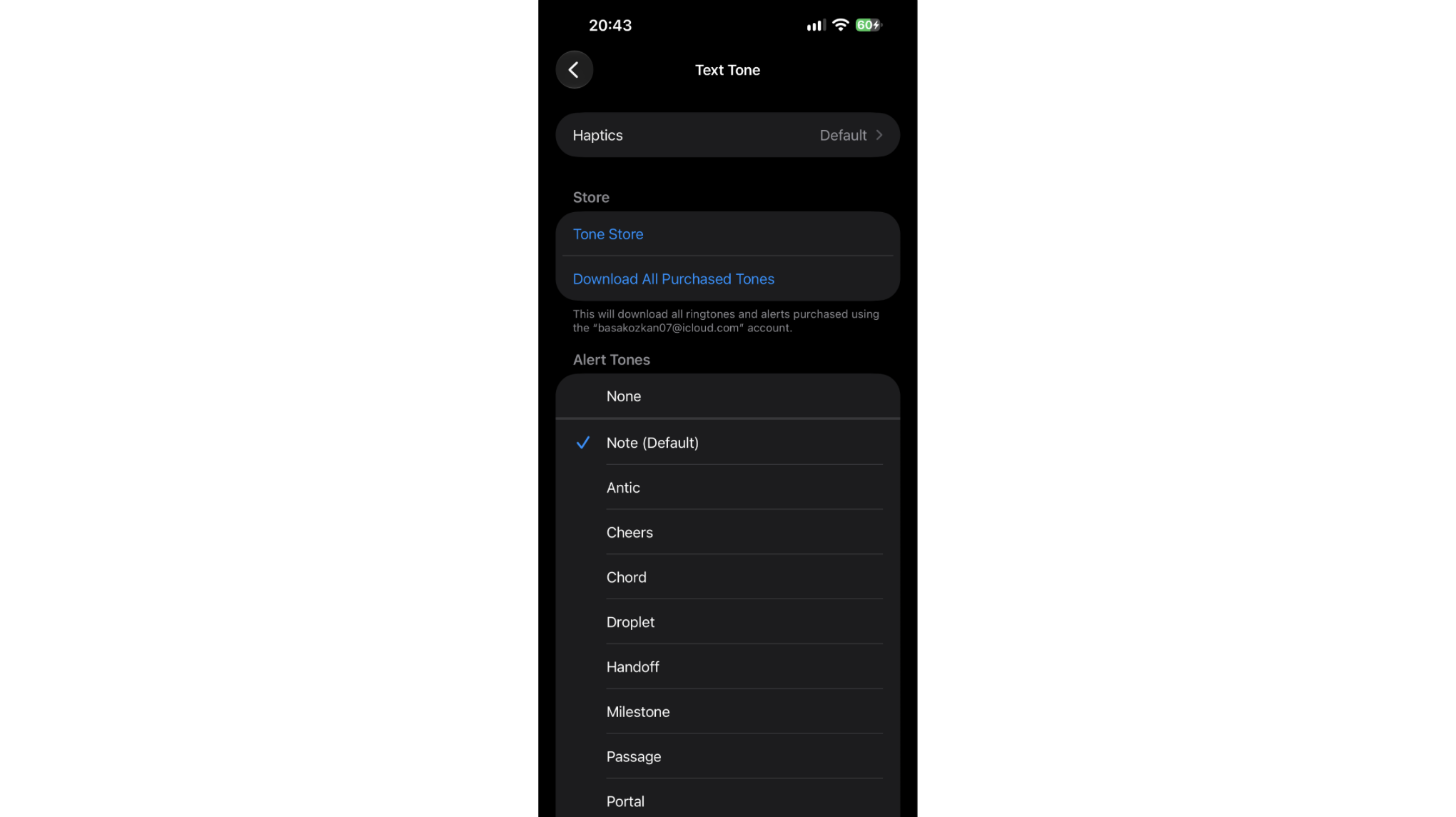
- Tap Back to save the selection.
You can change your ringtone and system notification sounds from the same Sounds & Haptics screen. iOS does not allow third-party apps to appear in that list, however. Apps like WhatsApp, Telegram, and Slack use only the sounds built into the app itself. To change those, open the app and look for a Notifications section in its settings.
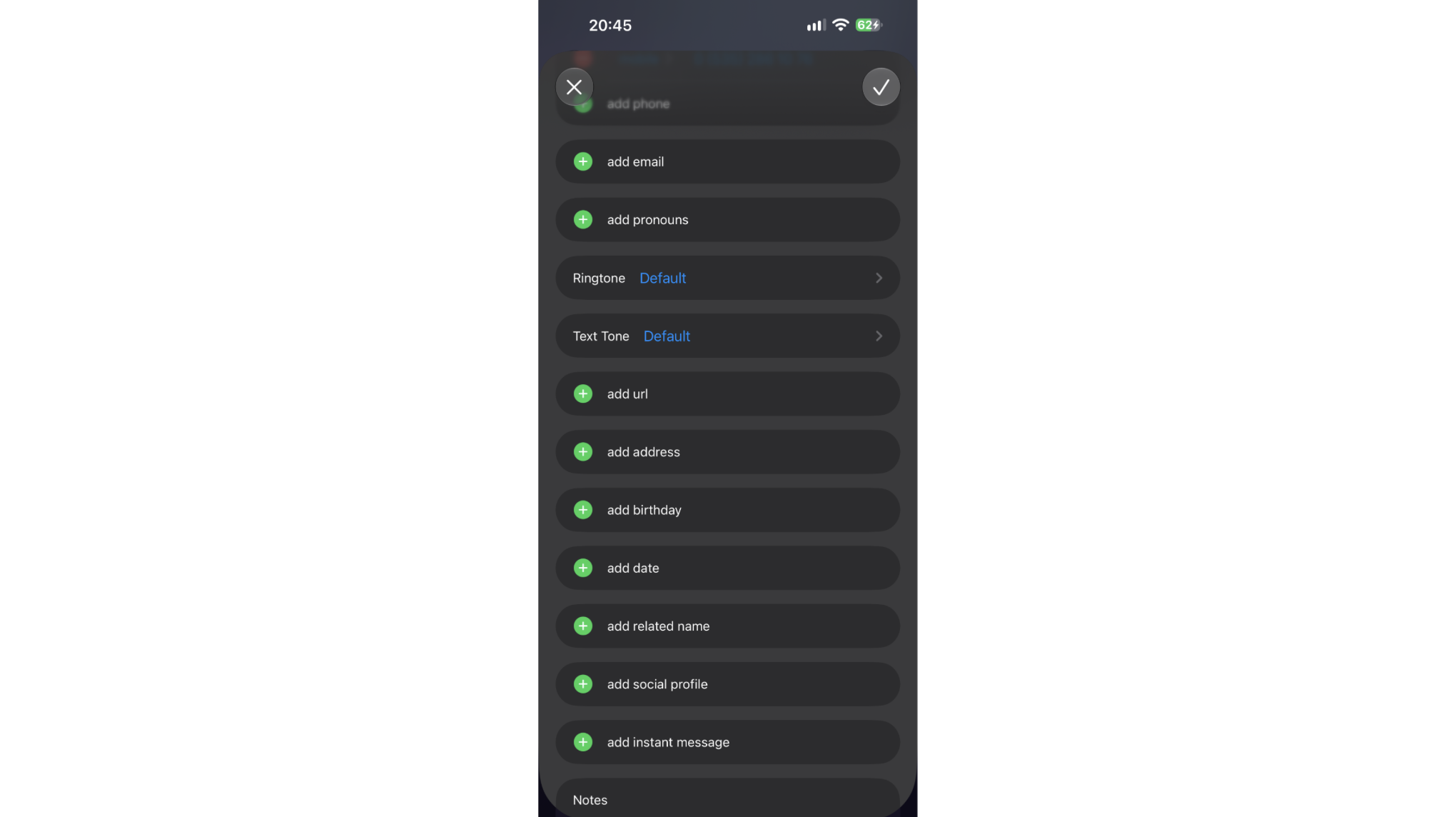
To set a different text tone for a specific contact rather than all contacts, open Contacts, tap the contact, tap Edit, tap Text Tone, and choose a sound.
How to Add a Custom Notification Sound
Android
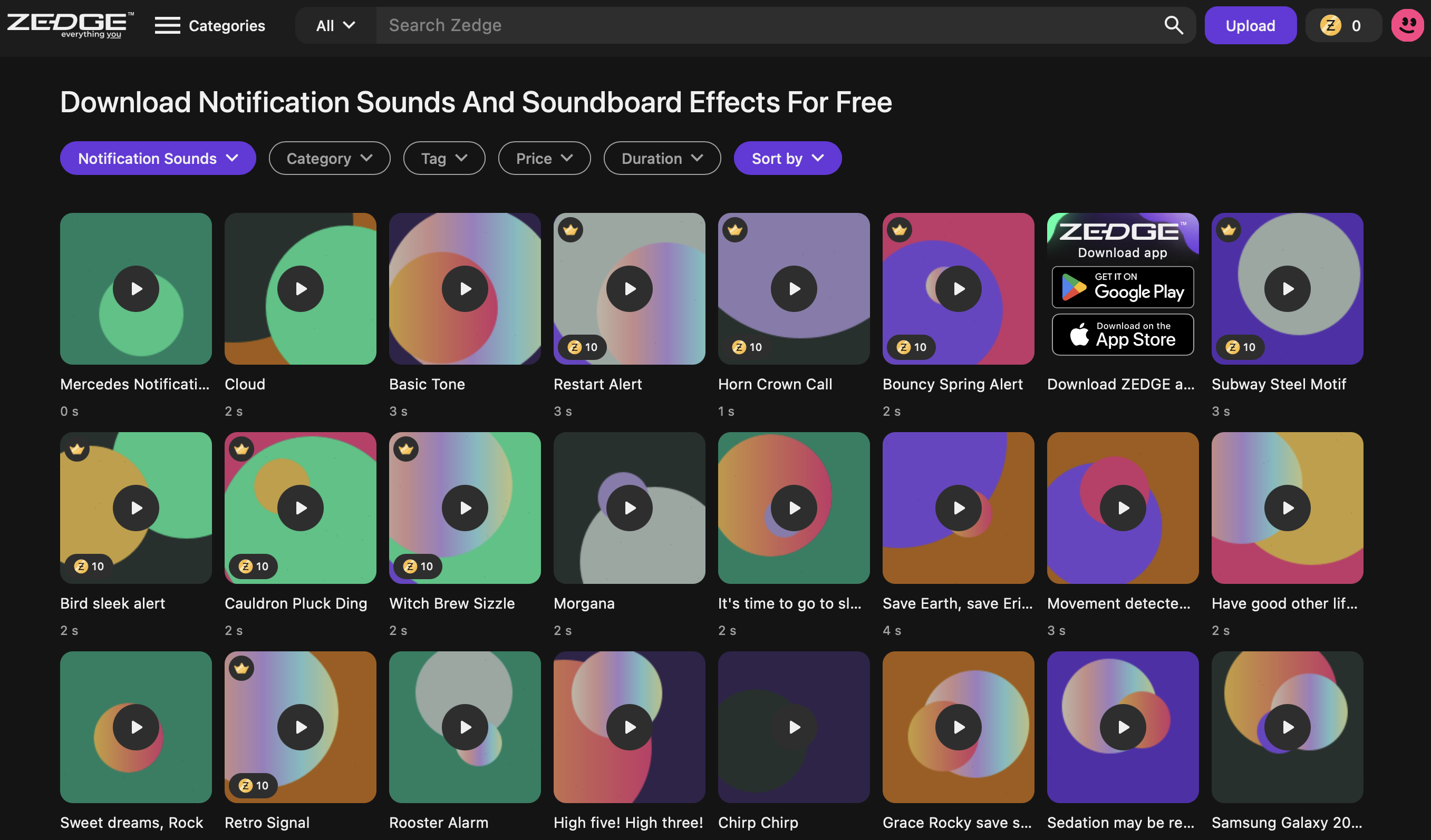
Your notification sound uses the same audio file formats as your ringtone, so any tone you save works for both. The easiest way to add a custom sound is through the Zedge app: browse zedge.net/notification-sounds, download a sound, and it appears in the notification sound picker automatically.
To use your own audio file instead, copy it into the Notifications folder on your phone's internal storage using a file manager app. If the folder does not exist, create it. The file appears in the notification sound list the next time you open the sound picker. Supported formats include MP3, OGG, and WAV.
iPhone
iPhone requires notification sounds to be saved as ringtones first. Export the audio file using GarageBand or the Files app on iOS 26 and it will appear under Custom tones in the Text Tone and other sound lists. Browsing custom notification sounds before you start is a good way to decide on a style before editing anything.
Best Notification Sounds to Try
A good notification sound is recognizable at a glance without being disruptive. These types all have large free selections on zedge.net:
- Short chimes. Single or double-note tones that are easy to hear without drawing attention in public. A common choice for messages.
- Classic dings. Simple bell or triangle sounds with immediate recognition. Work well for email or calendar alerts.
- Pop and click sounds. Ultra-short sounds under half a second. Best for apps that send frequent notifications so the sound does not become annoying.
- Subtle melodic tones. Short two- or three-note sequences that stand out from ambient noise without being jarring.
- Retro game sounds. 8-bit bleeps that feel distinctive and do not sound like another phone's alert.
- Nature sounds. A bird call, water drop, or soft chime. Lower-stress options that work for non-urgent notifications.
- Custom voice clips. A short recorded word or name. Useful for distinguishing one app from another without looking at the screen.
FAQ
Can I change notification sounds for apps on iPhone?
iOS does not let third-party apps appear in Settings > Sounds & Haptics. You can change the system categories there, such as Text Tone and New Mail. For third-party apps like WhatsApp or Telegram, open the app's own settings to see whether it offers built-in notification sound options.
How do I change the message sound on my Pixel phone?
Open Settings, tap Sound & vibration, and tap Default notification sound to change the sound for all notifications. To change the sound for Messages specifically, go to Settings > Apps > Messages > Notifications, tap the Default category, and select a different sound.
Why did my notification sound change by itself?
The most common cause is a system or app update that reset the sound to a default. A newly activated Do Not Disturb schedule or Focus mode can also suppress sounds in a way that feels like the tone changed. Check Settings > Sound and Settings > Focus or Do Not Disturb to confirm the current state.
How do I set a different notification sound for each contact?
On Android, most SMS and messaging apps let you tap a conversation, open the conversation or contact settings, and assign a unique notification tone. On iPhone, open Contacts, tap the contact, tap Edit, and tap Text Tone to assign a custom sound for that contact's messages specifically.