

To set a live wallpaper on iPhone, go to Settings, tap Wallpaper, tap Add New Wallpaper, select Photos, choose a Live Photo, confirm the motion toggle is on, tap Add, and tap Set as Wallpaper Pair (the same path you use to change wallpaper on iPhone with a still image). The wallpaper animates when you press and hold the lock screen. For a video or GIF instead of a Live Photo, the process has one extra step: convert it first, then follow the same path.
Live Wallpapers Animate on the Lock Screen Only
This is the most common source of confusion. Getting live wallpaper on iPhone in iOS 26 to work correctly depends on knowing that live wallpapers only play on the lock screen. The home screen shows a still version of the same image. To see the animation, press and hold the lock screen after setting it. If you are looking at the home screen and nothing is moving, that is expected behavior.
Low Power Mode also disables live wallpaper animation. If the wallpaper appears but does not animate on the lock screen, check Settings, then Battery, then Low Power Mode, and turn it off.
Method 1: Set a Native Live Photo as a Wallpaper
This method works with any Live Photo taken on an iPhone camera or saved from another source. No conversion needed, works on any iPhone 6S or later, and uses the native iOS lock screen editor.
- Open Settings and tap Wallpaper.
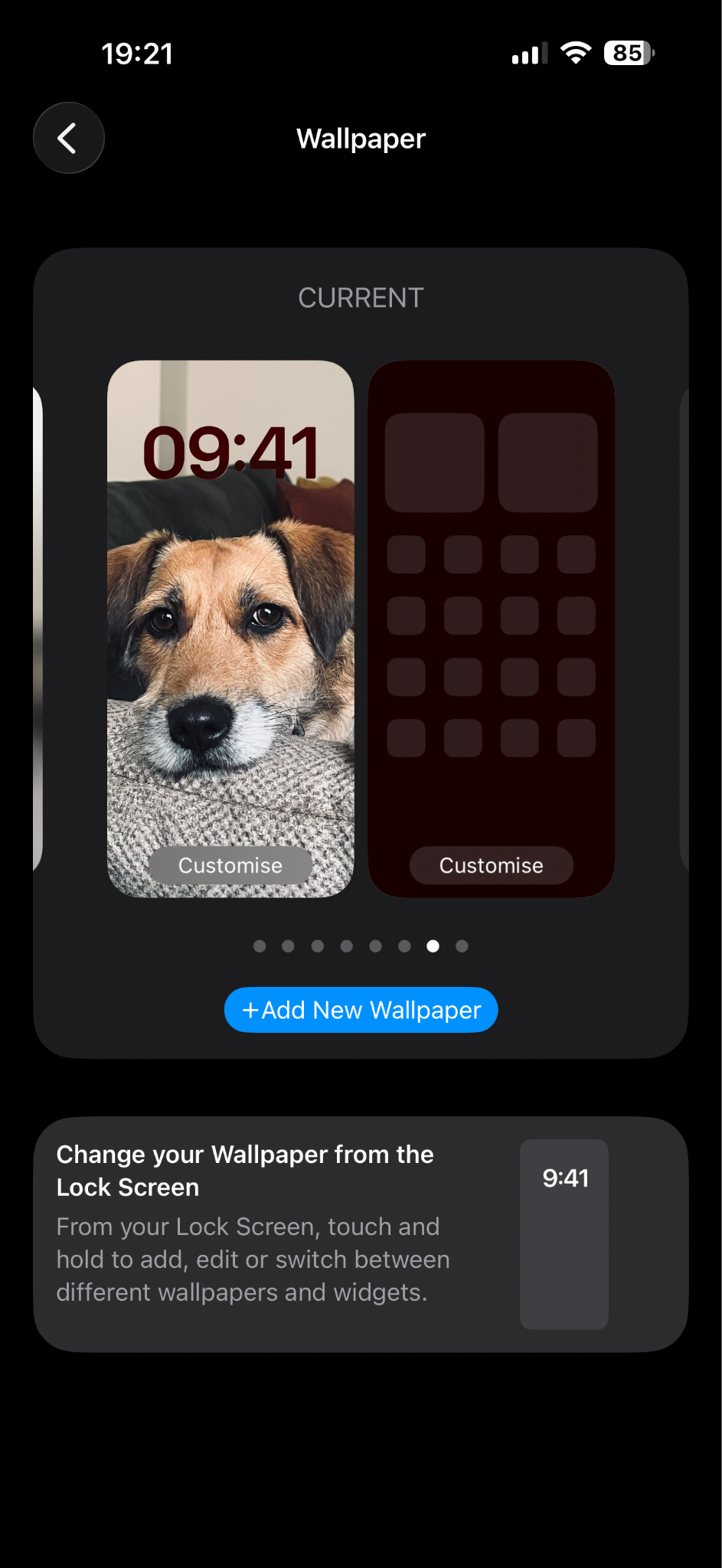
- Tap Add New Wallpaper.
- Tap Photos in the top row.
- Tap the Live filter at the top of your photo library to show only Live Photos.
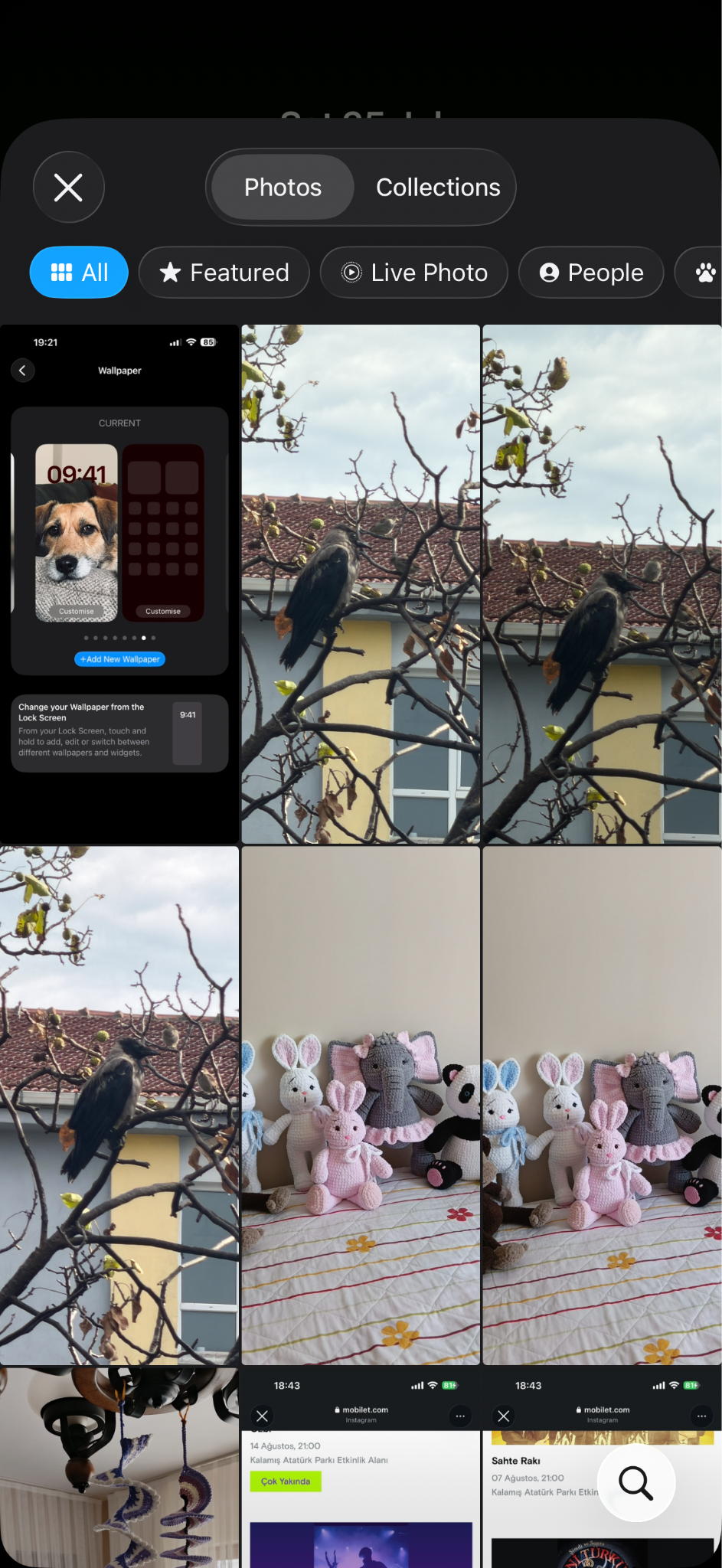
- Select the Live Photo you want to use.
- In the editor, make sure the play button is on. If the play button has a slash through it or appears off, tap it to enable motion.
- Reposition and scale the image as needed.
- Tap Add, then tap Set as Wallpaper Pair to apply to both the lock screen and home screen.
To set a live photo as wallpaper on just the lock screen without changing the home screen, tap Customize Home Screen instead of Set as Wallpaper Pair, then choose a different or solid-color home screen background.
Note on Depth Effect and Spatial Scene: After setting a Live Photo, you can also enable Depth Effect (via the circle icon in the editor) to layer the subject in front of the clock, or Spatial Scene (via the hexagon icon) for a 3D parallax effect on supported models (iPhone 12 and later for Spatial Scene). These are separate from the motion/Live Photo feature.
Method 2: Turn a Video or GIF Into a Live Wallpaper
Standard video files and GIFs cannot be set directly as live wallpapers. They need to be converted to the Live Photo format first, which iOS can then use as a wallpaper with motion.
For GIFs: The simplest route is to convert a GIF to a Live Photo using a conversion app or online tool, save the result to your Photos library, then follow Method 1 above.
For videos: To turn video into live wallpaper iphone, use an app like IntoLive (available on the App Store), which lets you select a short video clip, trim it to 3-5 seconds, and export it as a Live Photo. Once it appears in your Photos library, set it using Method 1.
The key requirement for both routes is that the final file must be in Live Photo format and saved to your iPhone's camera roll before you can use it as a live wallpaper. The iOS lock screen editor does not accept video files directly.
Set From TikTok, Pinterest, or a Downloaded Video
From TikTok: A live wallpaper from TikTok starts with saving the clip to your Camera Roll using TikTok's download button (tap the share arrow, then Save video). Trim it to 3-5 seconds, convert it to a Live Photo using an app like IntoLive, then set it using Method 1.
From Pinterest: Save the video pin to your Camera Roll (tap the video pin, tap the download icon if available, or screen-record the clip). Convert it to a Live Photo using IntoLive or a similar app, then follow Method 1.
From a downloaded video file: You can set a video as wallpaper from any file you receive via Messages, email, or a browser download: move it to Photos using the Files app, trim it if needed, convert to Live Photo, then follow Method 1.
The common thread: Whatever the source, the clip must be 3-5 seconds long, saved to Photos, and converted to a Live Photo before it can be animated as a lock screen wallpaper.
Get Ready-Made Live Wallpapers
If you do not want to make your own, Zedge has one of the largest libraries of the best iPhone live wallpapers available for free, with Zedge live wallpapers organized by style and category. Browse, download directly, and set using Method 1.
Troubleshooting and FAQ
Why won't my iPhone let me set a live wallpaper? The most common reason is that Low Power Mode is on, which disables live wallpaper animation. Go to Settings, then Battery, and turn off Low Power Mode. Also confirm you are using a Live Photo, not a standard video or image file. Standard files cannot be set as live wallpapers without conversion.
How do I turn a video into a live wallpaper on iPhone? Use a conversion app such as IntoLive to convert the video clip to a Live Photo, then save it to your Photos library. Once it appears as a Live Photo, go to Settings, tap Wallpaper, tap Add New Wallpaper, select the Live Photo, and set it using Method 1 above.
How do I activate a live wallpaper? Press and hold the lock screen after the wallpaper is set. This triggers the animation. A tap alone does not play the live wallpaper motion.
Does live wallpaper work on iPhone 11? Yes. Live Photos can be set as wallpapers on iPhone 6S and later, which covers iPhone 11. Spatial Scene (the 3D parallax depth effect) requires iPhone 12 or later. Standard Live Photo animation works on all supported models.
The wallpaper is still showing as still on the home screen. Is it broken? No. Live wallpapers only animate on the lock screen. The home screen always shows a still frame from the same Live Photo. This is by design.
My live wallpaper animates briefly then stops. What is happening? This is normal. Live Photo wallpapers play a short loop (typically 3-5 seconds) when you press and hold the lock screen, then return to the still frame. They do not loop continuously.