

To change wallpaper on iPhone, open Settings, tap Wallpaper, tap Add New Wallpaper, pick a photo or style, then tap Add and choose Set as Wallpaper Pair (or Customize Home Screen for a different Home Screen). The steps below work on iOS 26 and every version back to iOS 16, and the sections after that cover Photos, the Lock Screen only, Photo Shuffle and fixes for a wallpaper that won't change.
Your iPhone's wallpaper isn't just a background; it's a statement. Changing it is the easiest way to give your screen a fresh new feel, and this guide shows every way to do it, plus where to find wallpapers worth using (hint: it's Zedge).
How to Change Wallpaper on iPhone in Settings
The Settings app is the standard way to change wallpaper in iPhone settings, and the quickest when you already have an image in mind. It also gives you the most control over the Lock Screen and Home Screen in one place.
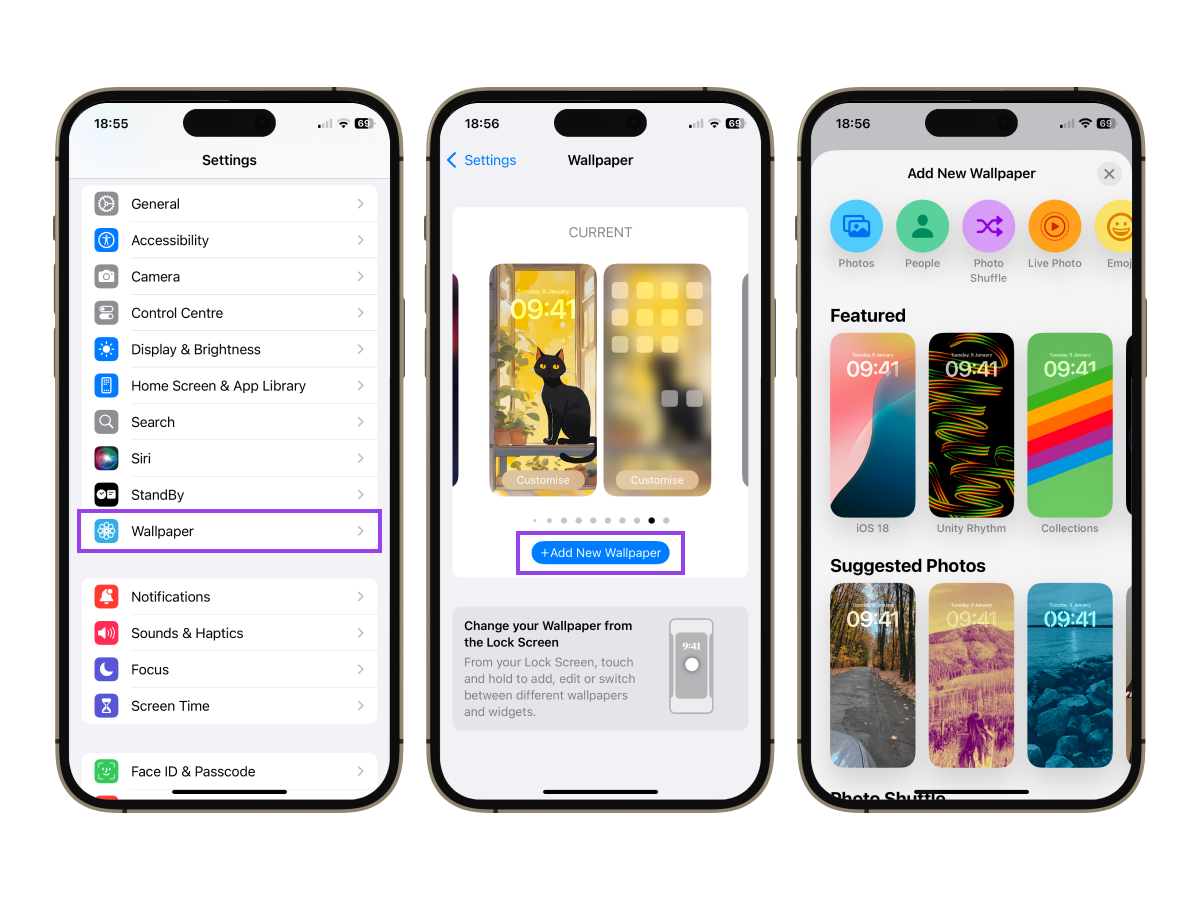
- Open Settings on your iPhone.
- Scroll down and tap Wallpaper (on older iOS versions it is called "Wallpaper & Brightness").
- Tap Add New Wallpaper.
- Choose a source from the top row: Photos, Photo Shuffle, Live Photo, Emoji, Weather, Astronomy, Color, or one of Apple's built-in Collections.
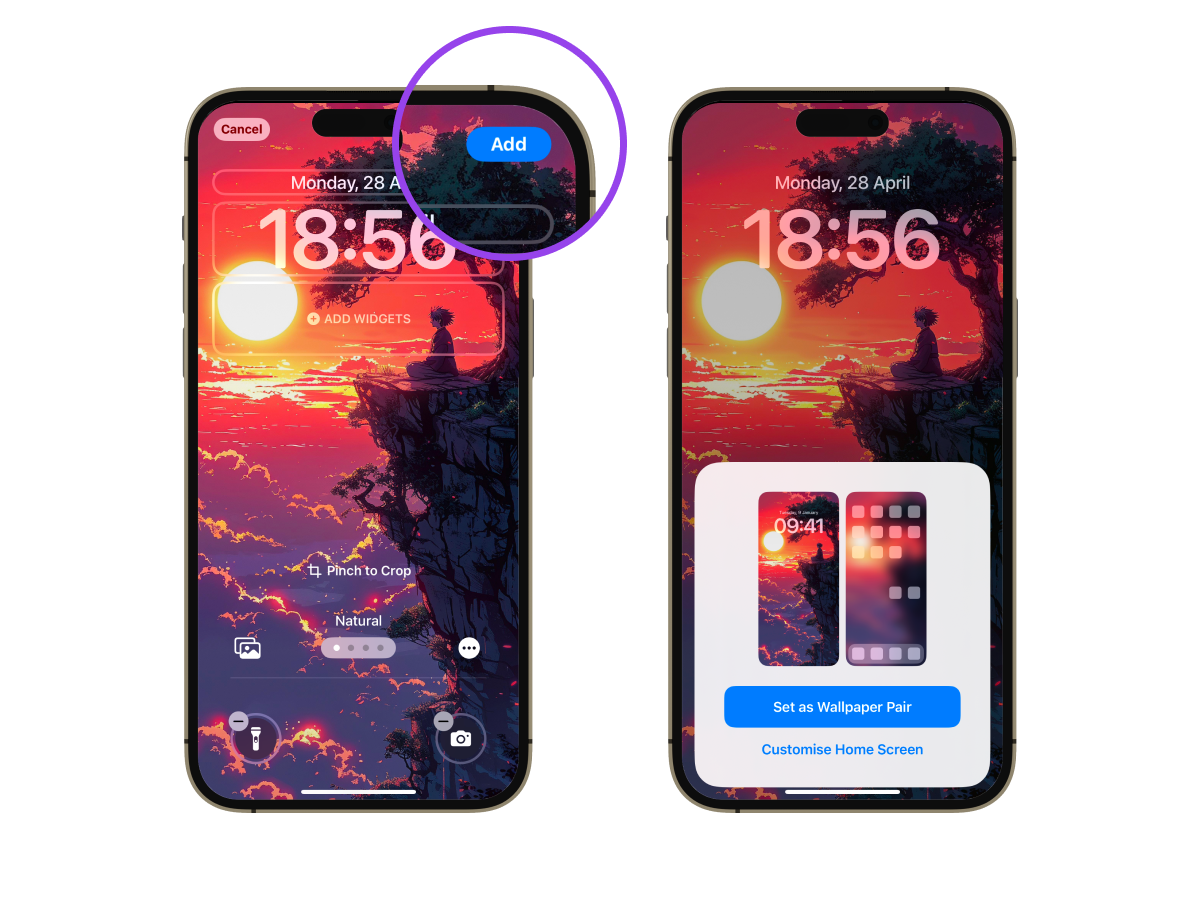
- Select your image, then pinch to zoom and drag to position it.
- Tap Add.
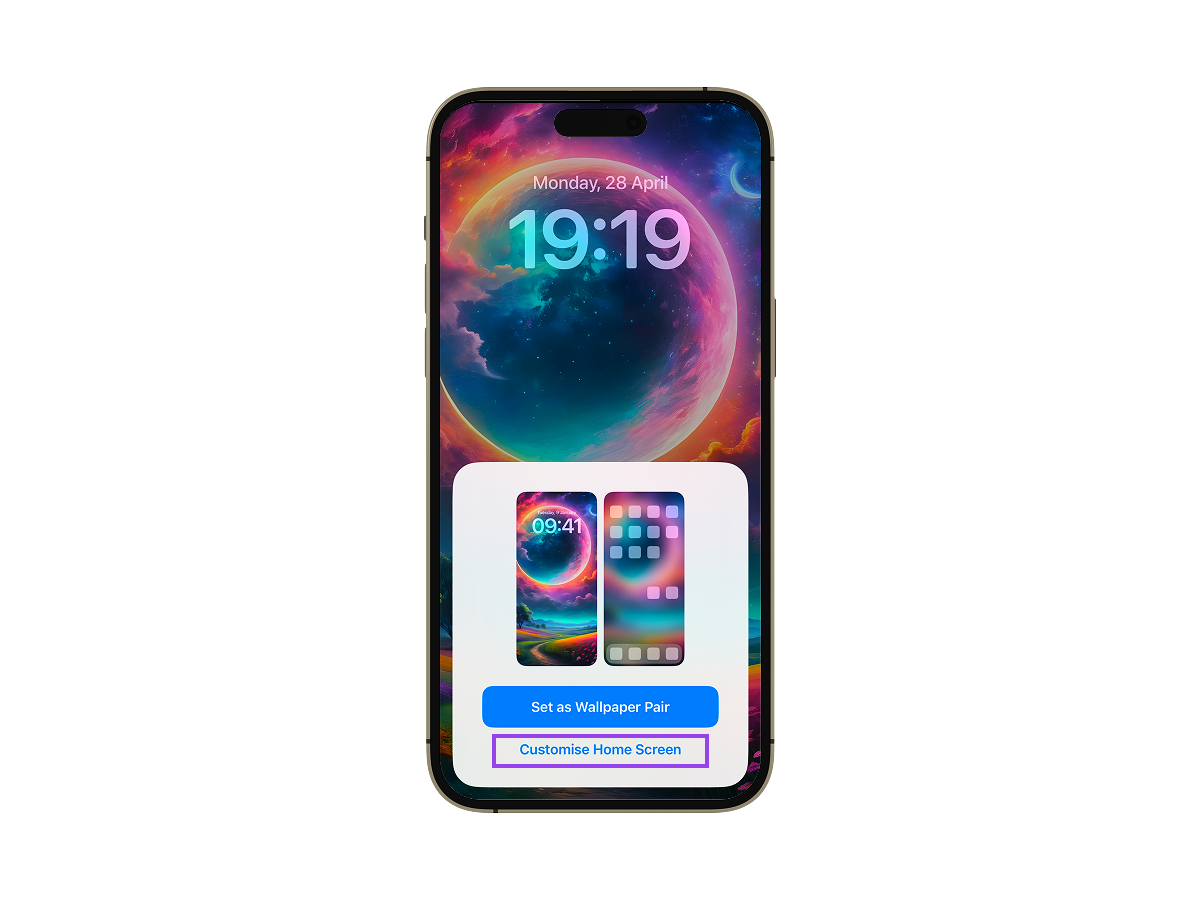
- Tap Set as Wallpaper Pair to use the same image on both screens, or tap Customize Home Screen to give the Home Screen a different look.
Bonus: on the Home Screen step you can apply a subtle blur for a sleek look that keeps your app icons easy to read.
How to Set Wallpaper on iPhone From Photos
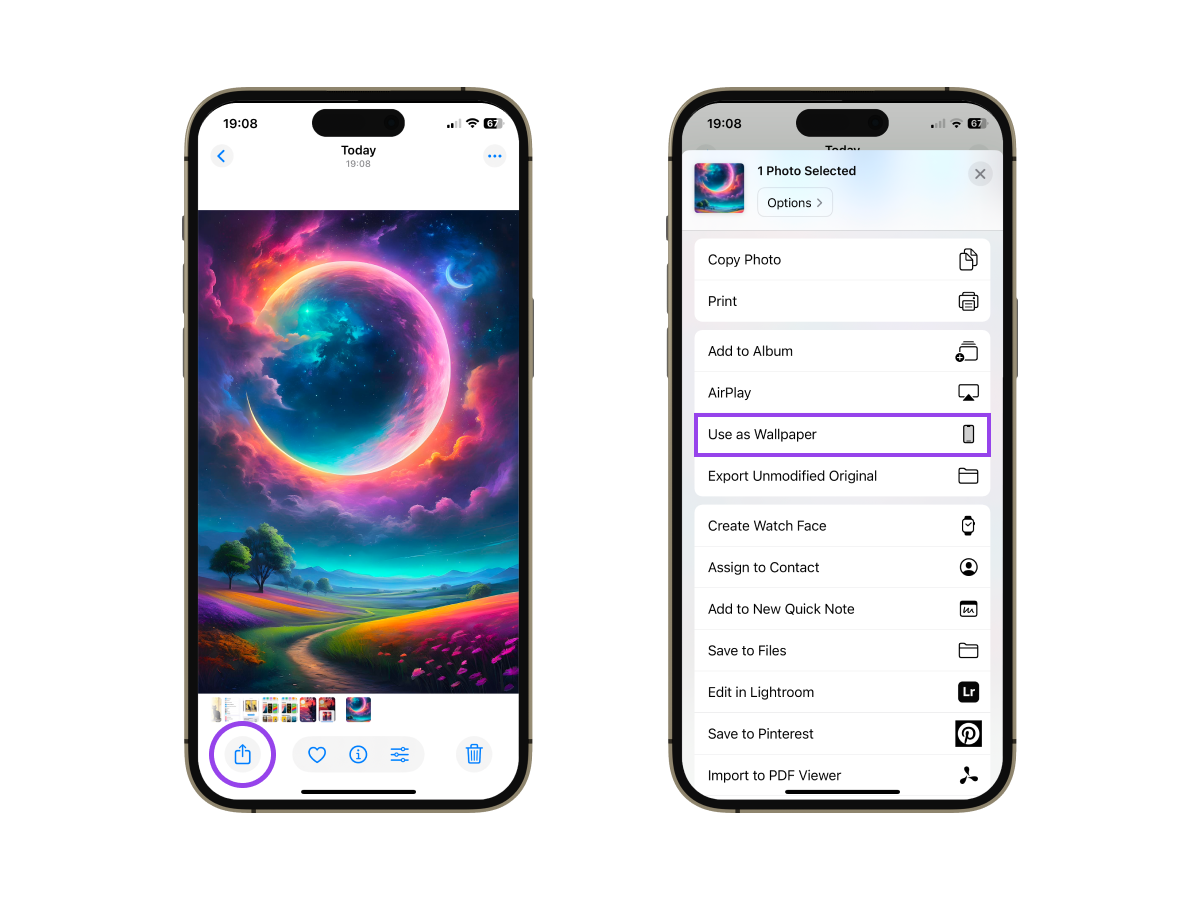
If the perfect pic is already in your camera roll, you can set wallpaper on iPhone straight from the Photos app without digging through Settings.
- Open the Photos app on your iPhone.
- Find the photo you want to use as your wallpaper and tap it to open it.
- Tap the Share button (the square with an arrow pointing up).
- Scroll down the share sheet and tap Use as Wallpaper.
- Pinch to zoom and adjust the image until it fits where you want it.
- Tap Add, then choose Set as Wallpaper Pair or Customize Home Screen.
That's all it takes to change your Home Screen wallpaper from Photos.
Get New Wallpapers First: Change iPhone Wallpaper Using Zedge
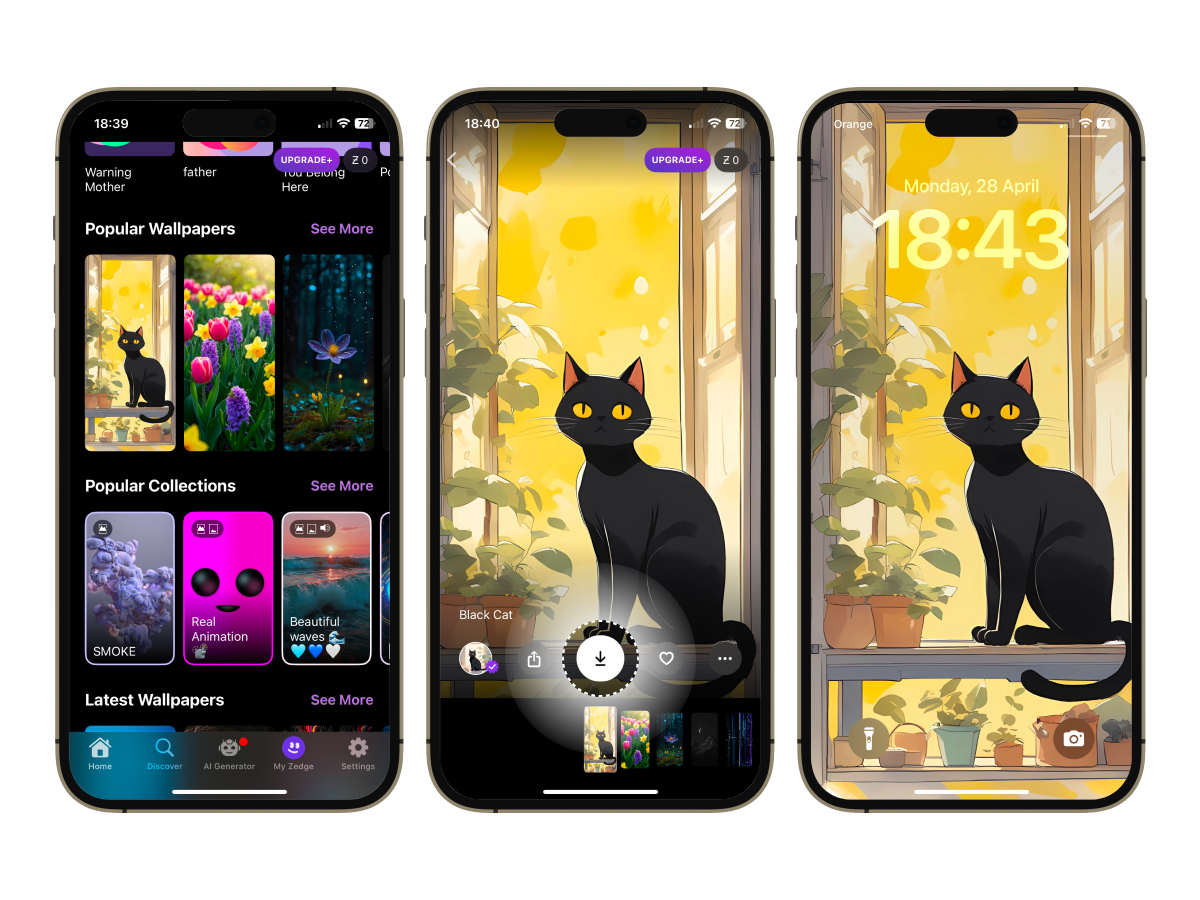
For unique, high-quality wallpapers, Zedge is a go-to choice if you're browsing the best wallpaper apps and want something better than the default gallery. You'll find everything from minimal aesthetics to the best 3D iPhone wallpaper, plus curated collections of the best Apple iPhone wallpapers that look sharp on modern screens.
- Download and open the Zedge app.
- Browse iPhone wallpapers and pick one you love.
- Tap Download to save it to Photos, or Set to apply it directly from the app.
- Choose Home Screen wallpaper, Lock Screen wallpaper, or both. Done!
Pro Tip: If you're into motion, Zedge is also a great place to explore the best iPhone live wallpapers so your Lock Screen feels more dynamic.
How to Change Lock Screen Wallpaper Only
Since iOS 16, you can change the Lock Screen without touching the Home Screen, and without even opening Settings.
- Wake your iPhone and unlock it with Face ID or Touch ID, but stay on the Lock Screen.
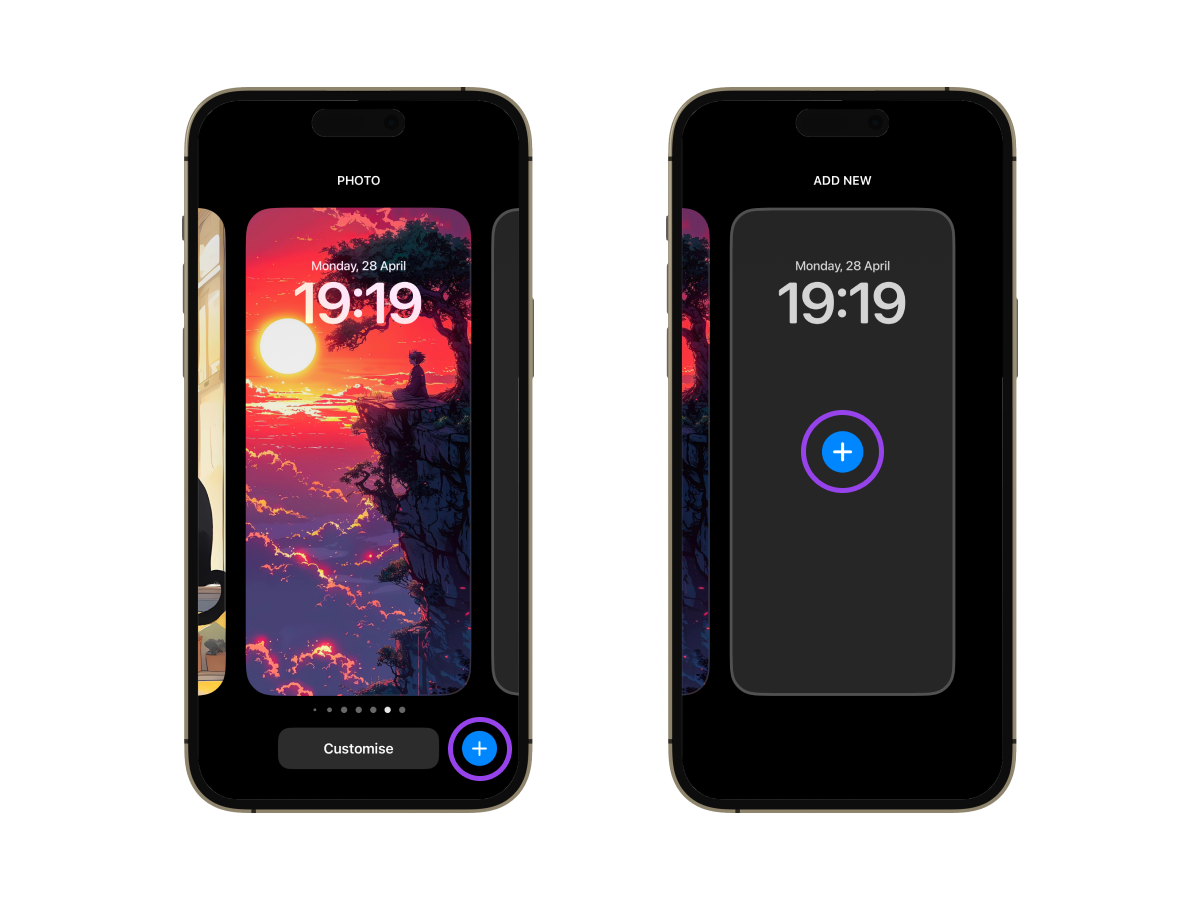
- Press and hold any blank space on the Lock Screen to open the wallpaper gallery.
- Tap the + button in the bottom-right corner to create a new Lock Screen, or tap Customize on an existing one and choose Lock Screen.
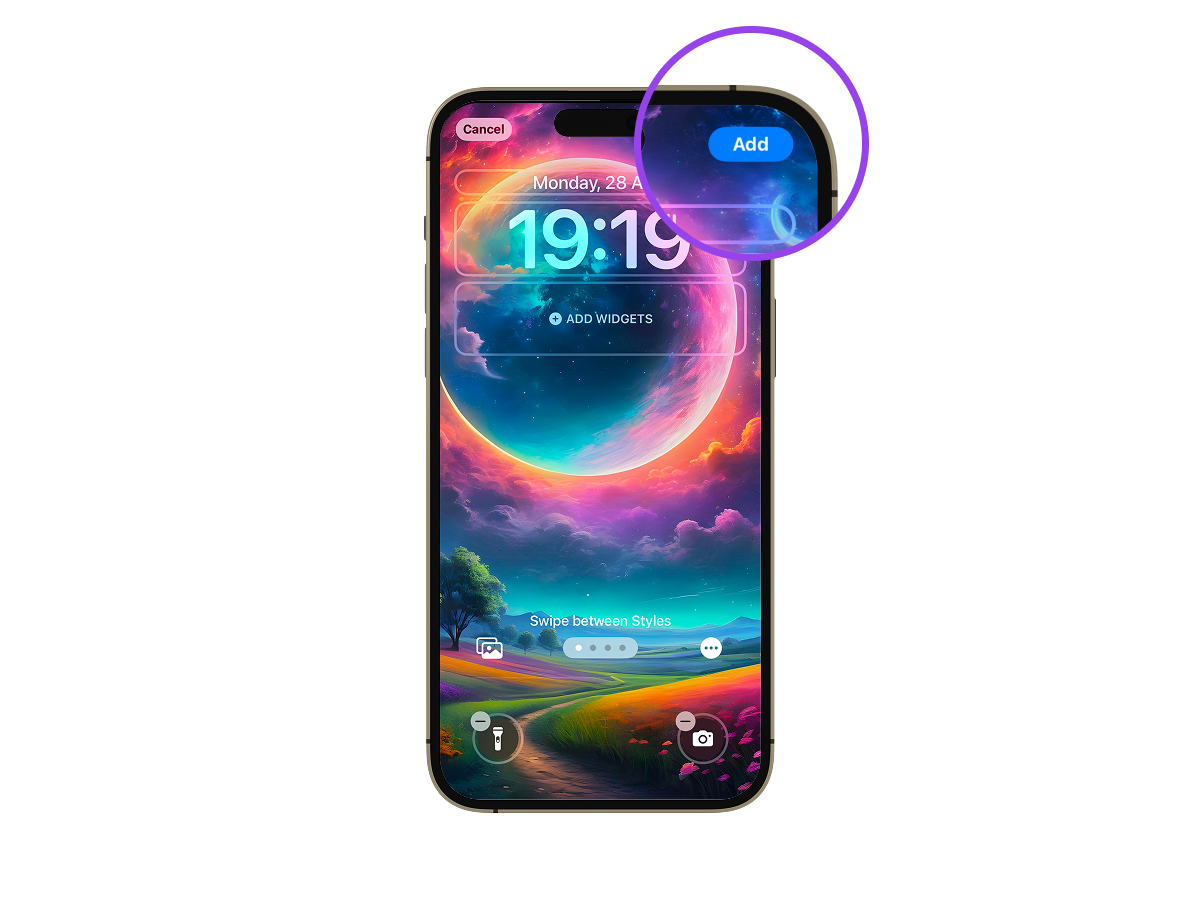
- Pick your photo or style, then add widgets, change the clock font, or try a filter by swiping left.
- Tap Add (or Done if you're editing an existing Lock Screen).
- When asked, tap Customize Home Screen and keep your current Home Screen look so only the Lock Screen changes.
If you already have a few Lock Screens saved, press and hold the Lock Screen, swipe left or right to the one you want, and tap it. That's the fastest way to switch wallpapers with a tap whenever you feel like a change.
How to Use Different Wallpapers for Lock and Home Screen
iOS pairs every Lock Screen with a Home Screen, but the two don't have to match.
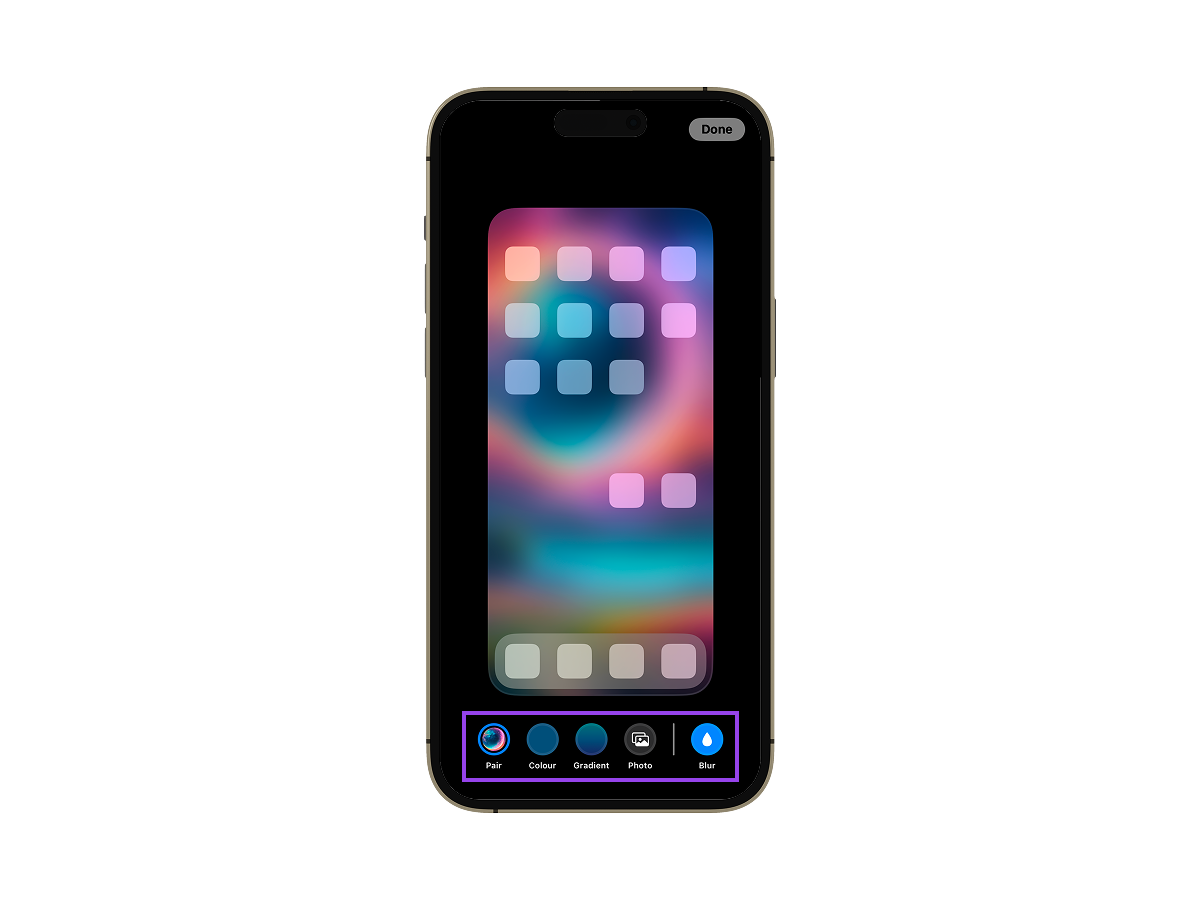
- Go to Settings > Wallpaper. Under the Home Screen preview, tap Customize.
- Pick an option from the bottom row: Pair to match your Lock Screen wallpaper, Color or Gradient for a sleek static background, or Photos to pick another image from your library.
- If you go with Color or Gradient, tap it a second time to open the color picker and choose your shade.
- For a bit of blur, tap Blur for a soft effect. Keep in mind it's only available when your Home Screen uses the paired wallpaper or a custom photo.
- Tap Done in the top-right corner to lock it in.
Tip: each Focus mode can have its own wallpaper pair. Open Settings > Focus, choose a mode and use Customize Screens to link a Lock Screen and Home Screen to it.
How to Use Photo Shuffle
Photo Shuffle rotates a set of photos on your Lock Screen automatically, so your wallpaper changes without you lifting a finger.
- Go to Settings > Wallpaper > Add New Wallpaper and tap Photo Shuffle.
- Let iOS suggest photos (People, Pets, Nature, Cities) or tap Select Photos Manually to choose your own.
- Set the Shuffle Frequency: On Tap, On Lock, Hourly, or Daily.
- Tap Use Featured Photos or Add, then choose Set as Wallpaper Pair or Customize Home Screen.
To change which photos are in the rotation later, press and hold the Lock Screen, tap Customize, then tap the photo grid icon in the bottom-left corner.
Live Photos and Video Wallpapers
iOS doesn't let you set a normal video file as wallpaper directly. You can use a Live Photo instead, which animates on the Lock Screen when you press and hold. For the full walkthrough, including converting a clip into a Live Photo, see how to set a video as wallpaper on an iPhone.
How to Get Your Original Wallpaper Back
If you miss the wallpaper your iPhone came with, there are two easy ways back.
- Switch to a saved Lock Screen: press and hold the Lock Screen and swipe through your gallery. Older wallpapers stay there until you delete them, so your previous setup is often one swipe away.
- Pick Apple's default again: go to Settings > Wallpaper > Add New Wallpaper and scroll to Collections. Apple's built-in wallpapers, including the default for your iOS version, are listed there.
If the original was a photo you deleted, check Photos > Recently Deleted, which keeps deleted images for up to 30 days.
Need to Remove One First?
If your wallpaper gallery is cluttered or you just want to clean house, you may want to learn how to delete wallpaper on iPhone before adding new ones. It's a quick process from the Lock Screen wallpaper gallery, and it makes switching styles feel a lot less messy.
Wallpaper Not Changing or Turned Black? Fixes
If your new wallpaper won't stick, looks wrong, or the background suddenly goes black, try these fixes in order.
- Restart your iPhone. A restart clears most glitches that stop a new wallpaper from showing up, especially right after an iOS update.
- Check your Focus mode. A Focus can have its own linked Lock Screen. If the wallpaper changes back when a Focus turns on, update Customize Screens for that mode under Settings > Focus.
- Edit the right Lock Screen. If you have several saved, you may have changed one that isn't active. Press and hold the Lock Screen and tap the one you want to use.
- Re-add the photo. If the original image was deleted or stored only in iCloud, the wallpaper can turn black. Save the image to your iPhone again and set it from Settings > Wallpaper.
- Update iOS. Go to Settings > General > Software Update. Apple fixes wallpaper bugs in point releases.
For more causes and fixes, including how to change a black background on iPhone back to a normal one, see why your iPhone background is black.
Ready to Upgrade Your Wallpaper?
Now that you know how to switch up your wallpaper, the next step is finding one worth keeping. Zedge gives you instant access to a massive collection of stunning wallpapers to match any mood or style.
From nature landscapes to mind-bending designs, the gallery offers the best free wallpapers for every taste. Explore categories like 4K iPhone wallpapers, anime, gaming, holiday, sports, and more. Whether you want something minimalist or full of personality, your perfect wallpaper is just a tap away.
Explore More Zedge Wallpapers
| Category | Good for |
|---|---|
| Animals | Pets, wildlife, cute Lock Screens |
| Aesthetics | Soft colors and moody styles |
| Minimalist | Clean Home Screens where icons stay readable |
| Cars & Vehicles | Supercars, JDM, bikes |
| Love | Hearts, bows, couples |
| Space | Planets, stars, the moon |
| Quotes | Motivational and aesthetic sayings |
| Live | Motion for your Lock Screen |
FAQs
How do I change my Home Screen wallpaper on my iPhone?
Open Settings > Wallpaper and tap Customize under the Home Screen preview. Pick Photos, Color, Gradient, or Pair, then tap Done. To change both screens at once, use Add New Wallpaper and Set as Wallpaper Pair.
How do I put different wallpapers on my iPhone screen?
When you add a wallpaper in Settings, tap Customize Home Screen instead of Set as Wallpaper Pair. iOS then lets you choose a different Home Screen wallpaper while the Lock Screen keeps the new image.
How do I change my iPhone wallpaper instantly?
Fastest method: use the Lock Screen. Press and hold on the Lock Screen to open the wallpaper picker and switch to another one immediately.
How do I change my wallpaper from the Lock Screen?
Press and hold the Lock Screen, tap + to add a new one (or swipe to an existing one), then tap Customize or Add.
Where are wallpaper settings on iPhone?
Open Settings and scroll to Wallpaper. On older iOS versions it is called Wallpaper & Brightness. That screen shows your current Lock Screen and Home Screen and the Add New Wallpaper button.
How do I delete old wallpapers?
Press and hold the Lock Screen, swipe to the wallpaper you want to remove, swipe up on it, and tap the trash icon, then Delete This Wallpaper. The full steps are in how to delete wallpaper on iPhone.
Why is my wallpaper zoomed in?
iOS crops images to fit the screen, so a photo that isn't tall enough gets enlarged. When you set it, pinch out to zoom back and drag to reposition, or use an image sized for iPhone. Turning on Reduce Motion (Settings > Accessibility > Motion) also stops the slight extra zoom that comes with the parallax effect.
How do I set wallpaper on Apple Watch?
If you're wondering how to set wallpaper on Apple Watch, it works differently than iPhone. Apple Watch uses watch faces. For a wallpaper-like look, choose a Photos watch face in the Watch app and select the images you want displayed.