

We'll walk you through how to convert GIFs to Live photos step-by-step, how to set them as wallpaper, and how to personalize your iPhone using resources from Zedge. Whether you want aesthetic motion or just something fun, let's turn that GIF into a live masterpiece.
Quick Answer: Can You Turn a GIF Into a Live Photo?
Yes, you can turn a GIF into a Live Photo. A converter takes the frames of your GIF and packages them into the Live Photo format that iOS recognizes, so the result saves straight to your Photos app. From there, you can set it as a Live Photo wallpaper on your lock screen, where it animates when you press and hold.
What changes from tool to tool is how much you can adjust along the way. Some converters are built for speed and do the job in a couple of taps. Others give you editing controls like trimming, cropping, and speed adjustment, so you can fine-tune the clip before you save it.
GIF vs Live Photo: What's the Difference?
A GIF and a Live Photo both show movement, but they work in different ways.
A GIF is a short, looping image file that plays the same way on almost any device, from a phone to a laptop to a web browser. It has no sound and usually loops forever.
A Live Photo is Apple's own format. It captures a short moment as a still image with a few seconds of motion attached, and it is designed for iPhone and other Apple devices. When you press and hold a Live Photo, the motion plays back. Because it is built into iOS, a Live Photo can animate as a lock screen wallpaper in a way a plain GIF cannot.
That is the main reason people convert GIFs to Live Photos for wallpapers. iPhones do not let you set a raw GIF as a moving wallpaper, so converting it to a Live Photo is the step that makes the animation work on your lock screen.
Benefits of Using Live Photos
- Set a moving wallpaper on your lock screen
- Save directly to your camera roll
- Works smoothly across Apple devices
- Looks cleaner and sharper than stretched GIFs
- You can create Live Photos from any GIF or convert videos
Want to clean up your wallpapers? Here's how to delete wallpaper on iPhone.
Best Ways to Convert GIF to Live Photo
1. Use a Simple Online Converter
If you want the fastest route with nothing to install, a simple online converter is the way to go. These are web-based tools that handle one job well: you upload your GIF, the tool converts it, and you download a Live Photo ready for your Photos app.
2. Use an All-in-One Converter App
For more control over the final result, an all-in-one converter app is the better choice. Instead of a single convert button, these apps give you a small editing suite so you can shape the clip before it becomes a Live Photo.
Typical features include:
- GIF to Live Photo conversion
- Trim, to cut the clip to the length you want
- Crop, to fit the frame to your screen
- Adjust playing speed, to make the motion faster or slower
- Export in different resolutions, to balance quality and file size
This option suits users who care about how the wallpaper looks and moves. If your GIF is too long, off-center, or plays too quickly for a wallpaper, the editing tools let you fix all of that in one place before saving to Photos.
The tradeoff is a few more steps. You download and open the app, then move through the edit options instead of converting in a single tap. For most people that extra minute is worth the cleaner result.
3. Use a Wallpaper-Focused Tool or Workflow
If your main goal is a live lock screen wallpaper rather than a one-off Live Photo, a wallpaper-focused tool makes the most sense. These tools are built around the end result, so they guide you from conversion through to setting the wallpaper, instead of leaving you to figure out the setup on your own.
Zedge is the best option here. It offers a large library of moving wallpapers and live content, and it walks you through saving an animated clip as a Live Photo and applying it to your lock screen. That makes it the easiest path for anyone who mostly wants their phone to look good without piecing together separate converters and setup steps.
Best for users whose priority is a finished, animated wallpaper with as little friction as possible.
Step-by-Step Guide: Convert GIF to Live Photo on iPhone
Step 1: Pick the GIF you want to use
Start by choosing a GIF that suits a phone screen. Vertical or square clips fit better than wide ones, and shorter loops tend to look cleaner as wallpaper. Pick something with clear motion that still looks good when it sits still.
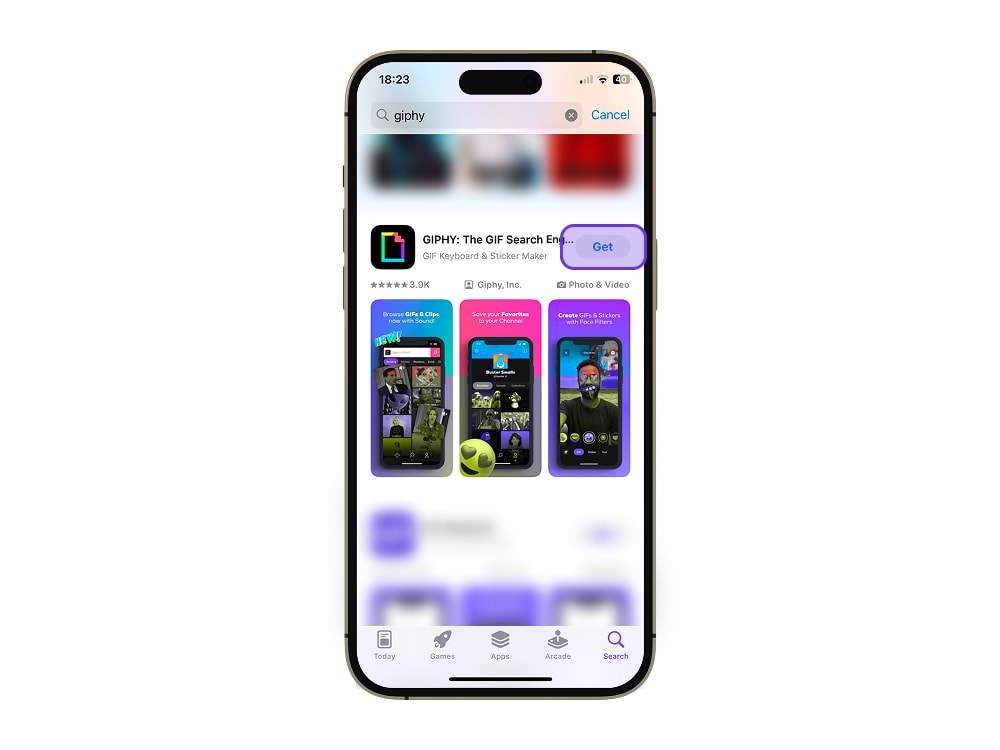
Step 2: Download and set up your chosen tool
- Open the App Store
- Search for the app you choose (e.g. GIPHY)
- Tap Download and install
Step 3: Upload it to your chosen tool
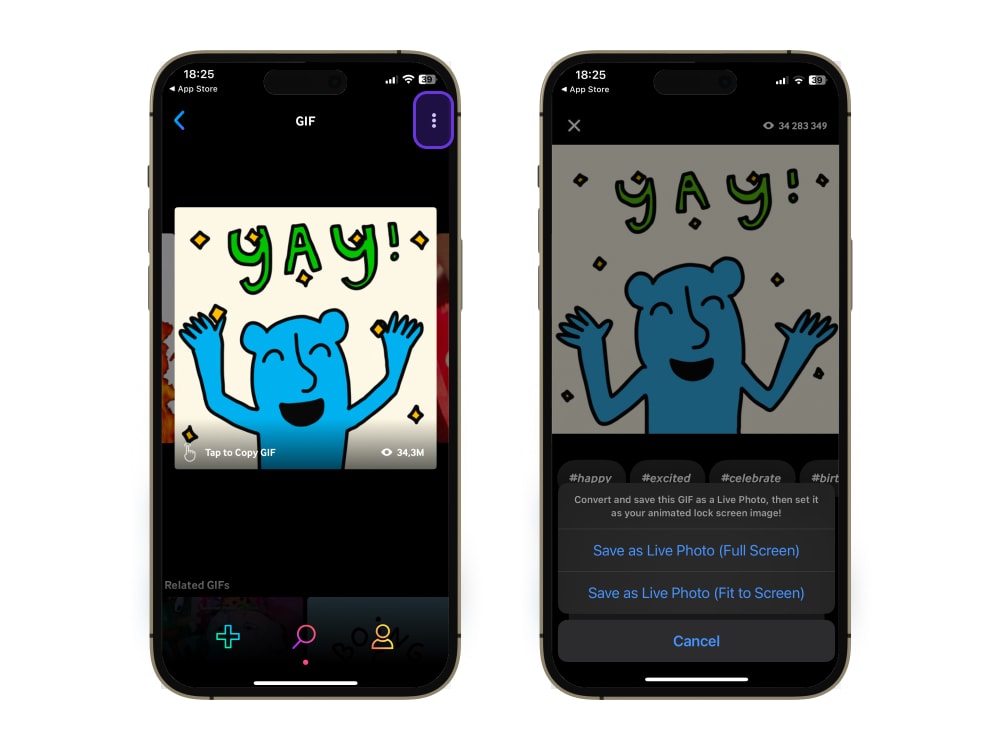
Open your converter app and import the GIF. Most tools let you select it from your Photos library or drag it in from files. Make sure you are loading the right clip before you move on to the next step.
Step 4: Edit if needed
If your tool offers editing, this is the moment to use it. Trim the clip to a few seconds, crop it to fit your screen, and adjust the speed if the motion feels too fast or slow. Simple online converters skip this step, so you can move straight ahead.
Step 5: Convert and save the result
Run the conversion, then save the Live Photo to your iPhone. The tool will either download it or send it straight to your Photos app. On a website, you may need to tap save or add to Photos to finish the transfer.
Step 6: Check that it saved correctly
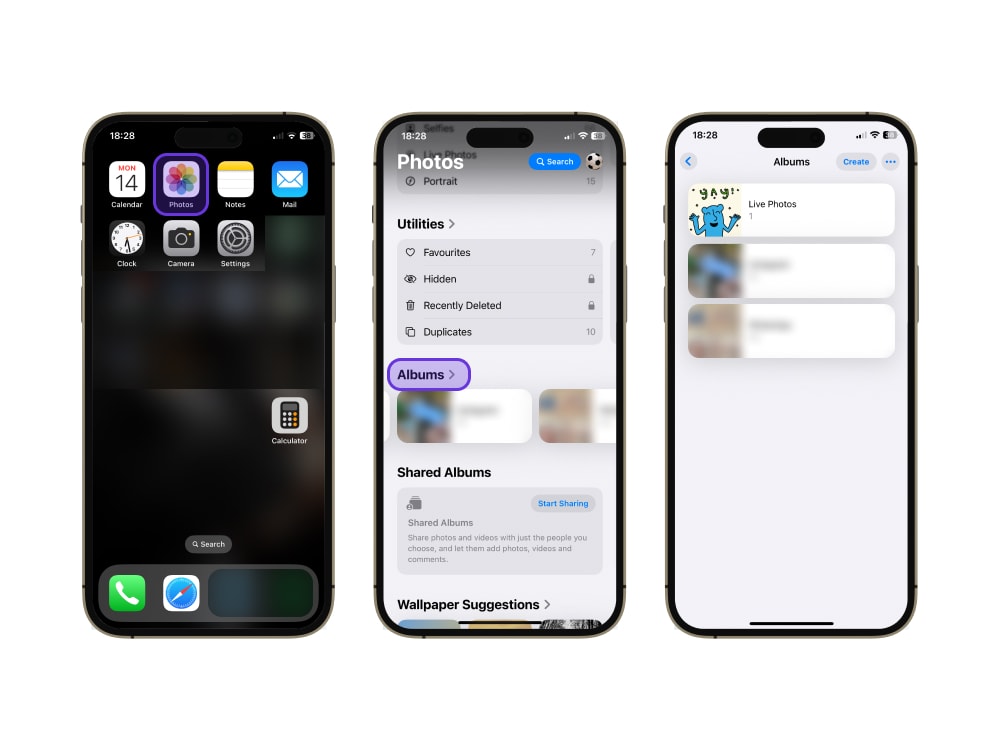
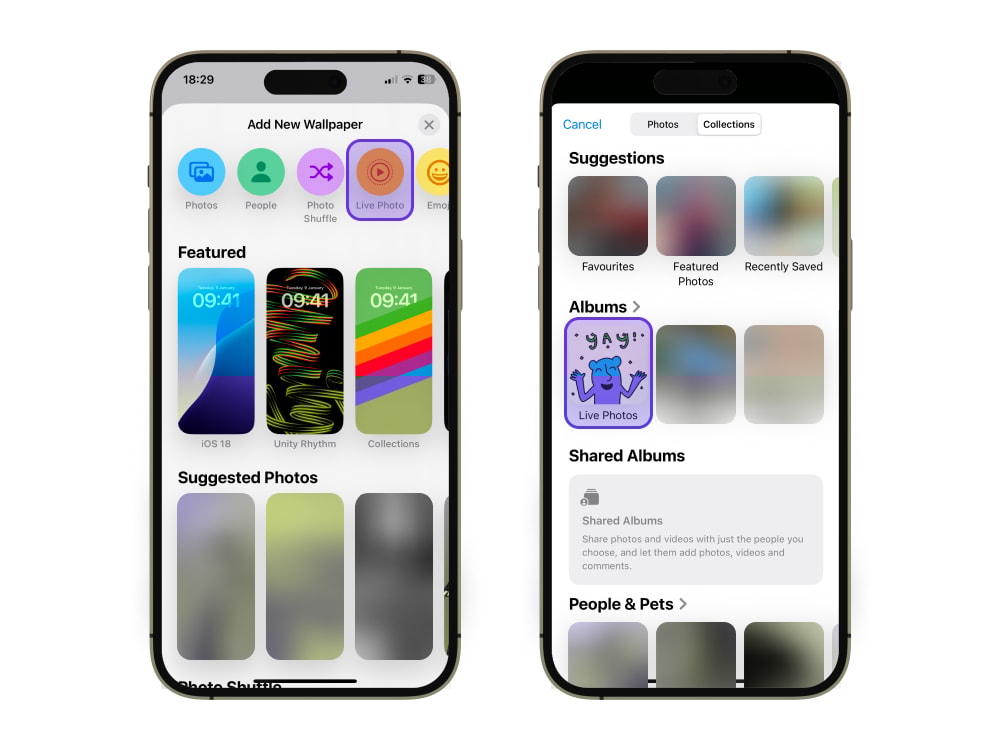
Open the Photos app and confirm the new Live Photo is there. Look in your Live Photos album, or open the image and check for the Live badge in the corner. Press and hold it to make sure the motion plays back as expected.
How to Set Your New Live Photo as a Wallpaper
Once your Live Photo is saved, setting it as a wallpaper takes only a minute.
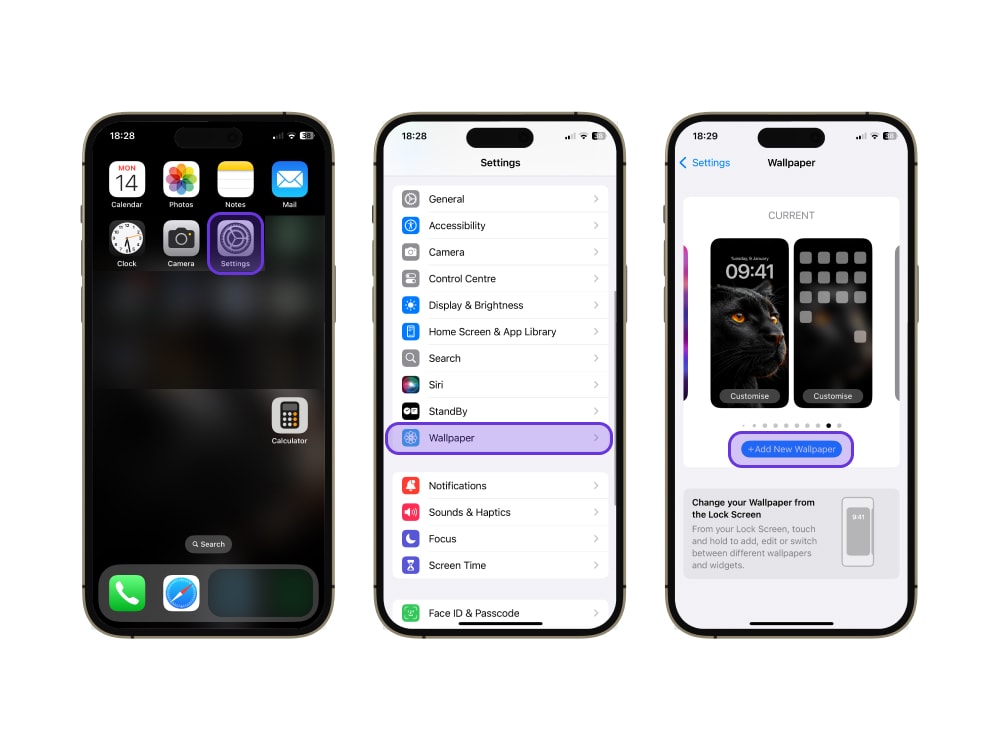
- Open the Settings app and tap Wallpaper
- choose to add or set a new wallpaper
- When the photo picker opens, switch to your Live Photos so iOS shows only the clips that can animate, and select the Live Photo you just saved
You can also start from the Photos app by opening the Live Photo, tapping the share button, and choosing Use as Wallpaper.
Position the image the way you want, then set it as your lock screen. This matters, because Live Photo motion plays on the lock screen, not the home screen. Make sure the Live Photo option stays turned on while you set it, since iOS sometimes defaults to a still version.
To see the animation, wake your phone, then press and hold on the lock screen. The clip will play for a couple of seconds each time. If nothing moves, the most common cause is that the Live Photo toggle was switched off during setup, so go back and turn it on.
Want more control? See how to set wallpaper on iPhone.
Troubleshooting: Why Your GIF-to-Live-Photo Conversion May Not Work
If something does not look right, these quick fixes usually solve it.
Live Photo does not animate: The Live Photo toggle was probably off when you set the wallpaper. Set it as the wallpaper again with Live Photo turned on, then press and hold the lock screen to play it.
The result looks blurry: The source GIF was likely low resolution. Start from a sharper GIF, or use a converter that lets you export at a higher resolution.
The app seems to fail on some files: Very large or very long GIFs can trip up some tools. Trim the clip shorter or try a different converter.
Wallpaper motion does not show: Remember that motion plays on the lock screen, not the home screen, and only when you press and hold. Check that you set it as the lock screen wallpaper.
Still stuck? Use this guide on how to customize your home screen.
Which Method Should You Choose?
The best method depends on what you care about most.
For the fastest result, a quick online converter wins. Upload, convert, save, and you are done in under a minute.
For the best control, an app with editing tools is the right pick. Trimming, cropping, and speed adjustment let you shape exactly how the wallpaper looks and moves.
For the easiest lock screen setup, a wallpaper-focused workflow like Zedge is simplest, since it carries you from conversion to a finished wallpaper without juggling separate tools.
Personalize Your Device Further with Zedge
What Is Zedge.com?
Zedge is the ultimate resource for high-quality wallpapers, ringtones, and themes, all optimized for your screen size.
Whether you're into nature, space, anime, or sports, Zedge has Live Wallpapers that actually look good, which makes it our pick for the best app for live wallpapers.
Explore Zedge wallpapers today and enjoy high-level personalization.
How to Find and Download Live Wallpapers from Zedge
- Go to zedge.net/wallpapers
- Use the category filters to browse by style
- Select Live Wallpapers
- Tap Download or Save to device
- Set it through your iPhone's Photos app
Combining Zedge Resources with Your Custom Live Photos
Mix and match Zedge assets with your converted Live Photos to create a full custom theme from lock screen to home screen.
Want to make your own Live Wallpaper from scratch? Check out this guide on how to make your own phone wallpaper.
Final Word
Converting a GIF to a Live Photo is quick once you pick the right tool. For speed, use a simple online converter. For control over trimming and motion, use an app with editing tools. And if your goal is a great-looking live wallpaper with minimal fuss, Zedge is the easiest path from clip to lock screen.
FAQ
Can I make a GIF into a Live Photo?
Yes. A converter repackages the GIF's frames into the Live Photo format, and the result saves to your Photos app.
How do I save a GIF as a Live Photo?
Upload the GIF to an online converter or app, convert it, then save or add the result to Photos. Confirm it appears in your Live Photos album.
Can I use a Live Photo as wallpaper?
Yes. Set it as your lock screen wallpaper with the Live Photo option on, then press and hold the lock screen to see it animate.
Why doesn't my Live Photo animate?
Usually the Live Photo toggle was off during setup, or it was set as the home screen rather than the lock screen. Set it again on the lock screen with Live Photo on.
Do I need an app to do this?
No. Online converters work from your browser. An app only helps if you want editing controls or guided wallpaper setup.