

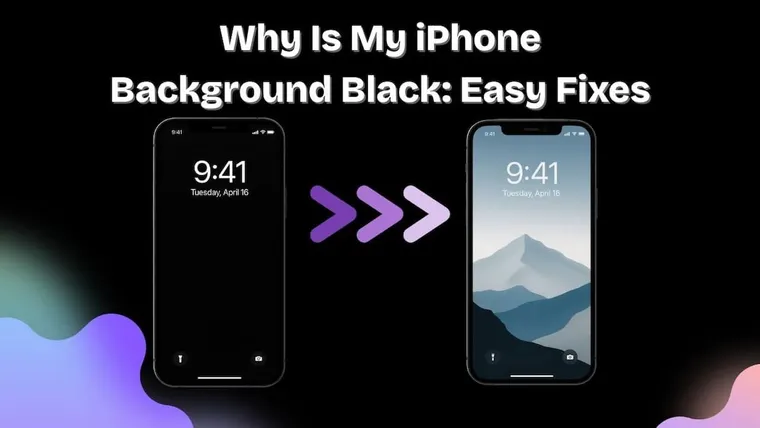
Short answer: a black iPhone background is almost always caused by Dark Mode, Low Power Mode, a Focus with no wallpaper set, or a missing/corrupted wallpaper file — not a broken screen. Restarting and re-setting your wallpaper fixes it in most cases. Full steps below.
What Causes the Black Background Issue?
You're not imagining things— your iPhone background turning black out of nowhere is a real (and surprisingly common) issue. It usually comes down to a few various factors:
1. iOS Glitches After an Update
Sometimes, the culprit is a simple software glitch after your latest iOS update. These updates are designed to improve your device— but they can occasionally break things like your lock screen wallpaper, causing it to vanish and leave a blank, jet-black background in its place.
2. Dark Mode or Low Power Mode
Both are great for saving battery. But sometimes, turning on dark mode or low power mode can dim or replace your background entirely. What was once a vibrant photo might now be hidden behind a dim lock screen or full black background.
3. Focus Mode Confusion
With Focus Mode, Apple lets you customize your home screen and lock screen based on your activity (Work, Sleep, etc.). But if you haven't set a wallpaper for a particular focus, your phone might just default to… nothing. Hence: black screen.
4. Corrupted or Missing Wallpaper File
If you’re using a Live Photo, third-party app, or low-res image, and that file gets deleted or moved in the Photos app, your iPhone wallpaper may turn black because there’s simply nothing to show.
5. Display or Hardware Issues (Rare, but Possible)
In rare cases, the issue isn’t software— it’s the screen itself. If your iPhone’s display is malfunctioning or you’re seeing only the Apple logo before everything goes dark, it could be a hardware issue that needs professional attention.
How to Fix a Black iPhone Background
Here are 5 quick fixes to bring your background back fast:
✅ Restart Your iPhone
Simple but surprisingly effective. Restarting clears out temporary software glitches.
How to do it:
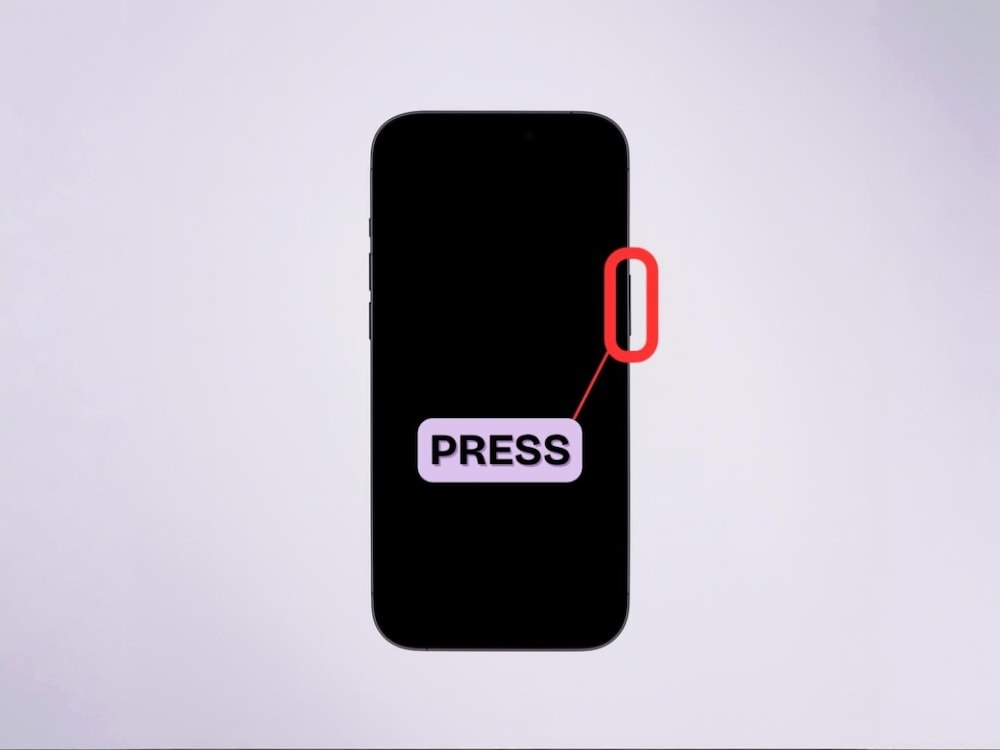
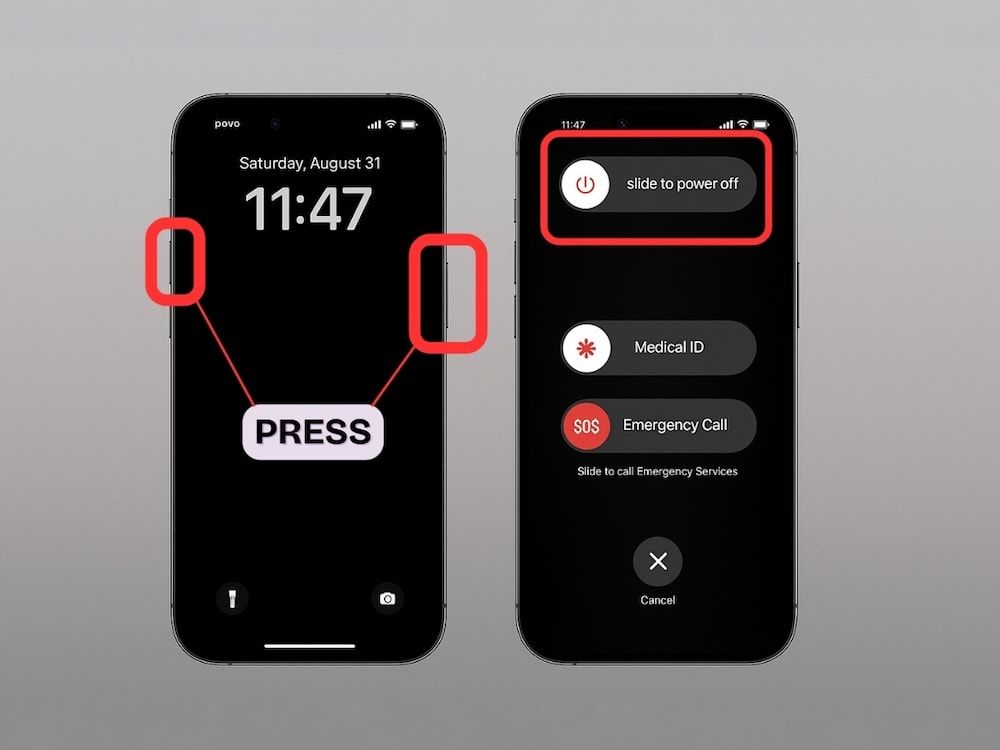
- Press and hold the side button + volume button until the slider appears
Wait a few seconds, then press and hold the side button to reboot
Slide to power off
✅ Update iOS
If a recent glitch is the cause, an iOS update might already have the fix.
Steps:
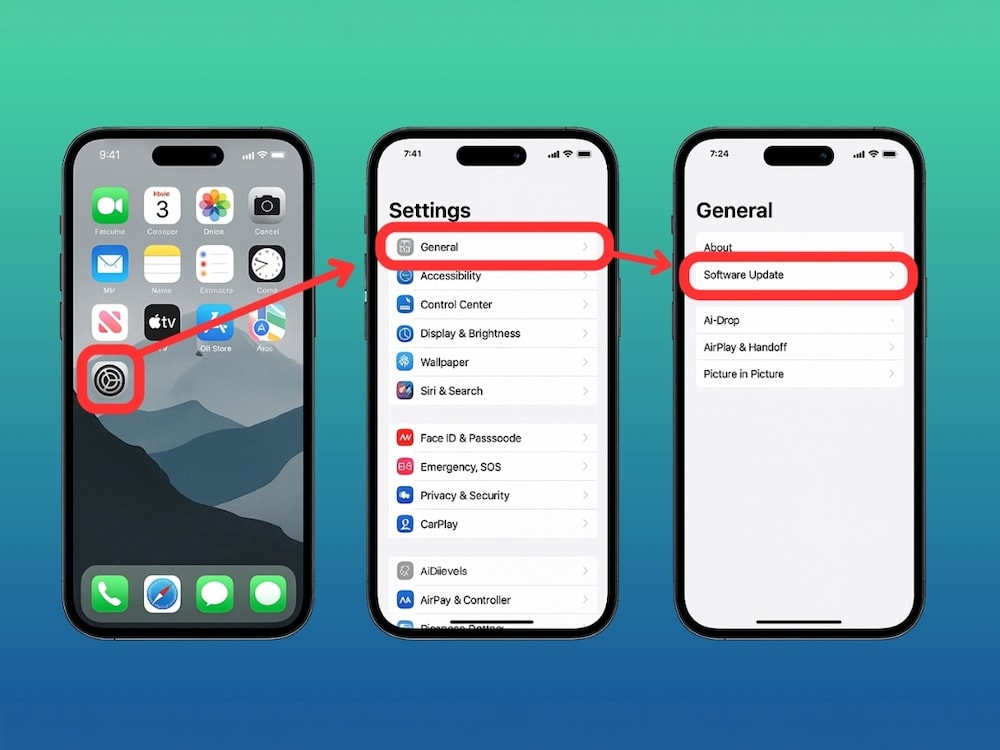
- Go to Settings app → General → Software Update
Tap Download and Install if there’s one available
✅ Reset Your Wallpaper
Sometimes a clean slate solves everything.
Steps:
- Press and hold your lock screen
- Choose your desired photo
Tap Add → Set as Wallpaper Pair or Customize Home Screen
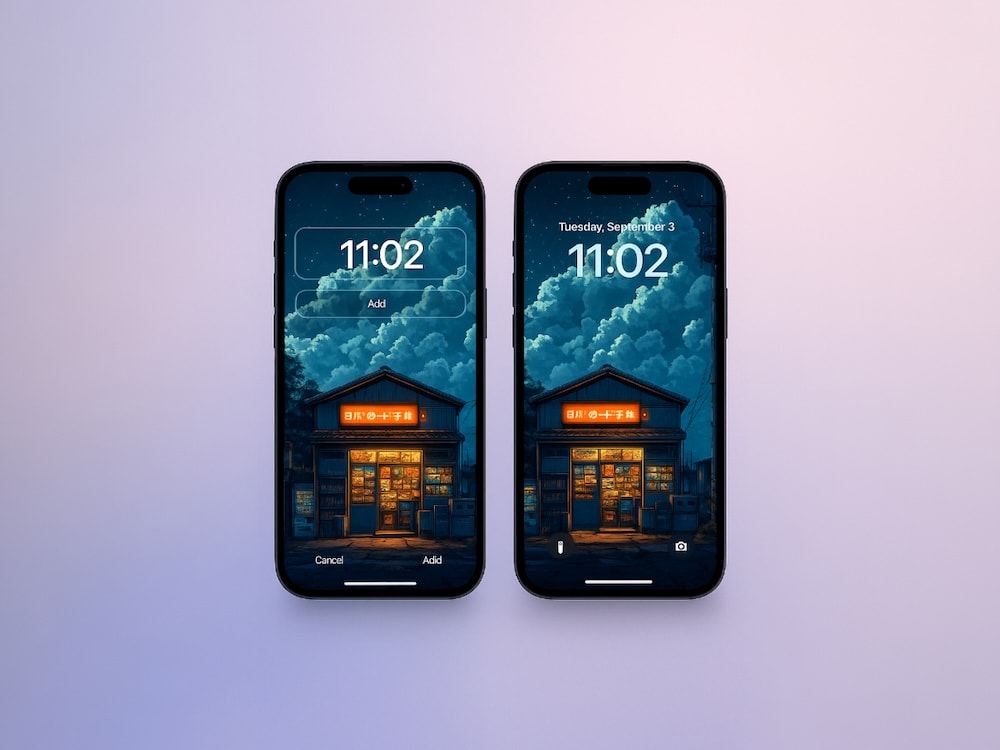
Tap the “+” to add a new setup
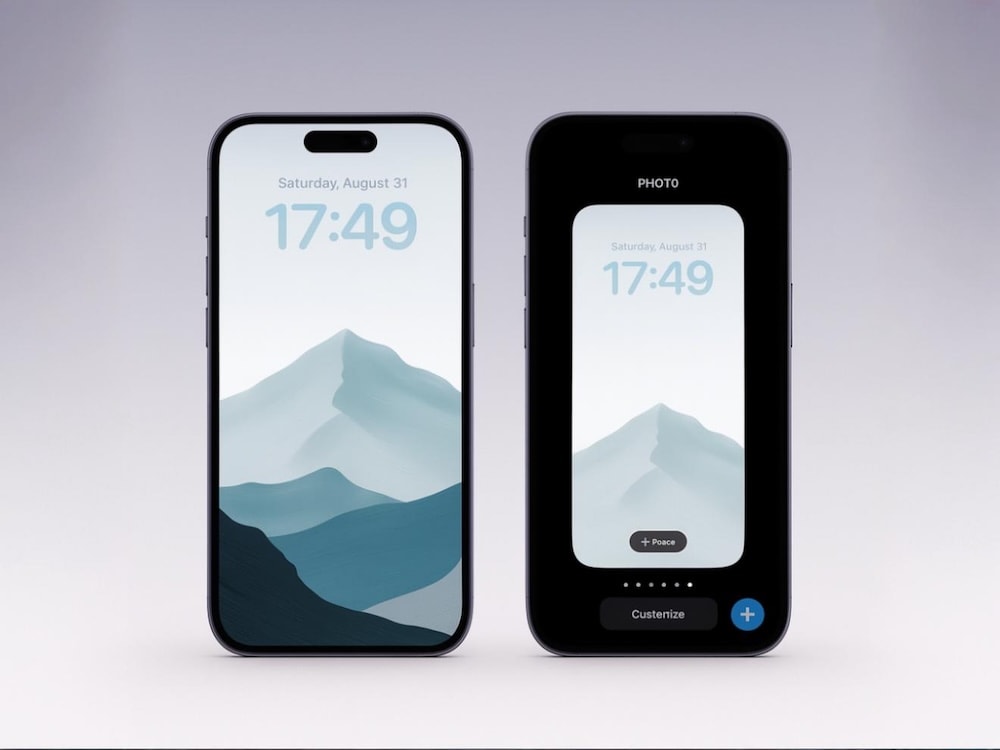
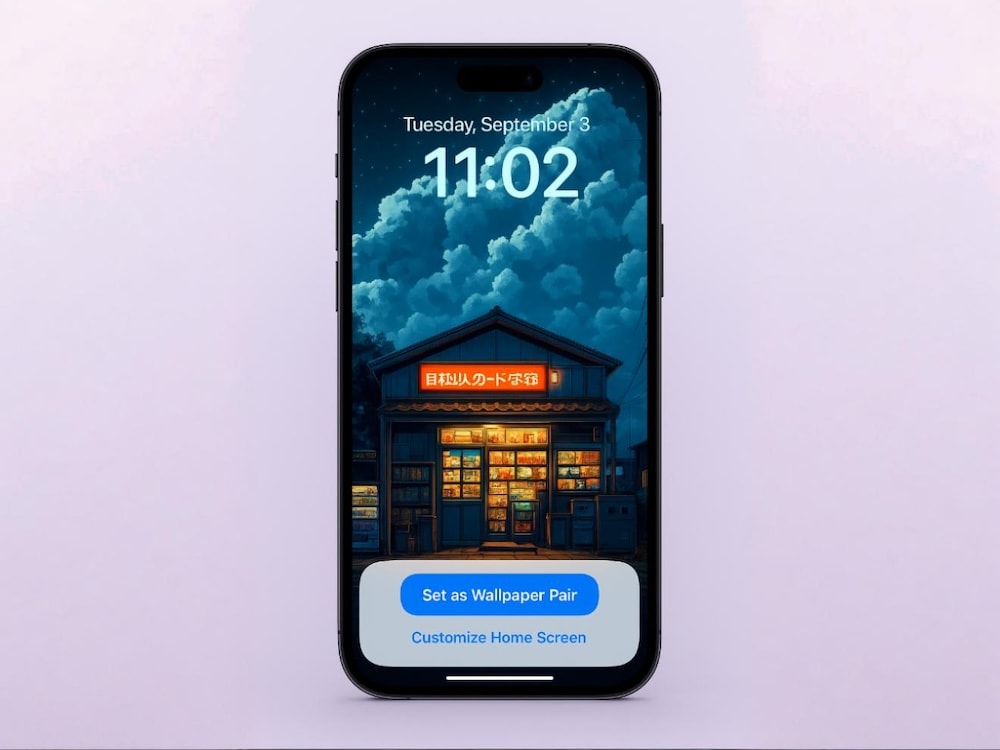
More help? Here’s our how-to guide on changing wallpaper on iPhone
✅ Check Focus & Dark Mode Settings
If your wallpaper settings change when certain modes are active, here’s what to do:
Disable Dark Mode:
- Settings → Display & Brightness → Appearance → Light
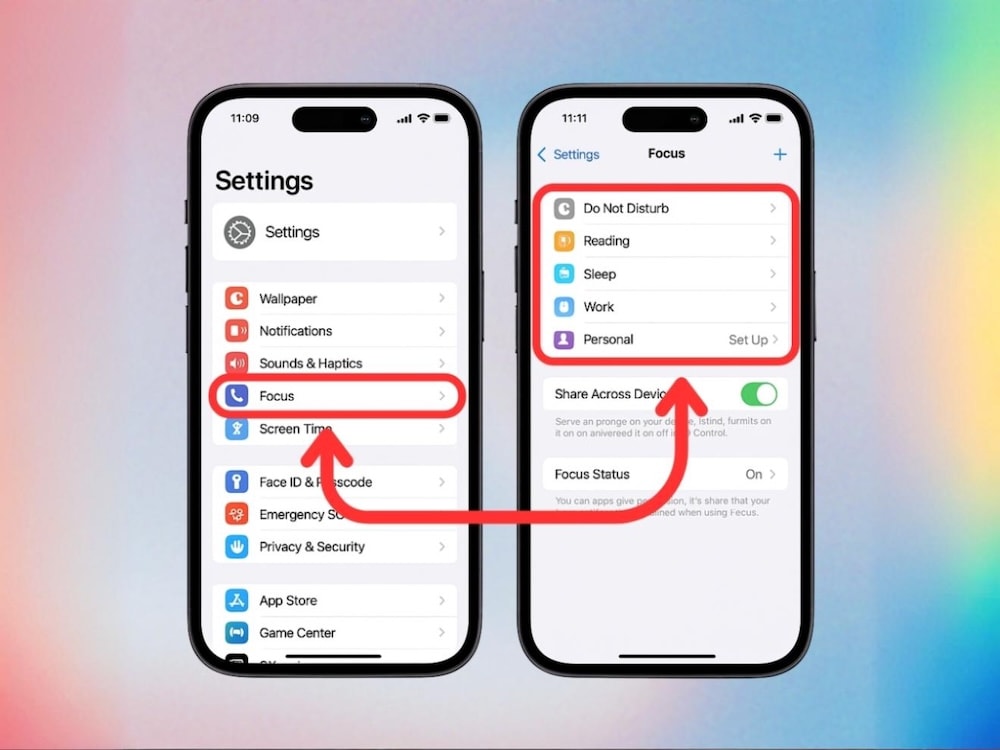
Adjust Focus Mode Wallpaper:
Set a new lock screen wallpaper and screen wallpaper for each mode
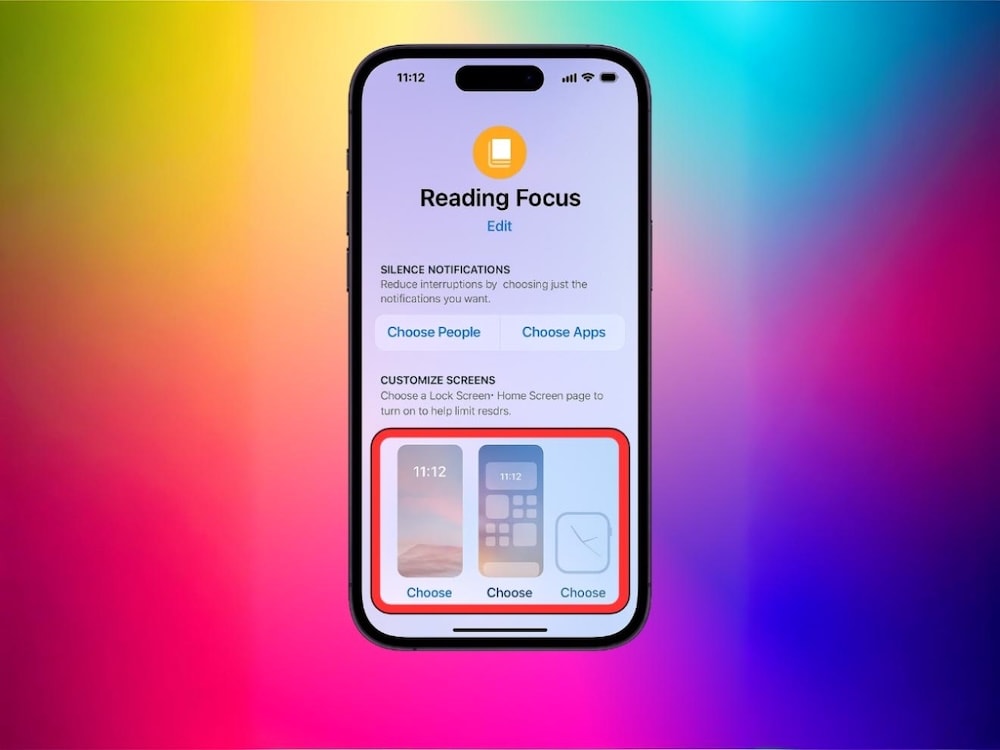
Settings → Focus → [Choose Mode] → Customize Screens
✅ Replace the Missing or Corrupted Image
Open your Photos app— is the image still there? If not, you’ll need a new wallpaper.
Lucky for you...
Explore Backgrounds for Your iPhone with Zedge
Fixed your black background? Good. Now let’s upgrade your screen from “default” to personalized.
Zedge has one of the most-loved wallpaper collections anywhere— designed for iPhone users who actually care what their lock screen and home screen look like. Whether you're going for bold, minimal, dreamy, or downright weird, there’s a look that fits your vibe.
Start here 👉 Zedge’s Top Wallpaper Categories
Need a quick reset?
Most-Loved iPhone Wallpaper Themes
These aren’t just trending— they’re how iPhone users make their devices feel like theirs.
Your iPhone’s display is the first thing you see every day, might as well make it yours.
👀 TL;DR?
Your iPhone background black moment could be caused by dark mode, low power mode, a Focus setting, or even a missing image. But in most cases, a quick fix is all it takes.
And when you’re ready to ditch the black screen for something fresh— Zedge is here with every wallpaper style under the sun (and moon).
FAQs
Why did my iPhone wallpaper turn black after an update?
This is usually caused by Low Power Mode, which automatically disables certain wallpaper effects (like Perspective Zoom or Always-On Display) to save battery, sometimes leaving the screen looking black or dim. It can also happen if the photo you used as wallpaper was deleted or edited, or if Reduce Motion/Reduce Transparency got toggled on during the update.
How do I get my iPhone background back?
First, turn off Low Power Mode (Settings > Battery) and check Settings > Accessibility > Display & Text Size to make sure Reduce Motion/Reduce Transparency aren't enabled. If it's still black, go to Settings > Wallpaper and re-select or re-add your photo, since the original may have been moved or deleted from your library.
Why is only my lock screen black?
On iPhones with Always-On Display (14 Pro and later), the lock screen intentionally dims to near-black when the phone isn't actively in use — that's expected behavior, not a bug. If you don't have an Always-On model, it's more likely Low Power Mode or a specific Lock Screen customization (like a Focus filter) hiding the wallpaper.
Why does my wallpaper go black in Low Power Mode?
Low Power Mode deliberately disables battery-intensive visual effects, including Always-On Display and animated/dynamic wallpaper motion, to extend battery life. Turning off Low Power Mode restores the full wallpaper display immediately — it's a trade-off Apple built in, not a malfunction.