

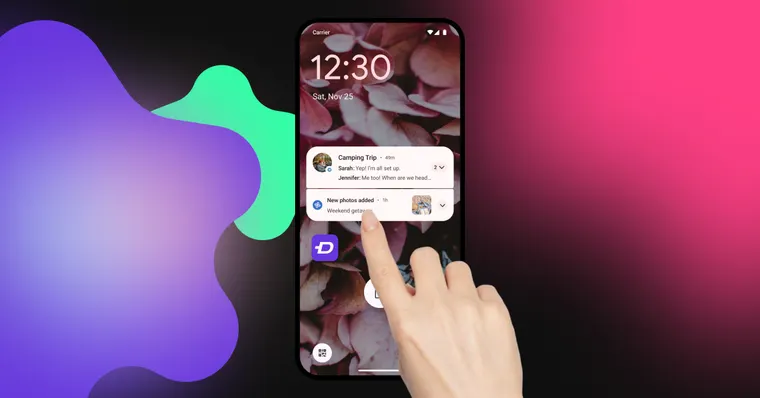
The best notification apps for Android in 2026 are Zedge for notification sounds, BuzzKill for notification rules, and Notisave for notification history. Glimpse Notifications and AOA handle the lock screen, AutoNotification is built for Tasker automation, and FilterBox is the simplest free notification manager.
Your phone's default notification settings only get you so far. If you want a different sound for one contact, fewer interruptions during the day, or a lock screen that doesn't light up every five minutes, you need an app built for it. Android 14 and 15 changed how notification channels and background permissions behave, so check that an app is still being updated before you install it.
How We Tested
Each app was judged on the same criteria:
- Reliability on current Android versions, since a notification app that breaks silently is worse than none
- How much control it gives you over notification behavior, not only appearance
- Custom notification sound support
- Lock screen behavior and what shows up in previews
- Battery impact, especially for anything that keeps the screen or a background service active
- Play Store reviews and installs, plus how recently the app was updated
- Privacy, since a notification app can see a lot of sensitive content
Best Notification Apps Compared
| App | Best For | Key Feature | Price | Play Rating | Downloads |
|---|---|---|---|---|---|
| Zedge | Custom notification sounds and ringtones | Huge, constantly growing tone library | Free, with Zedge+ from $1.99/week | 4.7 | 500M+ |
| BuzzKill | Rule-based notification control | Keyword and contact-based filtering rules | $3.99 one-time purchase | 4.7 | 100K+ |
| Notisave | Notification history and recovery | Searchable log of dismissed notifications | Free | 4.5 | 10M+ |
| Glimpse Notifications | Brief lock screen glances | Pocket mode and quiet hours | Free | 4.1 | 1M+ |
| AOA: Always on Display | Lock screen replacement | Always-on display with glance actions | Free, with ads and an in-app purchase | 4.2 | 5M+ |
| AutoNotification | Power users and Tasker automation | Custom triggers and automated replies | Free, with a paid unlock for advanced automation | 4.2 | 500K+ |
| FilterBox | Simple, everyday notification organization | Category and priority-based sorting | Free | 4.1 | 100K+ |
The 7 Best Notification Apps for Android
Each pick links to its Google Play page, so you can go straight to the notification app download.
1. Zedge - Best for Notification Sounds

Zedge is built around its tone library rather than notification behavior. It holds a 4.7 rating on Google Play with over 500M downloads. You can browse notification sounds and ringtones by category, apply one as your phone's default, or set a unique ringtone for a specific contact. Zedge doesn't control how individual apps behave, which is why it pairs well with a notification manager. Zedge supplies the sound, and a manager like BuzzKill decides which apps get to use it and when.
Key Strengths
- A massive, constantly updated tone library covering nearly every genre and mood
- One-tap apply for a default sound or contact ringtone
- Audio AI on Android, which creates a custom notification sound from a short text prompt
Possible Limitations
- Assigning a sound to one app's notifications happens in Android's own settings, not inside Zedge
- The free version runs ads
Download Zedge on Google Play.
2. BuzzKill - Best for Notification Rules

BuzzKill is built for automation rather than browsing. It holds a 4.7 rating on Google Play with 100K+ downloads. You build rules around apps and contacts, or around keywords in the text, so a notification can be dismissed, delayed or escalated depending on what it says. BuzzKill works well as a message notification app for anyone buried in group chats.
Key Strengths
- Rules that trigger on an app, a contact, or a keyword in the notification text
- Batch delivery, so notifications arrive on your schedule instead of one at a time
- Persistent alerts for the contacts you don't want to miss, even on silent
Possible Limitations
- It's a paid app
- Advanced rules take some trial and error before they work the way you want
Download BuzzKill on Google Play.
3. Notisave - Best Notification History App

Notisave keeps a searchable log of notifications you'd otherwise lose the moment you swipe them away. It holds a 4.5 rating on Google Play with over 10M downloads, the most installs in this list after Zedge. You can also read chat messages in the log without opening the messaging app.
Key Strengths
- Recovery for notifications you've already dismissed
- A history you can filter by date, app, or keyword
Possible Limitations
- It logs everything that comes through, so treat the archive as sensitive data and review its permissions
Download Notisave on Google Play.
4. Glimpse Notifications - Best for Lock Screen Glances

Glimpse holds a 4.1 rating on Google Play with over 1M downloads. Instead of replacing your lock screen, it wakes the screen briefly to show a preview when a notification comes in, then lets it go back to sleep. On phones without a notification LED, that makes it a practical notification light app for Android. Pocket mode stops the wake-ups while your phone is put away, and quiet hours switch them off at night.
Key Strengths
- Brief lock screen previews instead of a full always-on display
- Quiet hours and built-in pocket detection
Possible Limitations
- Lighter on customization than a full notification manager
- On some Huawei and MIUI devices, Glimpse shows the lock screen but can't render notification content on it. Test it on your phone first
Download Glimpse Notifications on Google Play.
5. AOA: Always on Display - Best Lock Screen Replacement

AOA: Always on Display holds a 4.2 rating on Google Play with over 5M downloads. It replaces your lock screen with an always-on display that shows notifications and the time, along with weather and music controls. You can swipe to dismiss or reply to a message without unlocking, and edge lighting adds a colored notification glow around the screen.
Key Strengths
- Interactive glance actions, including replies and swipe to dismiss
- Start and end times, plus automatic rules to reduce battery drain
- Password-protected unlock and notification viewing
Possible Limitations
- The free version runs ads and gates some features behind an in-app purchase
- An always-on display uses more battery than a standard lock screen
Download AOA: Always on Display on Google Play.
6. AutoNotification - Best for Tasker Automation

AutoNotification holds a 4.2 rating on Google Play with 500K+ downloads. Basic notification blocking works on its own, but custom triggers and automated replies need Tasker installed alongside it.
Key Strengths
- Notification interception and automated replies once paired with Tasker
- Integration with the wider AutoApps set of automation plugins
Possible Limitations
- Setup takes real effort. If you don't already use Tasker, budget time to learn both apps
Download AutoNotification on Google Play.
7. FilterBox - Best Simple Notification Manager

FilterBox is an everyday notification manager app rather than an automation tool. It holds a 4.1 rating on Google Play with 100K+ downloads. It sorts notifications by category and priority, so the important ones stay visible and the rest stay out of the way.
Key Strengths
- Quick snooze and dismiss rules for low-priority notifications
- A searchable notification history you can restore from
Possible Limitations
- Fewer automation features than BuzzKill or AutoNotification
Download FilterBox on Google Play.
Best Notification Sound Apps
If you want a better-sounding phone rather than fewer alerts, you need a notification sound app, not a notification manager. These are the strongest options on Android.
Zedge is the best app for notification sounds for most people. You can browse thousands of free notification sounds, from short pings to funny message tones. Preview any of them and set one as your default or for a single contact. On Android, Audio AI can also generate a custom sound from a text prompt.
MTP Ringtones & Wallpapers is a free, Android-only app with a user-shared catalog that includes notification sounds. You can set a tone as a notification, alarm, or contact ringtone from inside the app.
Garage Ringtone Maker suits people who want to make their own alert tone. Its waveform editor trims any audio file on your phone, and you can save the clip as a notification sound, alarm, or ringtone.
For a wider comparison of sound libraries, see our roundup of free ringtone apps for Android.
How to Choose the Right Notification App
Start with the problem you want to fix. Too many low-priority alerts call for filtering or automation. A phone that sounds generic calls for a sound library. The more control an app gives you, the more setup it usually asks for.
Filtering or Automation
Filtering apps like FilterBox sort what you already receive. Automation apps like BuzzKill and AutoNotification change what happens to a notification before you see it. For example, a rule can hold a work email that arrives after 7pm on a weekday until morning, unless it's marked urgent. Filtering works almost instantly, while automation rules take some testing.
Lock Screen Behavior
Glimpse wakes the screen briefly for a preview and lets it go back to sleep. AOA replaces the lock screen with an always-on display and glance actions. If you want to restrict who can view the lock screen at all, AOA's password lock covers the whole display, though it doesn't hide individual notifications.
Quiet Hours and Do Not Disturb
Glimpse's Quiet Times can turn off screen wake-ups for a set block, such as 10pm to 7am. BuzzKill can go further and silence only specific apps or contacts during work hours. Keep Android's own Do Not Disturb on as a fallback for anything a third-party app misses.
Android Version and Updates
Check the last update date on Google Play before you install anything. Zedge, BuzzKill and FilterBox were updated in October 2026, and Glimpse and Notisave earlier in the year. AutoNotification was last updated in November 2025 and AOA in October 2025, so test both on your phone before relying on them.
Best Notification Manager App for Power Users
BuzzKill is the best notification manager for Android if you want detailed rules, but it costs money. If you're looking for a BuzzKill alternative, two apps on this list cover most of the same ground:
- FilterBox: free to install, with custom rules such as after-hours muting for work apps. It also keeps a searchable history, which makes it the closest free match for everyday filtering.
- AutoNotification: the most flexible option, with notification interception and automated replies. Most of that needs Tasker, and advanced features need a paid unlock after a 7-day trial.
Pick FilterBox if you want rules without a learning curve, and AutoNotification if you already automate other parts of your phone.
How to Customize Android Notifications
Changing your notification sound on Android
Pick a sound in Zedge and set it as your default notification sound, or download it and choose it under Settings, Apps, the app's name, then Notifications to change one app only. Our step-by-step guide to changing your notification sound covers the exact menus on Samsung and Pixel phones.
Creating app-specific notification rules
- Install a notification manager like BuzzKill, AutoNotification, or FilterBox
- Pick the app or contact you want to build a rule around
- Decide the outcome you want, whether that's dismiss, delay, group, or escalate
- Test the rule for a day or two before adding more on top of it
Using a notification manager with Zedge
- Set your preferred sound in Zedge, either as your phone-wide default or for a specific contact
- Install a notification manager to decide which apps can interrupt you and when
- Let Zedge handle what your phone sounds like, and let the manager handle when it's allowed to make that sound
Final Thoughts
No single app here does everything. If notification overload is the problem, BuzzKill or AutoNotification will help more than a sound app. If your lock screen is the focus, Glimpse and AOA solve different versions of that problem. If you want a record of everything that came in, install Notisave.
If there's one place to start, it's the sound. Every other app on this list changes how or when a notification reaches you, but none of them change what it sounds like. Download Zedge on Google Play and pair it with whichever notification manager above matches how much control you want.
FAQ
What is the best notification app for Android?
Zedge is the best notification app for Android if you want better sounds, BuzzKill is best for rules and filtering, and Notisave is best for saving notification history. Most people get the most out of one sound app plus one notification manager.
What's the best free notification app?
Zedge is the strongest free pick for sound, with Zedge+ available for anyone who wants the ads gone. For managing alerts, FilterBox is the best free notification app for Android.
What is the best notification history app?
Notisave is the best notification history app for most Android users. It saves every notification automatically, including ones you swiped away, and lets you search by app, date, or keyword. FilterBox also keeps a searchable history if you want filtering and history in one app.
Do notification apps drain battery?
Most use very little. Notification managers like BuzzKill and FilterBox run a background listener that only wakes when a notification arrives. Always-on display apps like AOA use more because they keep the screen active, so set their schedule and check your battery stats after a few days.
Is there a free BuzzKill alternative?
Yes. FilterBox is free to install and covers custom rules and priority alerts. AutoNotification is free to try and can go further with Tasker, though its advanced features need a paid unlock after the trial.
Which notification apps work with Android 14 and 15?
All seven apps in this guide run on current Android releases, with Glimpse carrying a known rendering limit on Huawei and MIUI devices. Test any lock screen app on your own phone before relying on it daily.