

iPad wallpapers need to be sized for a wide, high-resolution display, and most generic wallpaper searches return phone or desktop images that crop badly on a tablet. This page collects free iPad wallpapers sized correctly for every current model, organized by aesthetic. Looking for apps rather than images? Try iPad wallpaper apps instead.
iPad Wallpaper Styles
The large iPad display rewards different choices than a phone screen. Wide compositions, fine detail, and horizontal framing all work in your favour. The seven styles below cover the most downloaded categories on Zedge, from soft aesthetic gradients to AMOLED-optimised dark backgrounds.
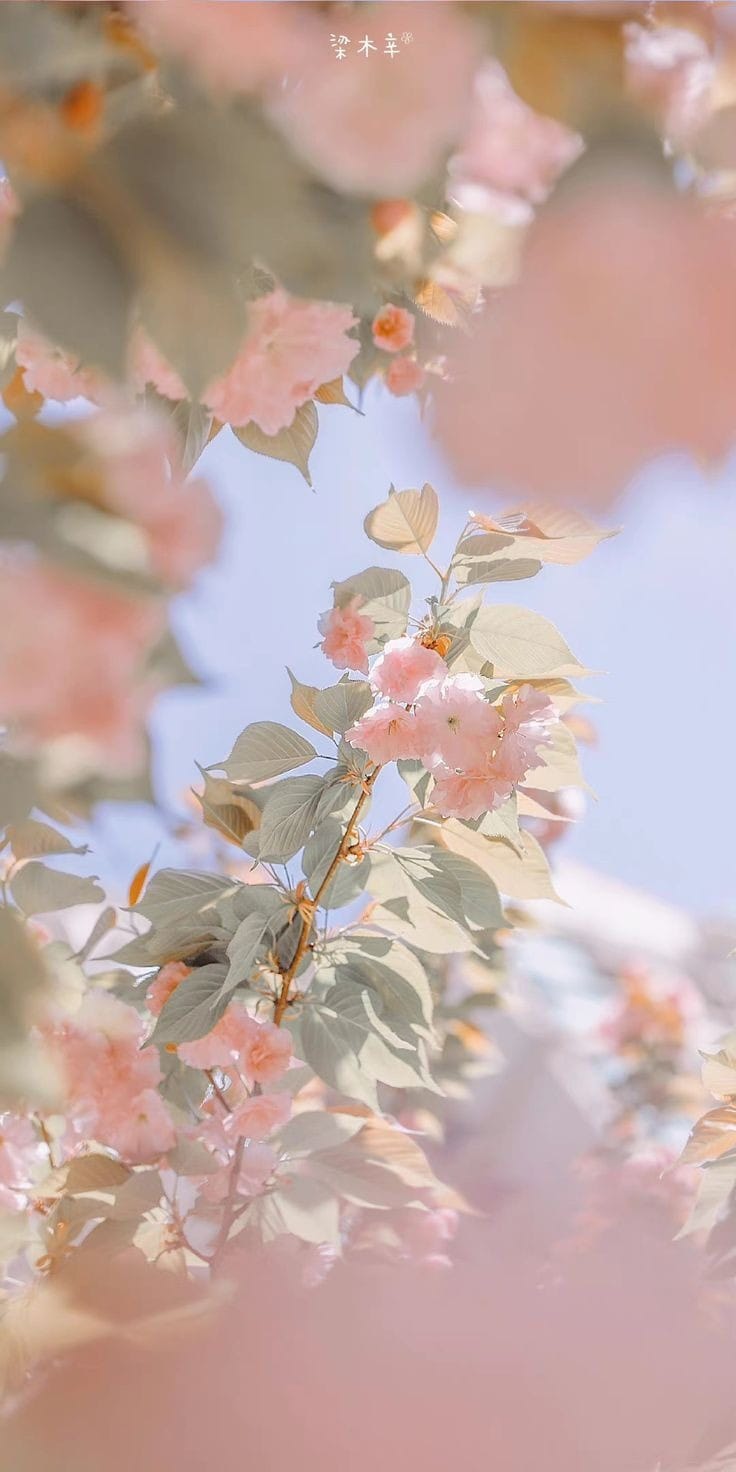
Aesthetic
Soft gradients, muted tones, dreamy skies, and botanical prints. The aesthetic category is the highest-search style and works across all iPad sizes. These pair well with light mode and pastel widget stacks.
Minimal
Clean, low-detail backgrounds that keep the home screen readable. Single-colour gradients, fine line patterns, and grayscale textures sit here. The minimalist wallpapers on Zedge are organised by colour, making it straightforward to match a specific app icon palette.
Y2K
Chrome effects, gloss surfaces, pixel art, and early-digital motifs. One of the strongest trending categories in the iPad wallpaper space.

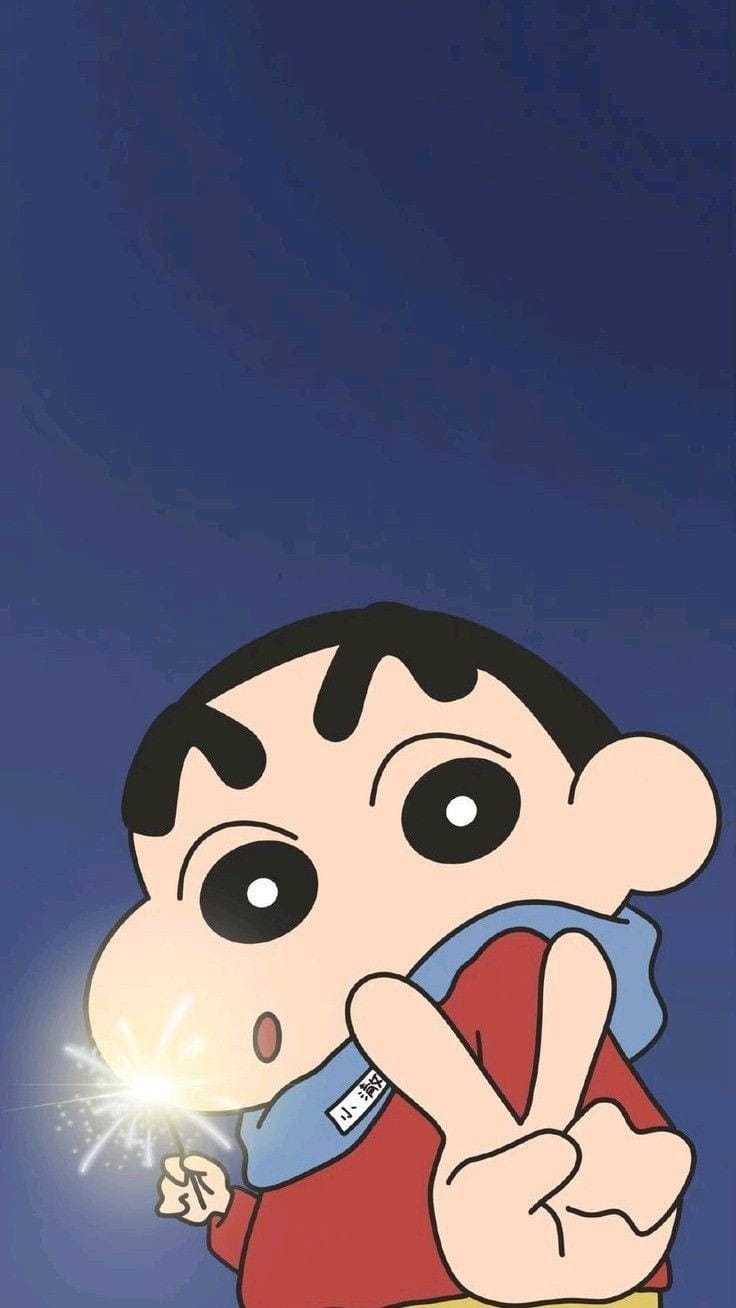
Cartoon and Cute
Illustrated characters, soft chibi art, and kawaii patterns. Popular for younger users and anyone who wants a friendly, character-led lock screen.
Nature
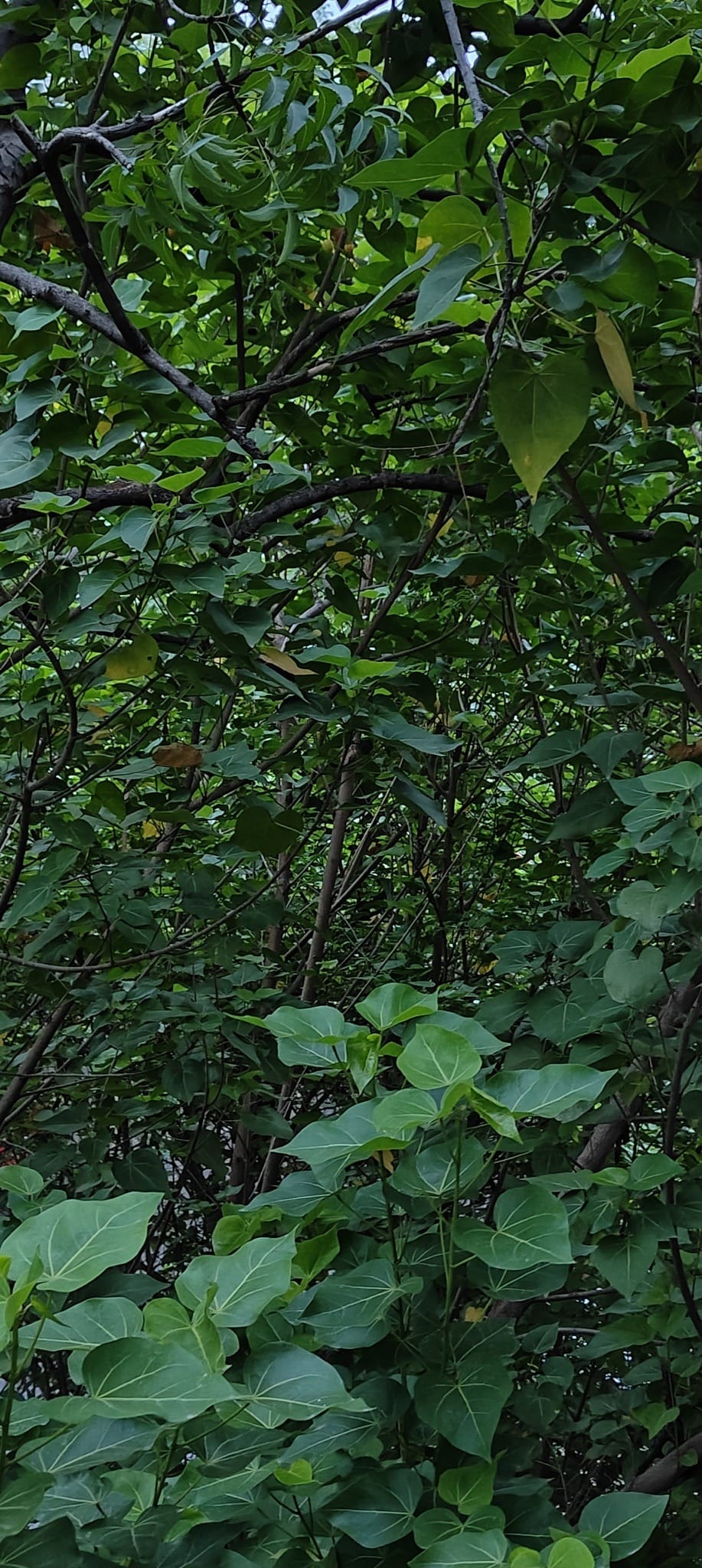
Forests, coastlines, mountains, and sky photographs. These use the full iPad canvas well, with wide horizontal compositions that look strong in landscape orientation.
4K Abstract
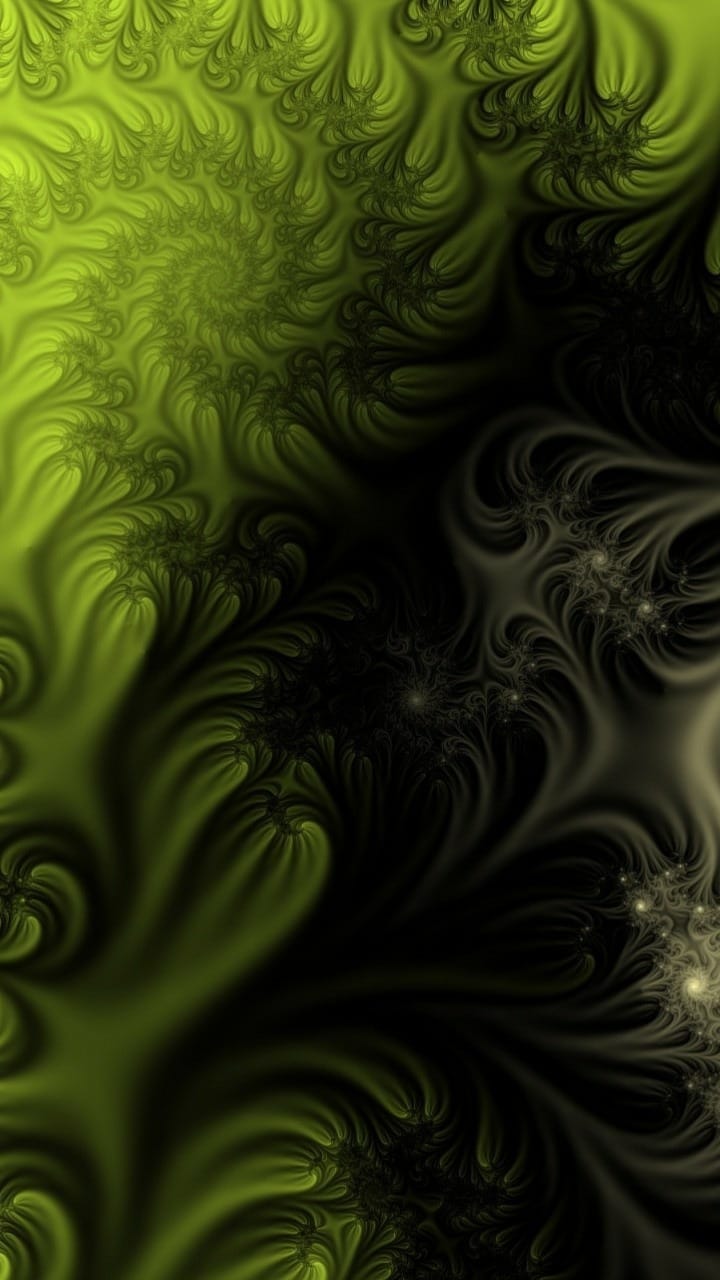
Geometric shapes, fluid color, and high-resolution digital art. Abstract wallpapers are the most resolution-sensitive category: the ipad wallpaper 4k versions reveal detail that lower-resolution downloads flatten.
Dark and AMOLED
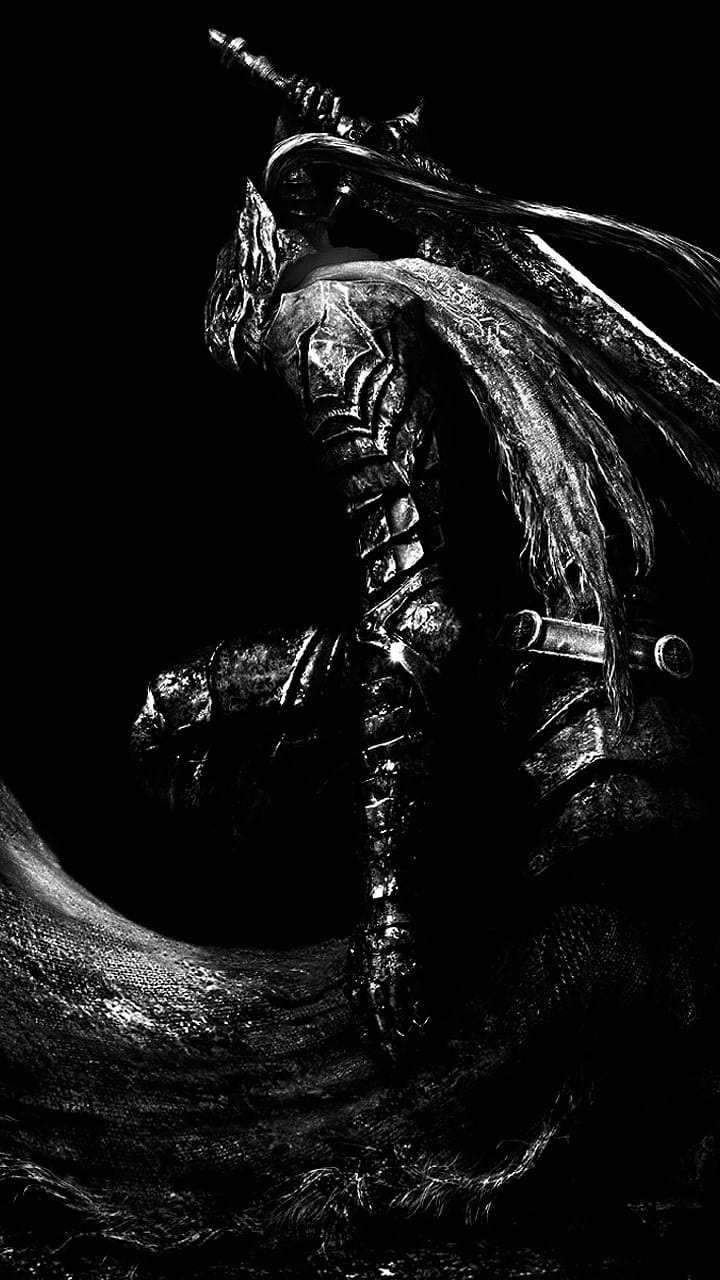
Deep blacks, dark navy, and near-black compositions. iPad Pro's OLED panel (M4 and M5) renders true black as individual pixels turned off, reducing battery draw. The effect is less pronounced on the LCD panels of iPad Air, iPad mini, and standard iPad.
iPad Wallpapers by Model and Correct Sizes
Every iPad model has a different native resolution. A wallpaper sized for an iPhone or a standard desktop screen will stretch or crop incorrectly on an iPad. The table below lists native pixel dimensions for every current model so you can match the source image to your device. For a broader explanation of how resolution scaling works across Apple devices, the wallpaper dimensions guide covers the logic behind retina scaling and point vs pixel sizing.
Practical rule: For an ipad pro wallpaper, use the native resolution or higher. A 4K image (3840 x 2160 minimum) covers every model at full quality in landscape orientation. If you download a lower-resolution image, check that it is at least as wide as the native ipad wallpaper size for your device.
How to Set a Wallpaper on iPad
Setting a wallpaper on an iPad takes under a minute from Settings.
- Open Settings, then tap Wallpaper.
- Tap Add New Wallpaper.
- Tap Photos to choose from your camera roll, or browse the built-in iPadOS categories.
- Pinch to resize and reposition the image on the preview.
- Tap Add, then choose to apply to the lock screen, home screen, or both.
To set different images on the lock and home screen, tap Customise Home Screen after setting the lock screen, then select a second image or colour.
How to set wallpaper on iPad from a browser: Save the image to Photos first, then follow the steps above. You cannot apply a wallpaper directly from Safari.
iPad Home Screen Aesthetic Tips
A considered iPad home screen aesthetic comes from treating the lock screen and home screen as a pair rather than choosing each independently. A few practical approaches:
Match tone, not image. The lock screen can carry a more detailed or saturated image, while the home screen uses a blurred or more muted version of the same palette. iPad lets you apply a colour blur to the home screen during setup.
Widget colour matters. Widget backgrounds on iPad pick up whatever colour is dominant in the wallpaper when using automatic tinting. Choose a wallpaper with one clear dominant hue if you want consistent-looking widgets.
Landscape vs portrait. iPad wallpapers display in landscape when you rotate the device. Centred compositions or wide horizontal images handle rotation better than vertically-centred subjects that lose their framing when the device turns.
The range of custom lock screen ideas goes further than most users explore, from depth effect and clock font to widget layout, and all of it works the same on iPad as on iPhone.
FAQ
What size is an iPad wallpaper?
The size depends on your model. iPad Pro 13-inch uses 2752 x 2064 px; iPad Pro 11-inch uses 2420 x 1688 px; iPad Air 13-inch uses 2732 x 2048 px; iPad Air 11-inch uses 2360 x 1640 px; iPad mini 7 uses 2266 x 1488 px; iPad 11th gen uses 2360 x 1640 px. A 4K image covers all models at full quality in landscape.
Where can I find free 4K iPad wallpapers?
Zedge carries a large library of HD and 4K wallpapers sized for iPad, organised by style and colour. Most downloads are free with ads; a Premium subscription removes them. The gallery sections above link directly to the relevant Zedge categories.
How do I set a wallpaper on iPad?
Open Settings, tap Wallpaper, tap Add New Wallpaper, choose your image from Photos or the built-in library, resize it, then tap Add and choose lock screen, home screen, or both.
What makes a good aesthetic iPad wallpaper?
Wide-format images with a clear dominant colour work best. Avoid vertically-centred subjects that lose framing when the device rotates to landscape. Muted palettes hold up better against app icons and widget text than saturated ones. Soft gradients and minimal detail keep the home screen readable.