

To create an iOS 16 wallpaper, make or generate an image with an iPhone wallpaper maker such as the Zedge AI Generator, save it to your camera roll, then touch and hold the lock screen, tap the plus button, add your photo, enable Depth Effect (spatial scene) from the hexagon icon, reposition the subject, pick a clock style, and tap Set. It works on iOS 16 and every version that follows.
Key Takeaways
- Start by making or generating an image; the lock screen editor does not create images, it only applies them.
- Zedge's AI Generator generates an image from a text prompt at iPhone resolution, or you can browse its library and apply filters.
- Depth Effect is applied by Apple's iOS, not by Zedge or any third-party app. Zedge supplies the source image; iOS handles the effect.
- Depth Effect (spatial scene) needs a photo with a clearly separated subject. Not every photo qualifies.
- The steps work on iOS 16 and later, including the current iOS 26.5.1.
What iOS 16 Changed for Wallpapers
iOS 16 is where the customizable lock screen arrived on iPhone, and its core features have carried through every version since, including iOS 16 lock screen widgets, clock styling, and the depth effect.
Before iOS 16, the iPhone lock screen showed a wallpaper and a clock. You could not change the clock style, add widgets to the lock screen, or layer a subject over the time display. iOS 16 changed all of that.
Depth Effect: A photo with a clearly separated subject (a person, a pet, a flower, an object) lets the clock sit behind the subject. The result is that the subject appears in front of the time rather than behind it.
Clock font and color: You can now tap the clock directly in the lock screen editor and change the font style, weight, and color.
Lock screen widgets: A small widget row above and below the clock shows information like weather, calendar, battery, or fitness rings without unlocking the phone.
Photo Shuffle: The lock screen rotates through a set of photos automatically on a schedule you choose.
Focus-linked screens: Each Focus mode (Work, Sleep, Personal, Do Not Disturb) can have its own lock screen and home screen pair that activates automatically.
All of these features remain in the current iOS. The steps in this guide work on any iPhone running iOS 16 or later.
How to Create a Custom Wallpaper With an iPhone Wallpaper Maker
Creating a custom wallpaper is the step most how-to guides skip. The iOS lock screen editor applies a wallpaper but does not generate or design one. You need a source image first. Here is how to make your own wallpaper using the Zedge AI Generator, or alternatively by picking from the Zedge library with filter adjustments.
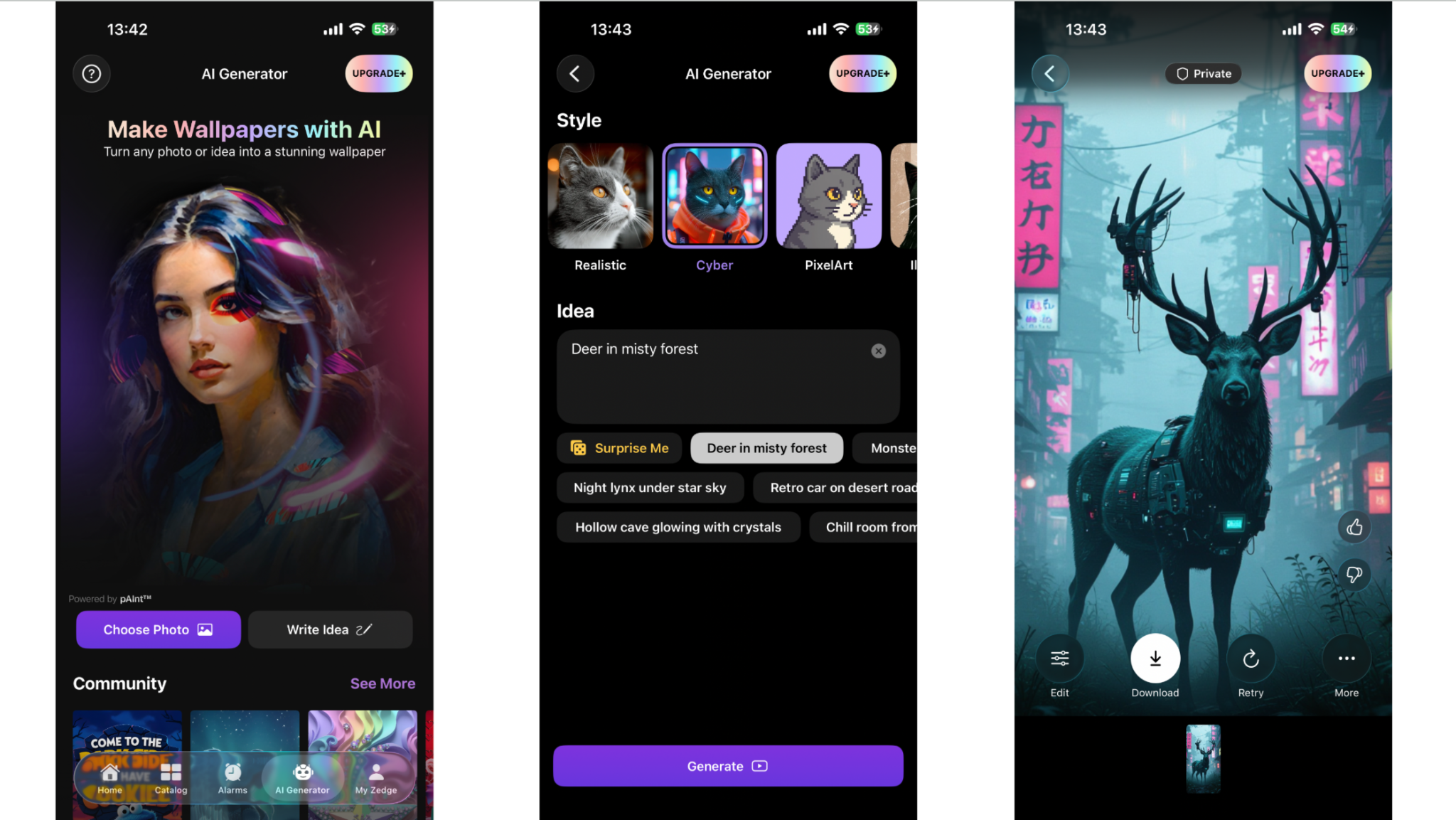
Generate with the Zedge AI Generator:
- Open the Zedge app and navigate to the AI Generator.
- Type a prompt describing what you want. Examples: "dark forest with fog and soft blue light," "abstract pastel gradient in soft pink and peach," "minimalist mountains in grayscale at dusk."
- The maker generates an image at iPhone resolution. If the result is not quite right, adjust the prompt and generate again.
- Tap Download to add the image to your camera roll.
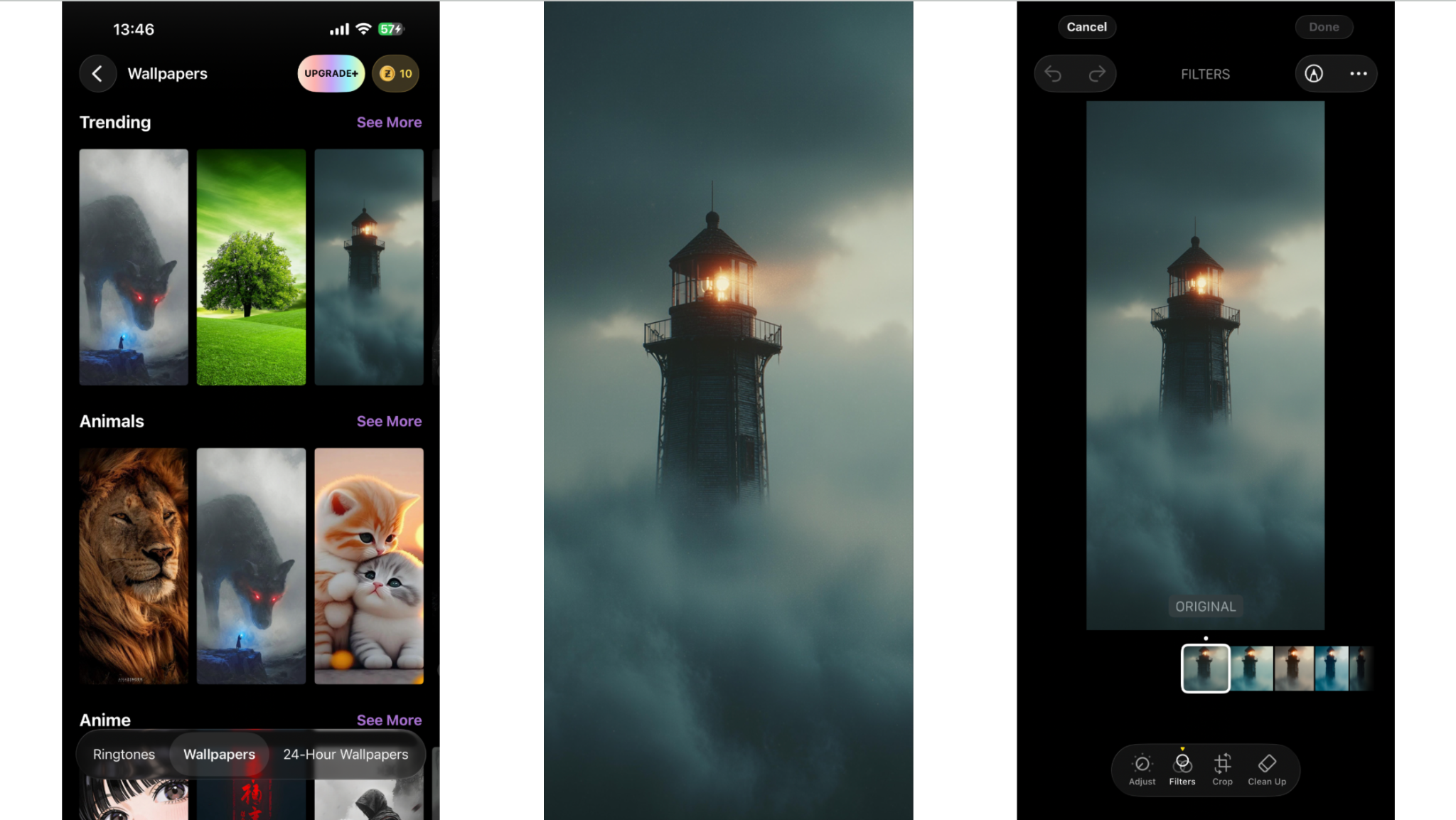
Pick from the Zedge library with filters:
- Browse or search the Zedge wallpaper library for an image you like.
- Apply a filter (color tone, brightness adjustment, or a sticker overlay) if the image needs tweaking.
- Save the final image to your camera roll.
One thing to keep in mind for depth effect: choose a subject with a clean, dark, or blurred background. The subject's edges need to be clear enough for iOS to separate them from the background. A portrait, a centered flower, or an animal against open sky all tend to work well. A crowded scene with no clear foreground subject usually does not.
Avoid prompting for or using images that feature copyrighted characters or branded content presented as free to use.
How to Set Your Custom Wallpaper as an iOS 16 Lock Screen
Once your image is saved to the camera roll, you can set it as your iPhone wallpaper on the lock screen in about a minute.
- Wake the phone and touch and hold an empty area of the lock screen.
- Authenticate with Face ID, Touch ID, or your passcode.
- Tap the plus (+) button at the bottom of the screen to add a new lock screen.
- Tap Photos to open your camera roll, then select the image you created.
- Pinch and drag to reposition and scale the image on the lock screen.
- Swipe left to preview style filters (Natural, Tone, Vibrant, Black and White, Studio, and others). These are additive; the underlying image stays the same.
- Tap the hexagon in the bottom right corner to access Spatial Scene and other options.
- Tap Add, then choose Set as Wallpaper Pair to apply the wallpaper to both lock screen and home screen, or tap Customize Home Screen to set a different one.
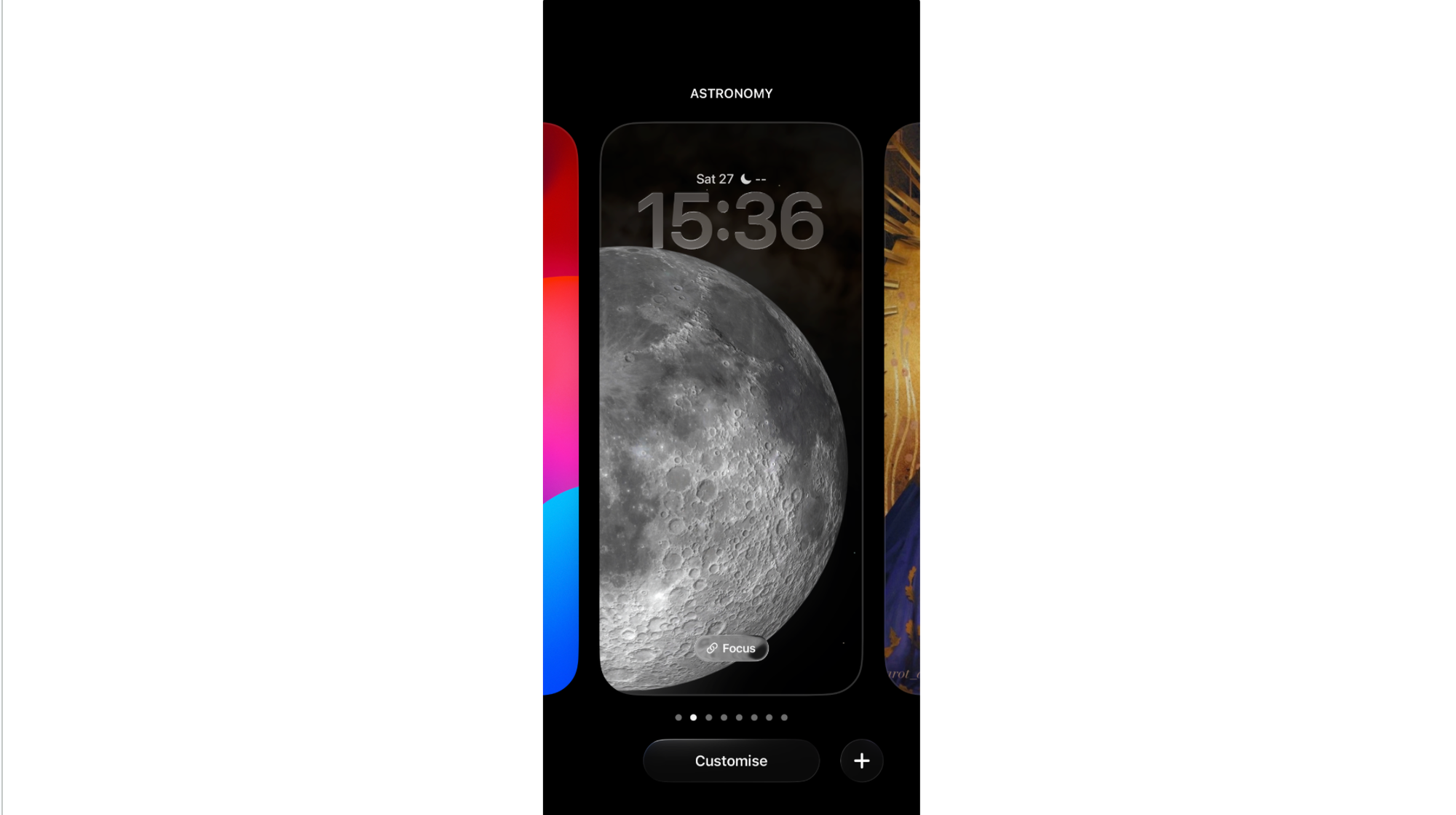
For the full official reference on the lock screen editor, Apple's “create a custom lock screen” guide is the authoritative source.
How to Add Depth Effect and Spatial Scene (iOS 16 and Later)
iOS 26 changed how these effects work and where to find them. Here is the full picture, split by iOS version.
iOS 26 (current): Spatial Scene and Depth Effect
In iOS 26, Apple added Spatial Scene, a 3D parallax effect that makes the photo respond to how you tilt the phone. Depth Effect (subject layering over the clock) is still available but accessed differently from iOS 16-18.
In the lock screen editor, the bottom toolbar now has four controls: a photo thumbnail, a circle icon (○), a hexagon icon, and the three-dot (•••) menu.
For Spatial Scene:
- Tap the hexagon icon.
- iOS processes the photo and generates the spatial depth map. You will see a "Generating Spatial Scene" indicator.
- Once done, tilt your phone slightly to see the parallax motion. The subject and background shift independently.
- If the hexagon icon does not appear or is grayed out, the photo does not have enough depth separation for Spatial Scene. Try a portrait-mode photo or one with a clear foreground subject against a distinct background.
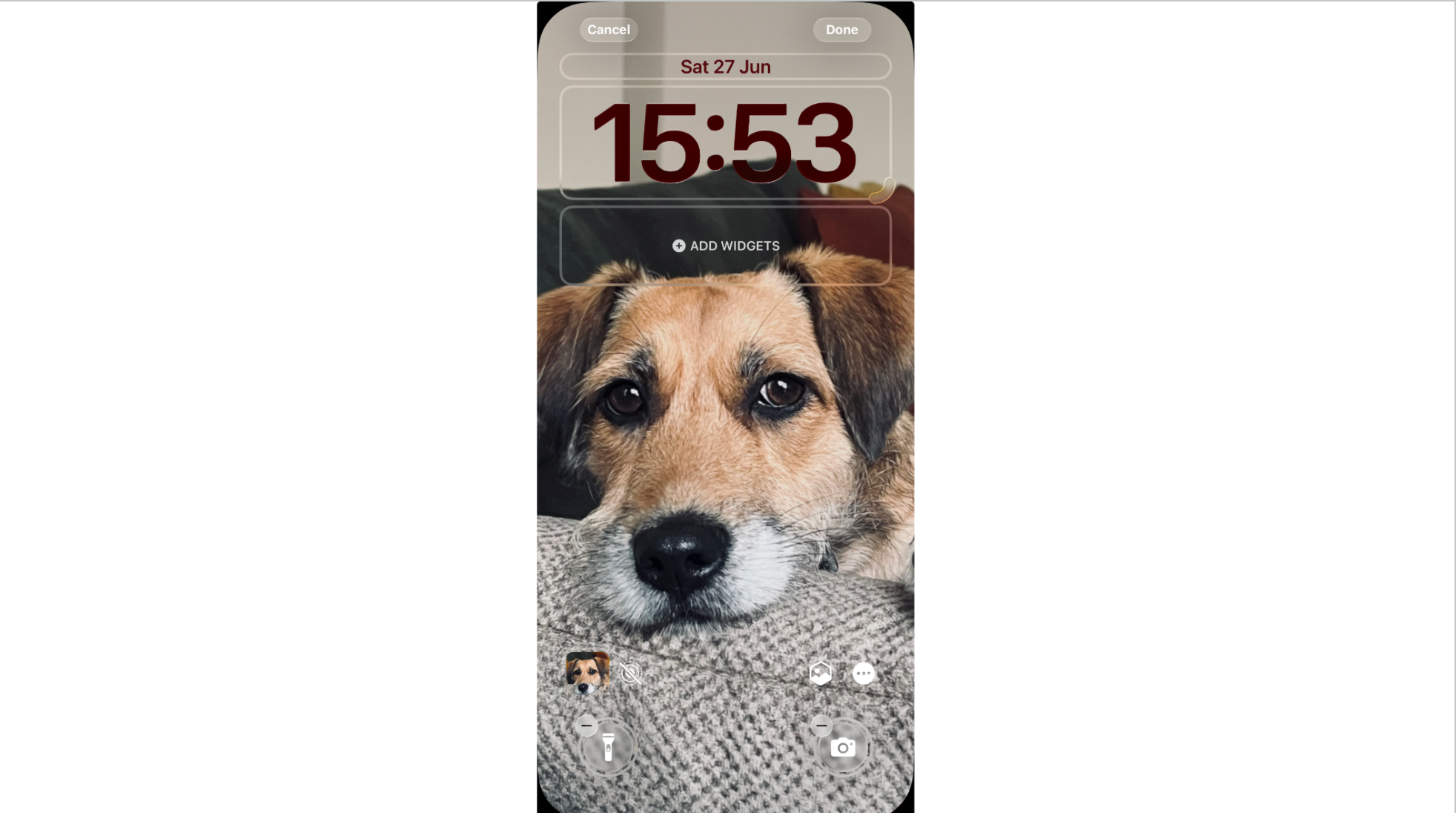
Spatial Scene is supported on iPhone 12 and newer.
iOS 16 to iOS 18: Depth Effect only
Spatial Scene is not available on iOS 16 through iOS 18. Only the subject-over-clock Depth Effect is available, and it lives in the three-dot menu.
- With your photo selected in the lock screen editor, drag the photo upward so the subject overlaps the clock area. Depth Effect requires the subject to be near the clock.
- Tap the three-dot (•••) menu.
- Tap Depth Effect. A checkmark means it is on.
- If it is grayed out, the photo is not compatible or the subject is not close enough to the clock.
What works with both effects
Portrait-mode photos with a clear subject and soft background work best. Photos where the subject is lying flat, at a distance, or blending into the background often fail. Strong subject-to-background contrast and sharp edges give iOS the best chance to detect and separate the foreground.
Add Widgets, Clock Style, and Focus to Finish the Look
With the wallpaper and depth effect set, three more adjustments complete the lock screen.
Clock style: Tap the clock directly in the lock screen editor. A panel opens with font styles (Arabic, Arabic Indic, Devanagari, and several stylized options) and a color picker. Tap a color or drag the slider to set a custom tone. The clock color affects both the time and the date.
Widgets: Tap the date area above the clock or the widget row below it to add widgets. Available options include weather, calendar, fitness rings, battery, and any compatible app that provides lock screen widgets. Adding a widget row disables Depth Effect. Choose between depth effect and widgets depending on which matters more to you.
Focus-linked lock screen: Tap the three-dot menu and tap Link Focus. Assign this lock screen to a Focus mode so it activates automatically when that Focus is on. Useful for a work-hours screen versus a personal screen.
Depth Effect or Spatial Scene Not Working? Troubleshooting
On iOS 26, Depth Effect is not in the three-dot menu: In iOS 26 the three-dot menu only contains Extend Wallpaper. Depth Effect is now called Spatial Scene and accessed through the hexagon icon. If you cannot find it there, the photo is not compatible.
The hexagon icon is missing or grayed out: The photo does not have enough depth separation for Spatial Scene. Try a portrait-mode shot or a photo with a distinct subject against a contrasting background. Flat, horizontal, or busy photos often fail.
Spatial Scene not working after applying: Check that Low Power Mode is off (Settings, then Battery) and that Reduce Motion is off (Settings, then Accessibility, then Motion). Both can disable motion effects.
Depth Effect option does not appear in the circle menu: The photo is not compatible. Try a different image with a sharper subject and cleaner background separation.
On iOS 16 to iOS 18, Depth Effect is grayed out in the three-dot menu: The subject is not overlapping the clock, the photo resolution is too low, or the subject edges are not distinct enough. Drag the photo upward so the subject reaches the clock, or try a higher-resolution image.
Depth Effect disappears after adding widgets: Depth Effect and active lock screen widget rows cannot run at the same time on any iOS version. Remove the widget rows to restore it.
The image looks soft or stretched: The source image resolution is too low. Use an image of at least 1170x2532 pixels. The Zedge AI Generator generates at the correct size automatically.
Frequently Asked Questions
How do I make an iPhone wallpaper?
Generate one with an AI wallpaper maker by typing a prompt that describes the image you want, then save the output to your camera roll. Alternatively, use a photo you already have, edit it in a photo app, and save it. For a starting-point before you create, browse 30+ iPhone wallpaper ideas by aesthetic to narrow down what you want to make.
What is the iOS 16 depth effect?
The depth effect is a lock screen feature that layers the clock behind a foreground subject in your wallpaper, so the subject appears in front of the time display. iOS 16 introduced it via the three-dot menu. In iOS 26, Apple also added Spatial Scene (a 3D parallax effect accessed via the hexagon icon), and moved Depth Effect to the circle icon next to the hexagon. Both effects require a photo with a clearly separated subject.
Why won't my depth effect work?
On iOS 26, Depth Effect is no longer in the three-dot menu. Tap the circle (○) icon next to the hexagon icon instead, then tap Depth Effect. If it does not appear there, the photo is not compatible. On iOS 16 through iOS 18, Depth Effect is in the three-dot menu but only becomes available when the subject overlaps the clock area. In all versions, active lock screen widget rows disable Depth Effect.
What is a good iPhone wallpaper maker?
The Zedge AI Generator generates images from a text prompt at iPhone resolution and saves directly to your camera roll. It is built into the Zedge app, free with ads, and Premium removes ads. Other tools include CapCut and Vondy, which also generate AI images.
Does this work on newer iOS versions?
Yes. iOS 16 is where the customizable lock screen and depth effect launched, and both features carry through every iOS version since, including the current iOS 26. The steps in this guide apply to any iPhone running iOS 16 or later.
What photos work best with depth effect?
Portrait photos with soft backgrounds, pets against open sky or a plain wall, flowers centered on dark backgrounds, and objects with clear edges against uncluttered backgrounds. The key requirement is strong edge contrast between the foreground subject and the background. Busy or crowded scenes with no clear foreground element rarely qualify.
Create Your Own
Generate a wallpaper with a text prompt using the Zedge AI Generator, save it to your camera roll, and set the depth-effect (spatial scene) lock screen in under two minutes. Free with ads; Premium removes ads. Download Zedge.