

Ever set a wallpaper only to see it look blurry or cropped? You’re not alone. It almost always comes down to the same thing: the image wasn't the right size for your screen. iPhone wallpaper dimensions aren't complicated once you know them, but finding a straight answer matched to your specific model takes more digging than it should.
This guide covers exact iPhone wallpaper sizes by model, explains how iOS handles scaling and cropping, and breaks down the best apps for finding, editing, and setting wallpapers that look right the first time.
Key Takeaways / TL;DR
- Most iPhones from 2020 onward use a 1170x2532px resolution at 460 PPI (Pro models go higher).
- Correct sizing matters because iOS scales images to fit too small means visible pixelation, too large means cropping you can't fully control.
- For parallax/motion effect, use images slightly larger than native resolution so iOS has room to shift without hitting edges.
- Top apps for wallpaper discovery and sizing: Zedge, Vellum, Canva, iWall, Walli.
- Essential tip: Turn off Perspective Zoom when setting a wallpaper if you want the image framed exactly as positioned.
- Safe downloads come from the App Store only, check permissions before granting access to your photos.
Best iPhone Wallpaper Apps & Tools
Wallpaper Discovery & Download Apps
1. Zedge
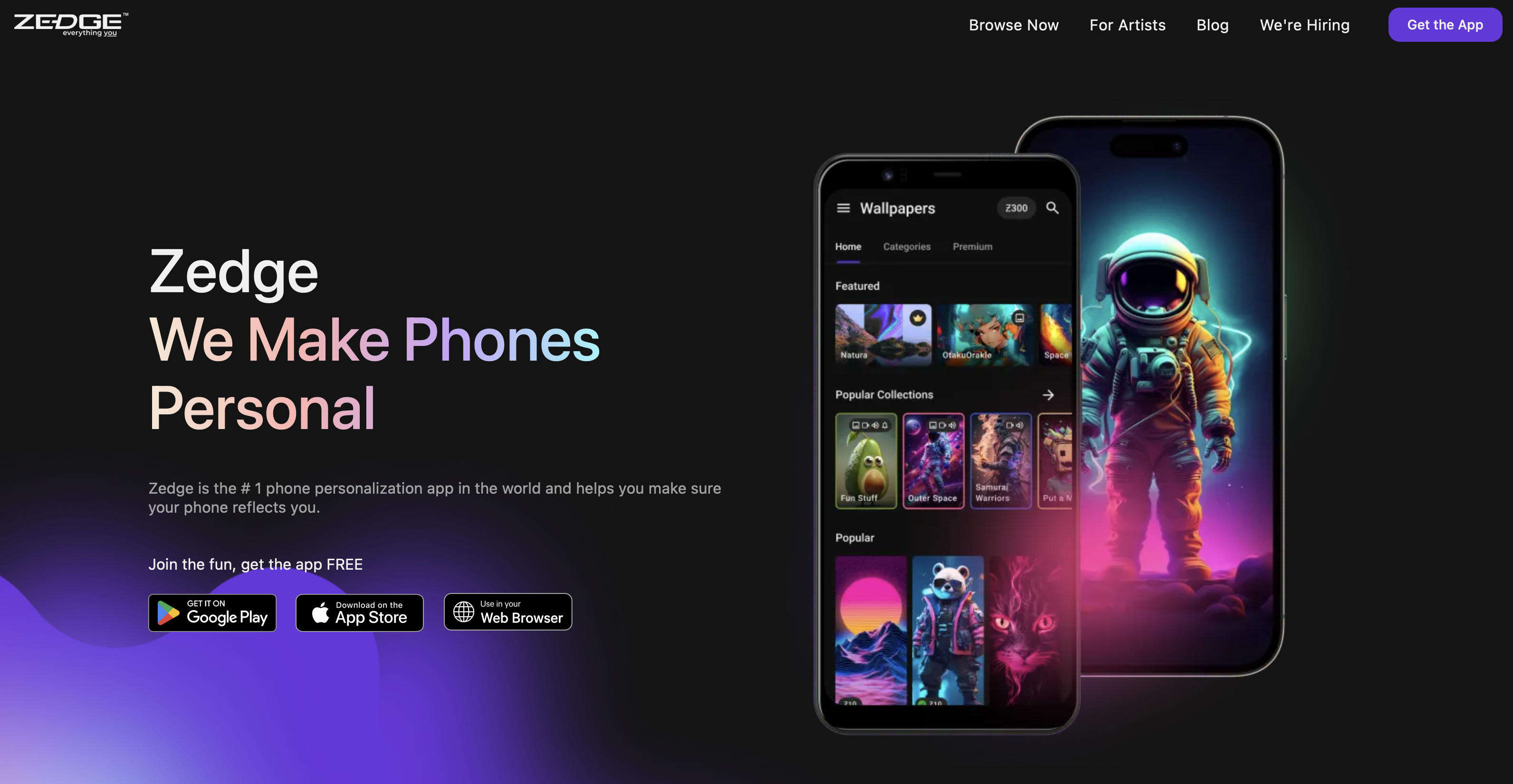
Zedge is one of the most widely used wallpaper platforms on iOS, with a library spanning abstract art, photography, illustrations, nature, and pop culture, all at resolutions sized for modern iPhones. New content is added regularly across every category, and the app is free with optional premium tiers.
Key features: Massive browsable library, category and mood search, regular new uploads, premium exclusive content.
What makes it stand out:Breadth and update frequency. It consistently ranks among the best wallpaper apps on iOS for good reason.
Ideal for: Anyone who wants a large, regularly updated library in one place.
Pricing: Free with premium options.
2. Vellum
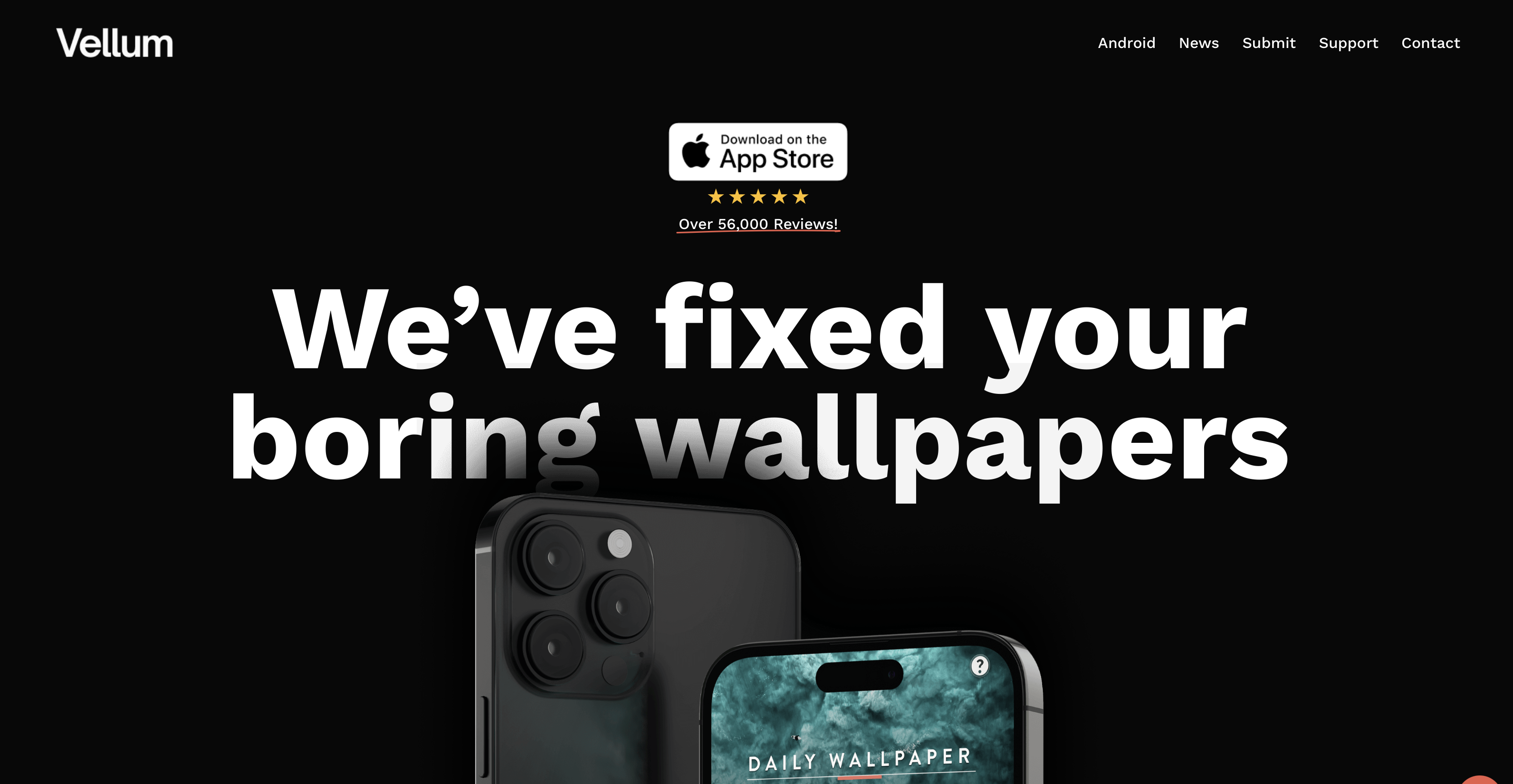
Vellum curates a smaller but consistently high-quality library, with a new image added daily. Every submission is reviewed before going live, keeping overall quality higher than open-upload platforms. The focus is on art and photography rather than pop culture.
Key features: Daily new wallpaper, editorial curation, high-resolution images, clean interface.
What makes it stand out: Quality control, every image has been reviewed, so there's far less sorting through mediocre results.
Ideal for: Design-conscious users who want quality over volume.
Pricing: Free.
3. Unsplash
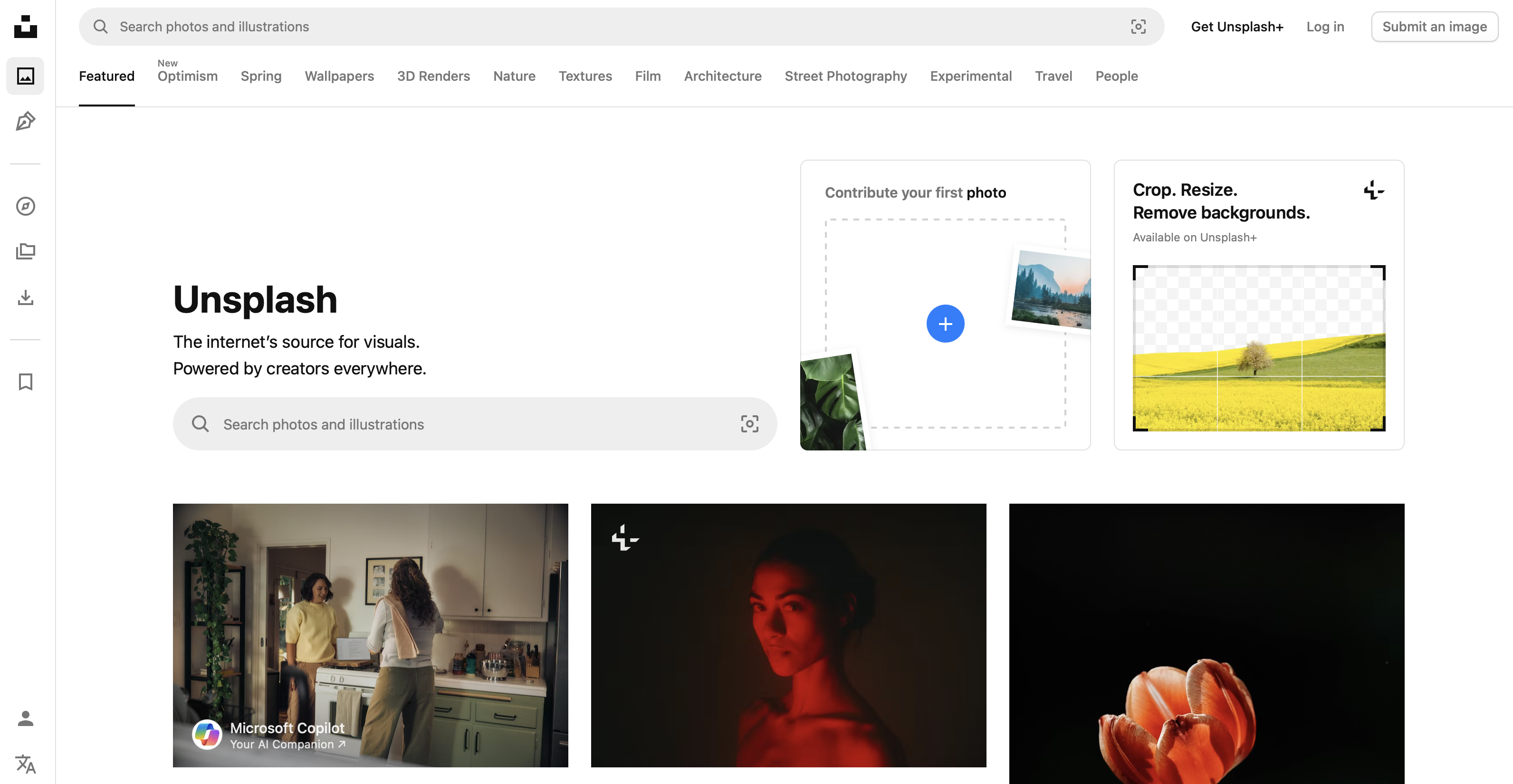
Unsplash provides millions of professional photographs licensed for free use, organized by category and photographer. Images download at full resolution and save directly to your camera roll. The library covers landscapes, architecture, minimalism, and portraiture.
Key features: Millions of professional photos, free licensing, full-resolution downloads, category browsing.
What makes it stand out: Scale and licensing, no other free source matches this volume of professionally shot photography.
Ideal for: Users who want professional photography at no cost.
Pricing: Free.
Customization & Editing Tools
4. Canva
Canva lets you design wallpapers from scratch or customize templates, with full control over dimensions, text, colors, and graphics. Setting a custom canvas at your iPhone's exact resolution removes any guesswork about fit.
Key features: Custom canvas sizing, templates, text and graphic overlays, high-resolution export.
What makes it stand out: Precision. If you search for the best iTheme design wallpapers and want to build something in that structured graphic style yourself, Canva is the most capable tool for it.
Ideal for: Designers and users who want fully custom wallpapers.
Pricing: Free with paid tiers.
5. Adobe Express
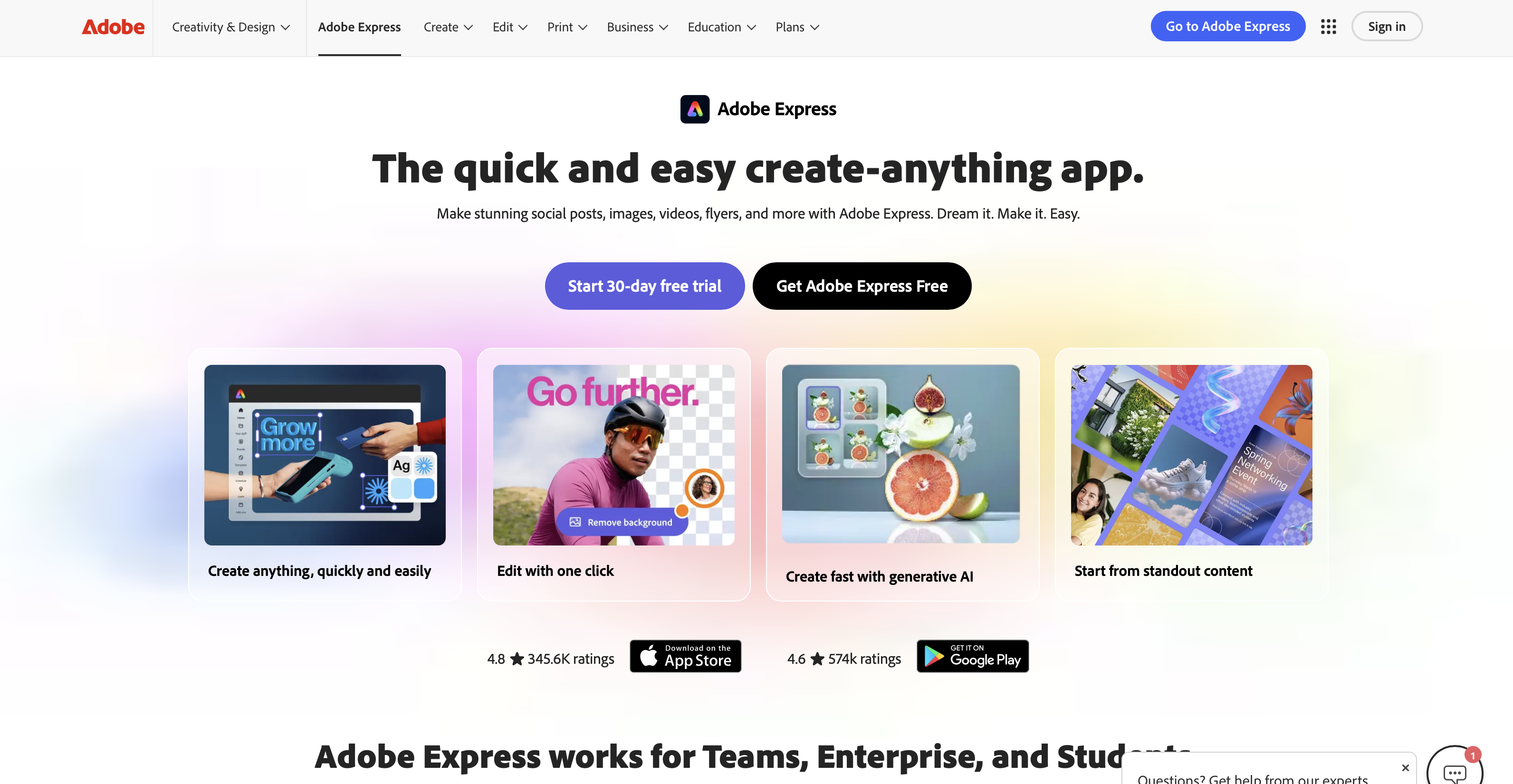
Adobe Express includes wallpaper templates pre-sized for iPhone screens, along with photo editing, text overlays, and effects. The free tier covers most wallpaper projects; the paid tier unlocks the full asset library and premium fonts.
Key features: Pre-sized iPhone templates, photo editing, text overlays, Adobe ecosystem integration.
What makes it stand out: Professional design tools in a mobile-friendly interface, with direct Lightroom integration for Adobe users.
Ideal for: Users who want professional results without a steep learning curve.
Pricing: Free with paid tiers.
6. PicsArt
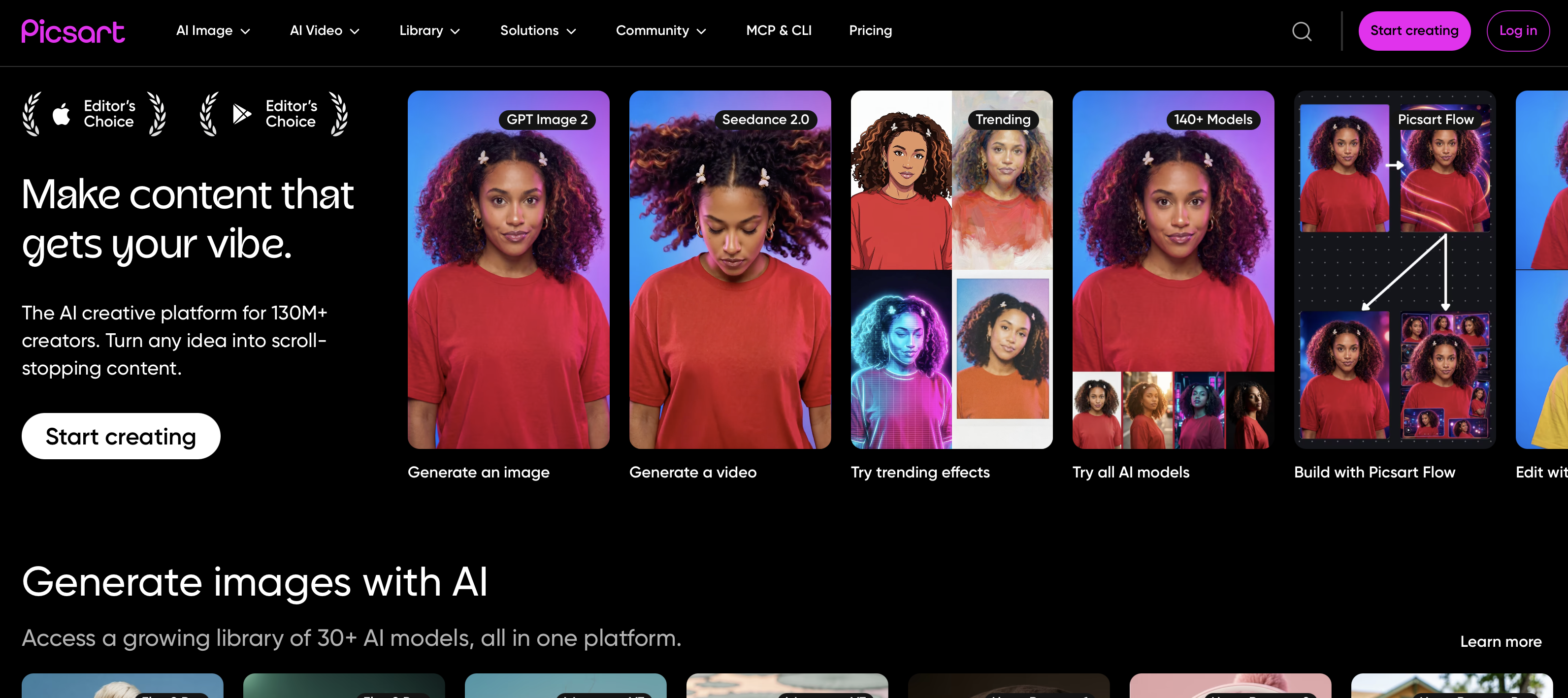
PicsArt combines photo editing with a social creative community, letting you edit your own photos into wallpapers or remix content from other users. It includes background removal, AI enhancements, and filters.
Key features: Photo editing, background removal, AI tools, community content browsing.
What makes it stand out: Editing tools and a live creative community in one app, you can create and discover simultaneously.
Ideal for: Creative users who want editing and community content together.
Pricing: Free with paid tiers.
Wallpaper Sizing & Fit Utilities
7. WallpaperSize: Resize & Fit
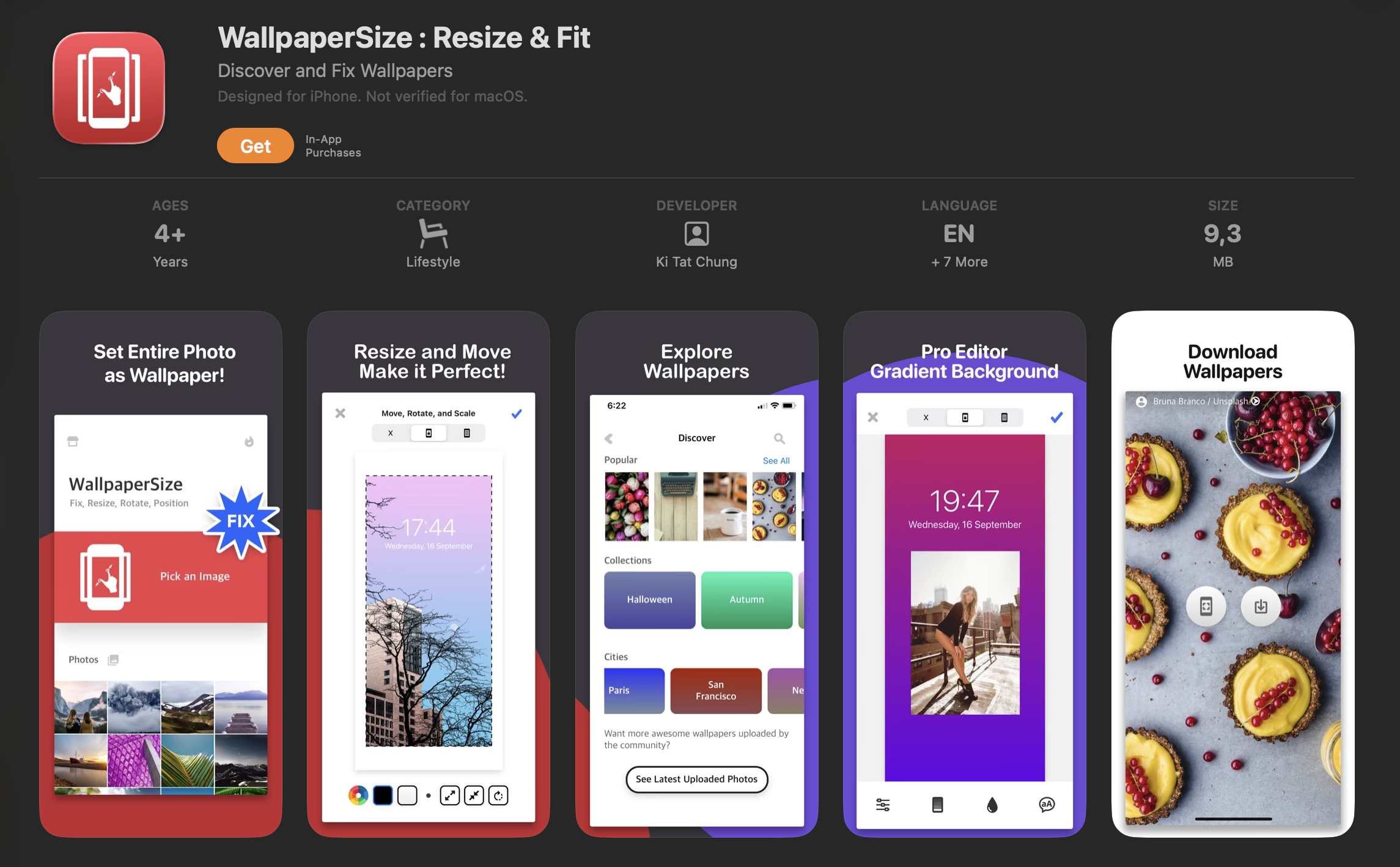
WallpaperSize lets you resize, rotate, and reposition any photo to fit your iPhone screen precisely before setting it. You choose the image, adjust it within the app's editor, and export at up to 8K resolution. It also pulls from Unsplash so you can discover and size a wallpaper in the same workflow.
Key features: Resize and reposition editor, high-resolution export up to 8K, lock screen preview, Unsplash integration.
What makes it stand out: It handles both the sizing problem and the preview step in one place, so you know exactly what you're getting before anything hits your home screen.
Ideal for: Users who source images from outside the App Store and want full control over fit before setting.
Pricing: Free with ads; in-app purchases available.
8. iWall
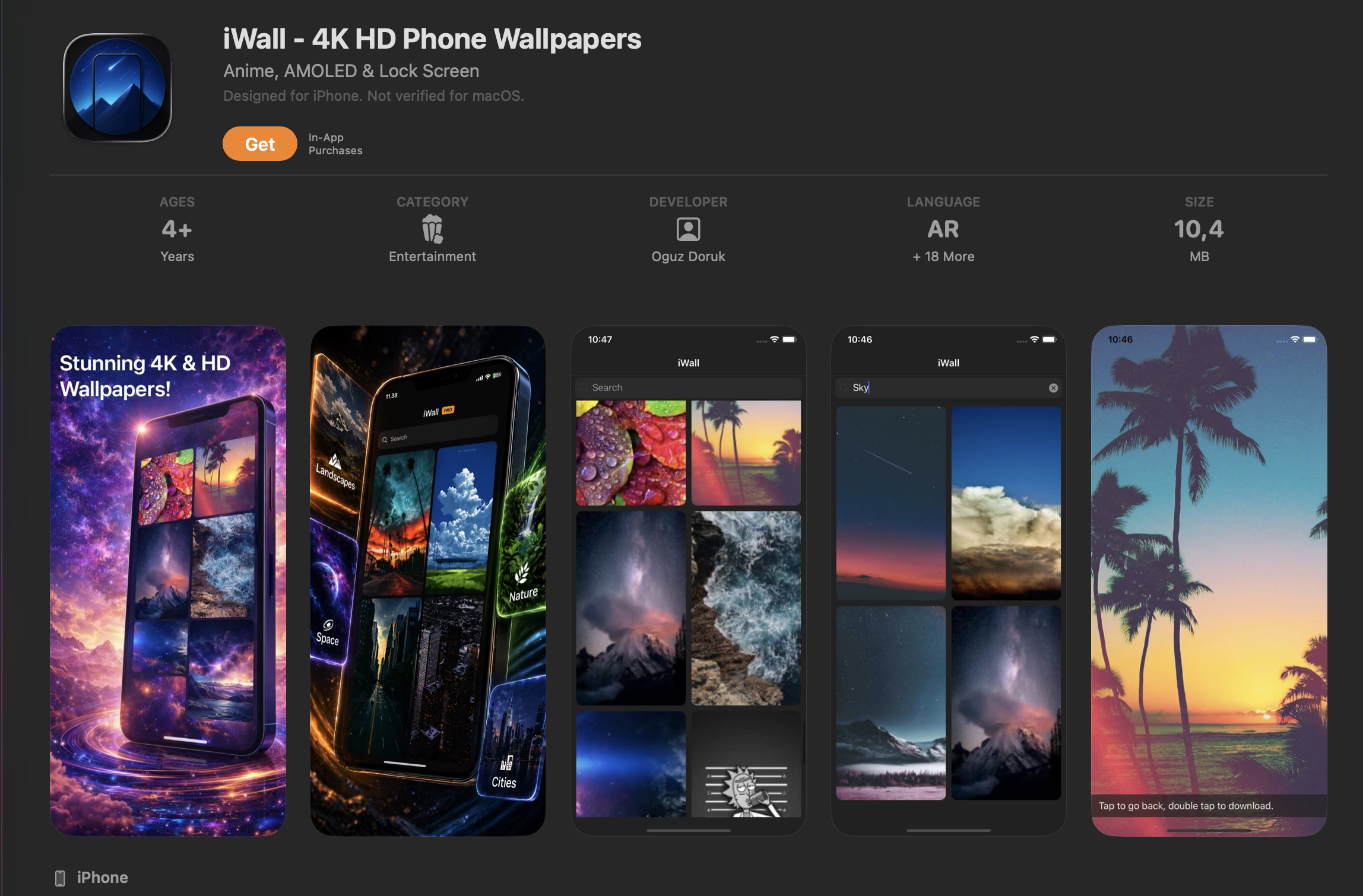
iWall focuses on wallpaper fit and preview, letting you see exactly how an image will look on your lock screen and home screen before committing. It also carries its own wallpaper library.
Key features: Lock and home screen preview, fit adjustment tools, built-in library including devotional content.
What makes it stand out: The preview function. Users who search for the best Lord Hanuman wallpapers or other detailed compositions can see exactly how they'll be cropped before setting them.
Ideal for: Users who want to preview wallpaper fit accurately before committing.
Pricing: Free with paid options.
9. WidgetClub
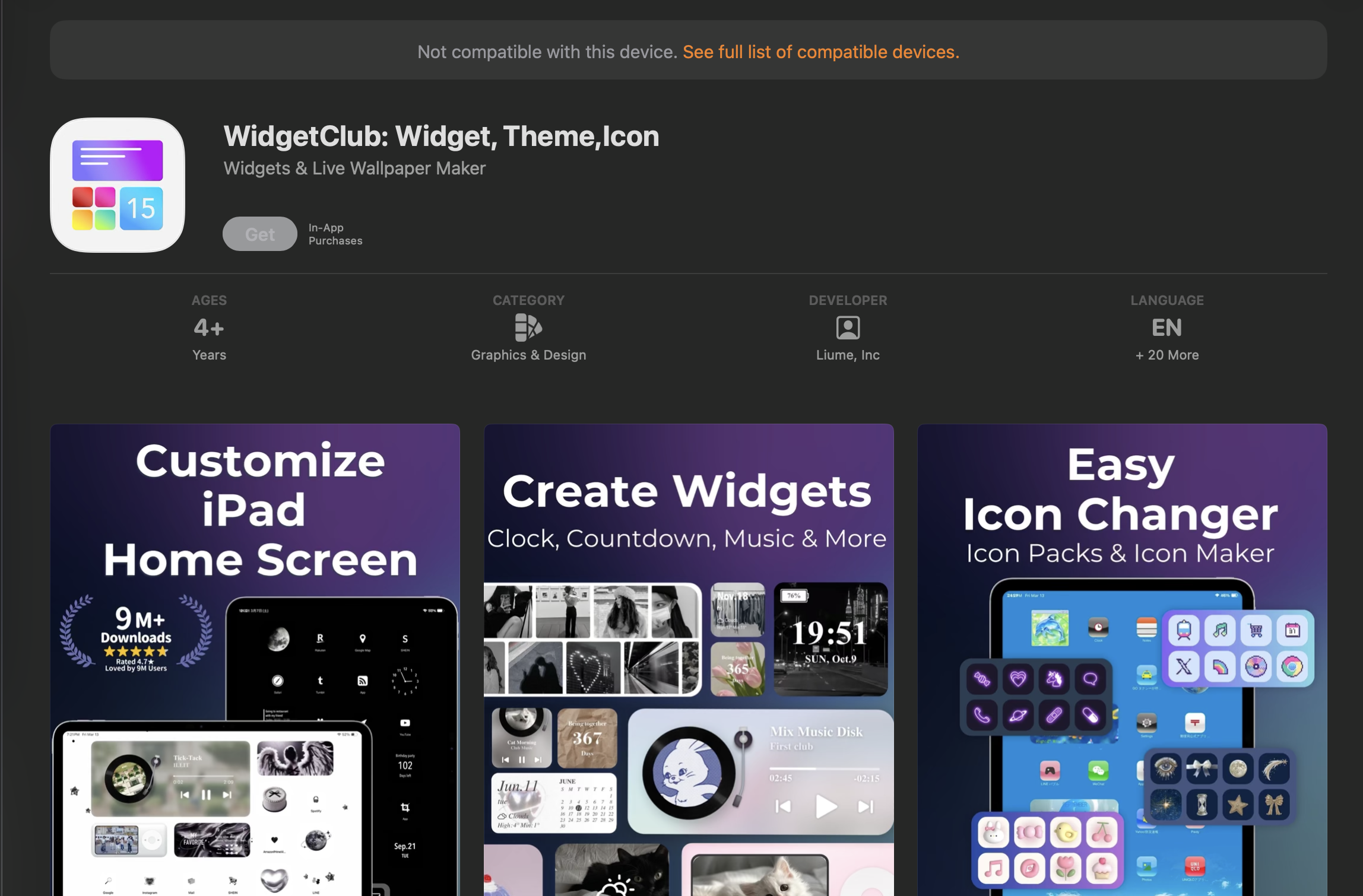
WidgetClub offers coordinated wallpaper and widget sets designed to work together visually. If you want your lock screen, home screen, and widgets to follow a consistent aesthetic, it is the most direct way to get there.
Key features:Coordinated wallpaper and widget sets, theme library, regular updates, support for all recent iPhone models.
What makes it stand out: End-to-end aesthetic coordination, no other app links wallpaper and widget design as tightly.
Ideal for:Users who want a fully coordinated home screen aesthetic.
Pricing: Free with paid options.
Privacy-Focused & Unique Options
10. Walli
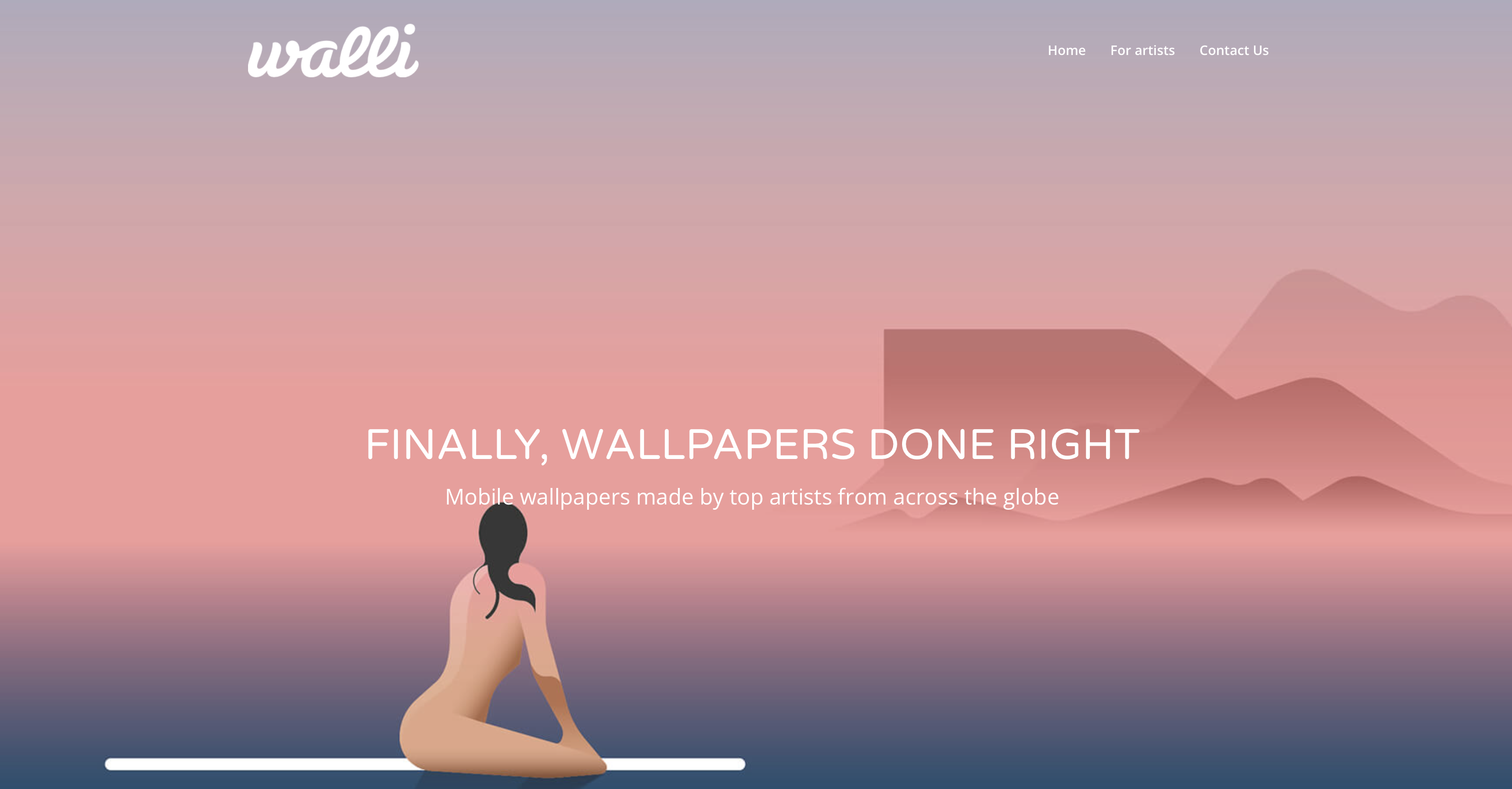
Walli is an artist-first platform where every image is submitted by independent creators who retain credit for their work. The library skews toward illustration and digital art, making it visually distinctive from photography-heavy platforms.
Key features: Artist-attributed content, illustration and digital art focus, culturally specific collections.
What makes it stand out: Accountability. Every image is credited to a real creator. Users who search for specific themes like the best Chhatrapati Shivaji Maharaj wallpapers will find artist-created collections rather than anonymous uploads.
Ideal for: Users who want unique, artist-created wallpapers with transparent sourcing.
Pricing: Free with paid options.
11. Personal Photos (using built-in iOS tools)
iOS has strong built-in wallpaper tools most users underuse. You can set any photo through Settings, with options to reposition, zoom, and toggle parallax before confirming. For iPhone 14 and later, iOS supports depth-effect wallpapers.
Key features: Full repositioning control, parallax toggle, depth-effect support (iPhone 14+), no third-party app needed.
What makes it stand out: Complete control with zero permissions required beyond your own photo library.
Ideal for:Users who want to use their own images with full control over framing.
Pricing: Free.
iPhone Wallpaper Dimensions by Model (2024-2026)
iPhone Model | Resolution (px) | Aspect Ratio | PPI |
|---|---|---|---|
iPhone 16 Pro Max | 1320x2868 | 19.5:9 | 460 |
iPhone 16 Pro | 1206x2622 | 19.5:9 | 460 |
iPhone 16 Plus | 1290x2796 | 19.5:9 | 460 |
iPhone 16 | 1179x2556 | 19.5:9 | 460 |
iPhone 15 Pro Max | 1290x2796 | 19.5:9 | 460 |
iPhone 15 Pro | 1179x2556 | 19.5:9 | 460 |
iPhone 15 Plus | 1284x2778 | 19.5:9 | 458 |
iPhone 15 | 1170x2532 | 19.5:9 | 460 |
iPhone 14 Pro Max | 1290x2796 | 19.5:9 | 460 |
iPhone 14 Pro | 1179x2556 | 19.5:9 | 460 |
iPhone 14 Plus | 1284x2778 | 19.5:9 | 458 |
iPhone 14 | 1170x2532 | 19.5:9 | 460 |
iPhone SE (3rd gen) | 750x1334 | 16:9 | 326 |
When you set a wallpaper, iOS scales the image to fill the screen. If your image is smaller than the screen resolution, iOS enlarges it, and enlarging a small image introduces visible blurriness. If your image is larger, iOS scales it down, which is generally fine, but the cropping point depends on iOS defaults unless you manually reposition.
The parallax (motion) effect adds a layer of complexity. With Perspective Zoom enabled, iOS shifts the wallpaper slightly as you tilt the phone, which means it needs extra image area around all four edges to avoid showing blank space during movement. For this reason, using an image 10 to 15 percent larger than your screen's native resolution gives iOS room to work with. High-detail images are where this matters most. If you search for the best Lord Shiva wallpapers or similar intricate devotional compositions, you'll notice they rely on precise framing, iOS cropping into the center of a tightly composed image cuts out exactly the detail that makes it worth using. Either source a larger image or disable Perspective Zoom when setting it.
How to Choose the Right iPhone Wallpaper App
Image quality and resolution support. The app should provide images at or above your iPhone's native resolution. An image at 750x1334px will look noticeably soft on an iPhone 16 Pro's 1206x2622px display. Check whether the app specifies resolution or just labels everything "HD."
Customization features. If you want to edit, crop, add text, or resize, a dedicated editing app like Canva or Adobe Express handles this better than a discovery app.
Privacy and data security. Wallpaper apps need access to your photo library to save images, they do not need your camera, contacts, microphone, or location. Revoke anything beyond photo saving.
Variety and uniqueness. The best apps carry content across styles, moods, and cultural traditions. If you search for the best Narasimha wallpapers or similarly specific devotional imagery, a good app surfaces dedicated collections rather than a handful of generic results, that kind of depth separates the strong libraries from the shallow ones.
Ease of use and compatibility. Check the app's last update date. Apps not updated in over a year may have layout or compatibility issues with recent iOS versions.
Free vs. paid. Most wallpaper apps offer a usable free tier. Confirm the free library doesn't already cover what you need before paying for a subscription.
Tips for Safe and Effective Customization
How to check your iPhone model and screen resolution Go to Settings > General > About. Your model name appears at the top. Cross-reference it with the dimensions table above to confirm your screen's native resolution before sourcing images.
Using the screenshot method Take a screenshot and check its dimensions in Photos by tapping Edit and then the crop tool. The pixel dimensions shown are your screen's native resolution, use this as your target when resizing in Canva or any other editor.
Best practices for cropping and resizing Always resize down, not up. Start with an image larger than your target resolution and scale it down. Scaling up introduces blurriness that no sharpening filter fully corrects. Export at maximum quality, JPEG at 90 percent or higher, or PNG for images with fine detail.
Using personal photos as wallpapers Portrait mode photos taken on recent iPhones are typically well above the minimum resolution needed. Older photos or screenshots sourced from social media often are not, check dimensions before setting them. The best free wallpaper sites are worth knowing for cases where your own library doesn't have what you need.
Managing parallax and motion effects When setting a wallpaper, you will see a Perspective Zoom toggle. Turn it off if you want the image framed exactly as positioned. Leave it on if you want the motion effect and have sourced a large enough image to accommodate the shift.
Avoiding blurry or pixelated wallpapers Understanding why your wallpaper looks blurry usually comes down to three things: resolution too low, Perspective Zoom cropping a tight image, or a low-quality export. Match or exceed your screen's native resolution, disable Perspective Zoom if your image is tightly framed, and export at maximum quality, JPEG at 90 percent or higher, or PNG for illustrated images.
Privacy tips Download from App Store apps only. At Settings > Privacy & Security, remove any app permissions that go beyond photo library access. Be cautious of browser-based sites that prompt you to install profiles, these are not legitimate wallpaper tools.
FAQs
What are the exact wallpaper dimensions for my iPhone model?
See the table in the dimensions section above. For most iPhones from 2020 onward, 1170x2532px covers the baseline. Pro and Plus/Max models run higher, using your model's exact dimensions gives the cleanest result.
Can I use the same wallpaper for lock screen and home screen?
Yes. iOS lets you set the same image for both or use different images for each. The lock screen and home screen crop differently due to overlaid UI elements, so check both previews before confirming.
What happens if my wallpaper is too small or too large?
Too small and iOS enlarges the image, introducing visible blurriness. Too large and iOS scales down and crops, repositioning during setup gives you some control, but you may not be able to show the full composition. Matching native resolution with a small parallax buffer is the cleanest approach.
How do I stop my wallpaper from looking blurry?
Use an image at or above your screen's native resolution, disable Perspective Zoom when setting it, and export at high quality if editing beforehand. Cross-reference your model against the dimensions table above and resize to match before setting.
Which apps are safest for downloading wallpapers?
App Store apps with large user bases, recent updates, and minimal permission requests. Zedge, Vellum, Unsplash, and Walli all meet these criteria. Avoid browser-based download sites that offer wallpapers as direct file downloads outside of any app.
How do I create a perfectly-sized custom wallpaper?
Open Canva or Adobe Express, set a canvas at your iPhone's exact resolution (for example 1179x2556px for iPhone 16), design your wallpaper, and export at maximum quality. Save to your camera roll and set through Settings > Wallpaper. For visual inspiration before designing, best AMOLED wallpapers is a useful reference for what high-contrast, resolution-optimized wallpapers look like at their best.