

There are three ways to customize a Garmin watch face. On the watch, hold the MENU or UP button, choose Watch Face, then preview, select, and edit the accent color, layout, and data fields. In the Connect IQ Store app you can download free or paid faces. With Face It in that app you can turn your own photo into a watch face. The exact buttons vary by model; this guide covers how to change a Garmin watch face and customize Garmin watch face using all three methods.
Key Takeaways
- On-watch editing covers color, layout, and data fields without any app.
- Connect IQ is a separate app from Garmin Connect; install it specifically to browse and download watch faces.
- Face It is a feature inside the Connect IQ Store app that turns a photo into a watch face. It requires a color screen.
- Most watch face problems are sync issues, not broken faces. Letting Garmin Connect run in the background usually fixes them.
- Older Garmin models have limited or no Connect IQ support; the app will only show faces compatible with your connected watch.
Three Ways to Customize a Garmin Watch Face
The right method depends on what you want. On-watch editing is the fastest; Connect IQ gives you the widest selection; Face It lets you build something personal from a photo.
How to Change Your Garmin Watch Face On the Watch
Changing your Garmin watch face directly on the watch is the fastest method and requires no phone. From your current watch face, hold the MENU button (or the UP button on models that use UP for menu access). Select Watch Face from the menu that appears. On two-button models such as the Lily, hold the bottom button instead.
Once you are in the Watch Face menu:
- Press UP or DOWN to scroll through available faces and preview each one.
- Press SELECT or the middle button to choose a face.
- If the face supports editing, a pencil icon or Edit option appears. Select it to adjust accent color, layout, and data fields.
- Press UP or DOWN to cycle through options in each category.
- Press SELECT to confirm each choice, then hold MENU or press BACK to exit.
To build a custom digital or analog face from scratch, select Add New from the Watch Face menu. This opens a face builder where you choose a style (digital or analog), background color, accent color, and the data to display.
Button names, menu placement, and available edit options differ across Garmin series. On touchscreen models, a long-press on the watch face opens the same menu. If you cannot find Watch Face, look for it under Settings or the app list on your specific model's manual.
How to Download a Watch Face from the Connect IQ Store
The Connect IQ Store is a separate app from Garmin Connect. Garmin Connect tracks your health data; the Connect IQ Store is where you browse and install garmin watch faces, apps, data fields, and widgets. Install the Connect IQ Store app on your phone before starting.
- Open the Connect IQ Store app.
- Make sure your Garmin watch is paired and nearby.
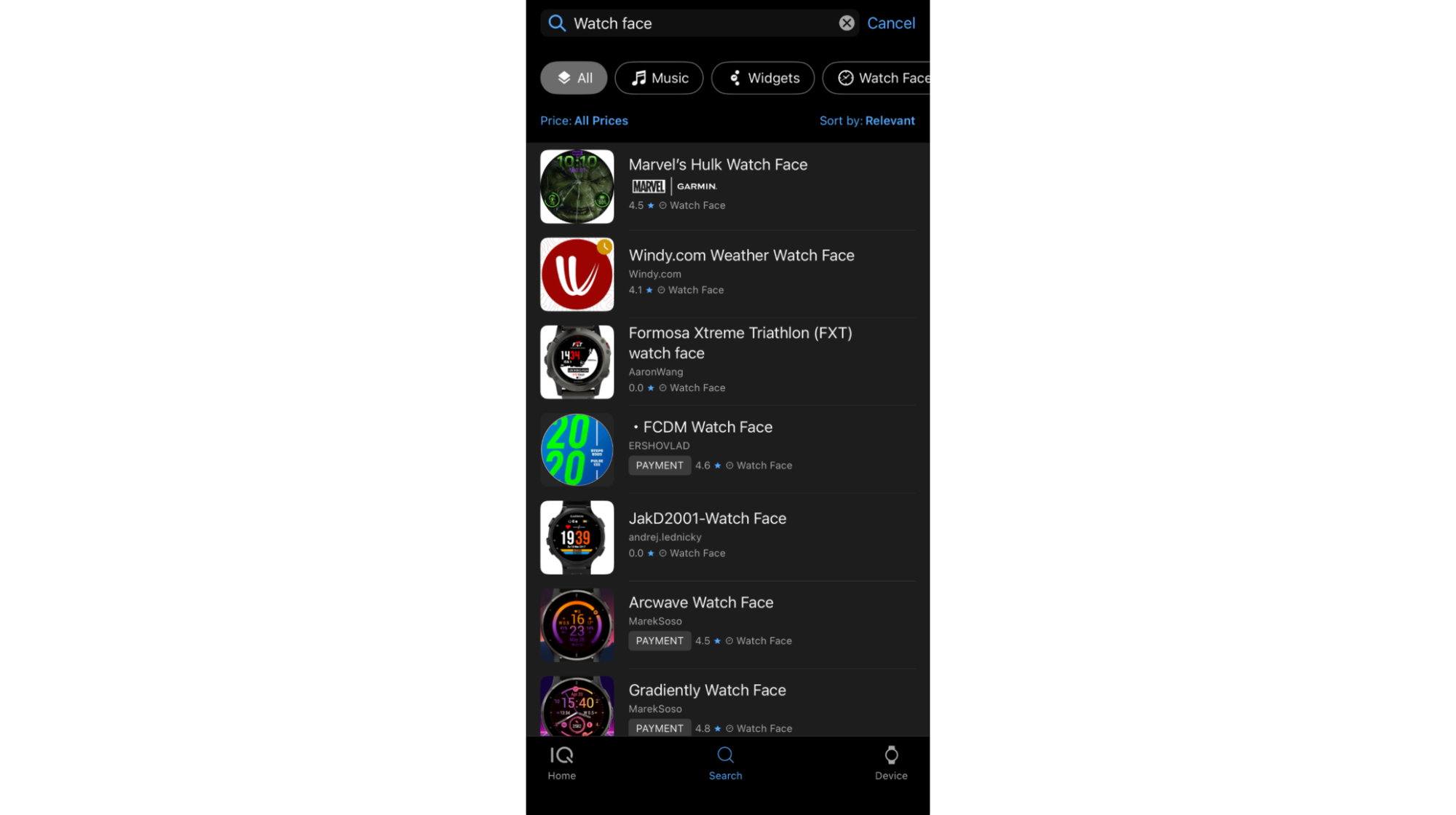
- Tap Search or Browse, then select Watch Faces from the category list.
- The app automatically filters results to show only faces compatible with your connected watch model.
- Tap a face to preview it and read its description and reviews.
- Tap Install. The face syncs to your watch over Bluetooth. Keep Garmin Connect running in the background during the sync.
- On the watch, go to the Watch Face menu and select the new face to activate it.
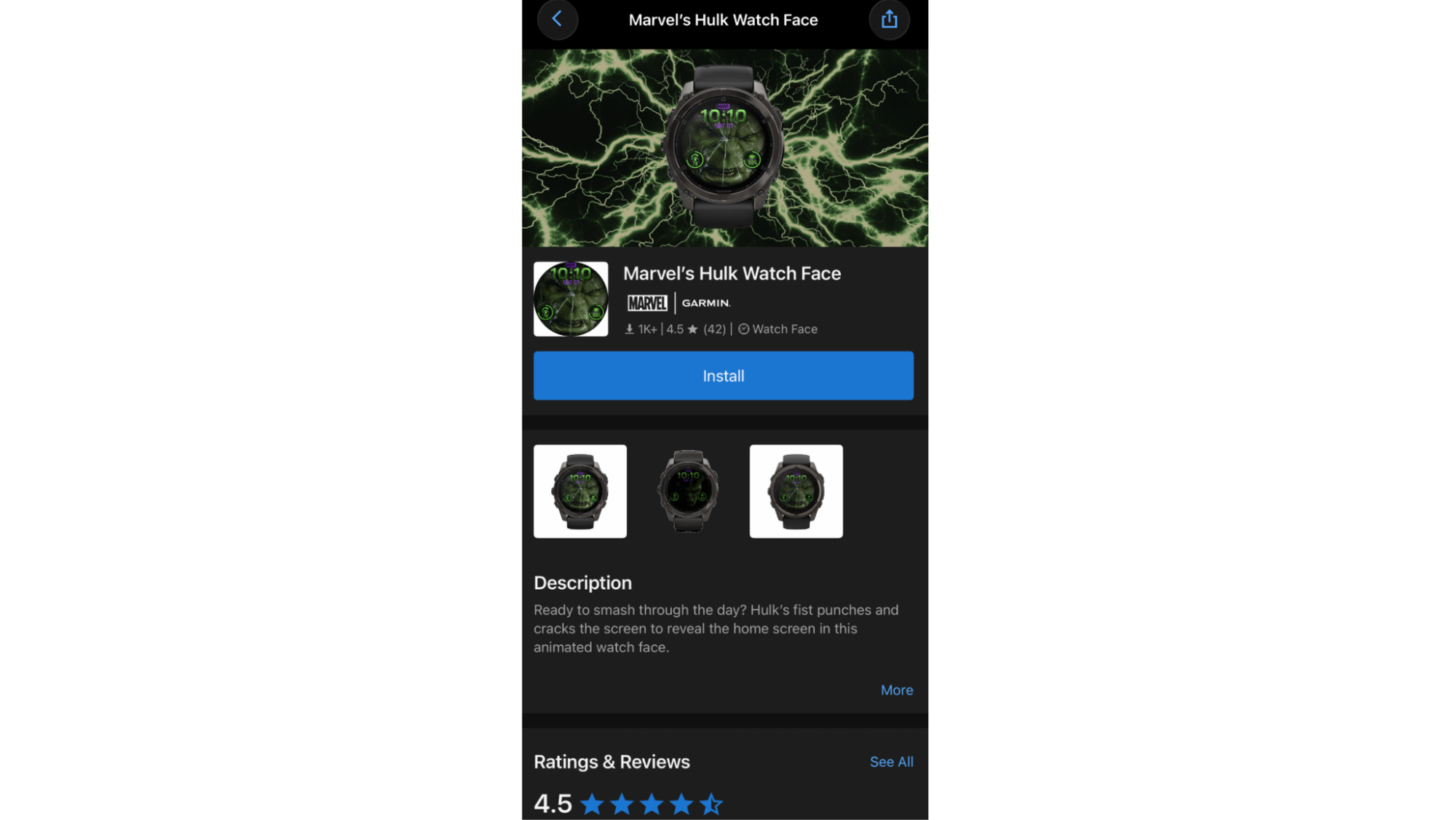
Most Garmin Connect IQ watch faces are free. Some developers charge a one-time fee. Paid faces are clearly marked in the store. You pay through the app store on your phone (Google Play or App Store), not through Garmin directly.
Browse the Connect IQ Store on desktop to discover faces before installing them from the app.
How to Create a Photo Watch Face with Face It
Face It lets you build a custom garmin watch face from any photo on your phone. It is built into the Connect IQ Store app, not sold separately. The one requirement is a color screen; older non-color Garmin models use a different tool called Watch Face Builder instead.
- Open the Connect IQ Store app.
- Tap the Face It option.
- Choose a photo from your camera roll or take a new one.
- Crop the photo for the round screen. Keep the main subject centered and away from the rim, where the circular crop will cut detail.
- Choose a layout for the time, date, and data fields. Leave clear space around the time display so it stays readable against the photo.
- Select which data fields to show (heart rate, steps, battery, and similar).
- Tap Save, then Install. The face syncs to your watch.
- Activate it from the watch's Watch Face menu.
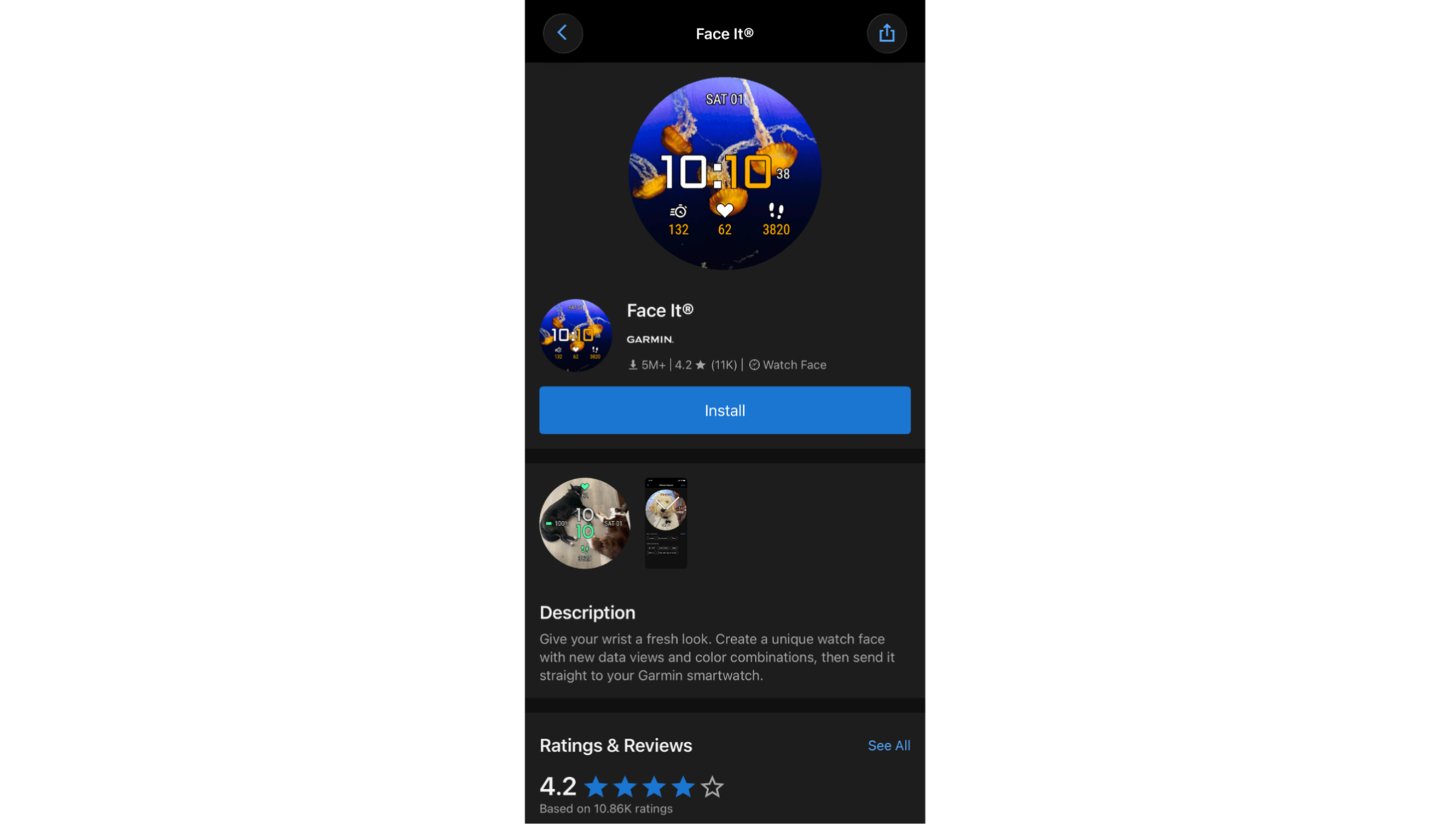
You cannot adjust a Face It face directly on the watch. To make changes, open the Connect IQ Store app, edit the face there, and sync again.
For the best results, choose a photo with a simple subject and high contrast between the subject and background. Busy photos with fine detail lose legibility on a small round screen. If you want to make your own image to use in Face It, you can design something in a photo editing app or generate one from a text prompt and import it. Garmin Face It accepts any standard photo from your camera roll, so any image you already have on your phone works.
For the full official Face It walkthrough, see Garmin's Face It guide.
Customize Data Fields and Complications
Data fields are the stats that appear on your watch face, such as steps, heart rate, calories, distance, weather, and battery level. Most Garmin watch faces let you change which fields appear and in which positions.
To edit data fields on the watch:
- Enter the Watch Face edit mode (hold MENU or UP, select Watch Face, then Edit).
- Look for a Data or Data Fields option.
- Press SELECT on a field position to change what it displays.
- Scroll through the available data types and select one.
Some faces support one data field; others support four or more depending on the layout.
If the built-in data options do not cover what you want, you can download additional data field apps from the Connect IQ Store in the same way you download watch faces. Search under the Data Fields category. Installed data fields then become available as options when editing your watch face.
Watch Face Won't Change or Sync? Troubleshooting
Most watch face problems come down to a sync that did not complete. The face is installed on your phone but has not yet transferred to the watch.
The face is installed but is not on the watch: Open Garmin Connect, keep it running in the foreground, and bring your phone close to the watch. Wait for the sync indicator (the Garmin icon in your phone's notification bar) to finish. Then check the Watch Face menu on the watch.
Battery saver is blocking the sync: Some phones pause background app activity to save power. Go to your phone's battery or app settings and allow Garmin Connect to run unrestricted in the background.
The face is activated but looks wrong: Some faces need specific data permissions. Open the face's settings in the Connect IQ Store app and confirm it has access to the data it needs.
A Face It face is not updating: Face It faces cannot be edited on the watch. Open the Connect IQ Store app, make your changes, tap Save and Install, then wait for the sync to complete before checking the watch.
Data-heavy or always-on faces draining battery faster than usual: Faces that refresh frequently or keep the display on continuously use more power. This is expected behavior, not a fault with the face.
Does Your Garmin Support This? Compatibility
Connect IQ support varies significantly across Garmin models. The Connect IQ Store app only shows faces compatible with the watch it detects on your account, so the easiest way to check is to open the app with your watch paired: if faces appear, your model supports Connect IQ. If the face list is empty or Connect IQ is not available in your region or model, your watch uses only the built-in faces.
Older Garmin models, including some early Instinct and Lily versions, have limited or no Connect IQ support. The available face count is also smaller on entry-level models than on the Fenix or Forerunner 900-series.
Face It requires a color MIP or OLED display. Non-color watches cannot use photo faces through Face It. Garmin's Watch Face Builder is an alternative for non-color models, accessible through the Connect IQ Store on desktop.
To confirm your model's compatibility before buying, search your model name on apps.garmin.com on desktop and filter by device.
If you use other smartwatches alongside your Garmin, the same personalization logic applies: you can switch out your Apple Watch face from the watch face gallery with a similar hold-and-select gesture.
Personalize the Rest of Your Devices with Zedge
Zedge does not make Garmin watch faces, and nothing in the Zedge app installs directly onto a Garmin watch. The connection is indirect but practical: if you want a personal image for a Face It face, you can download a wallpaper from Zedge or generate one with Zedge's AI generator and use that image as your Face It photo.
Beyond the watch, your phone is the screen you look at most. The free Zedge wallpapers and ringtones library covers HD and 4K wallpapers, live wallpapers, ringtones, and notification sounds, most at no cost. A Premium subscription removes ads.
Frequently Asked Questions
How do I change my Garmin watch face?
Hold MENU or UP from the current watch face, select Watch Face, scroll with UP or DOWN to preview options, and press SELECT to apply one. On two-button models like the Lily, hold the bottom button. If the face supports editing, an Edit option appears after you select it. The exact button varies by model; look for Watch Face under Settings if the hold-button shortcut does not appear.
Are Garmin watch faces free?
Most garmin watch faces on the Connect IQ Store are free. Some developers charge a one-time fee, which is paid through the Google Play or App Store on your phone, not through Garmin. All faces available from Connect IQ are vetted by Garmin. Built-in watch faces on the watch itself are always free.
Why won't my watch face change or sync?
The most common cause is an incomplete sync. Keep Garmin Connect running in the foreground, bring your phone close to the watch, and wait for the sync indicator to finish before checking. If your phone's battery saver is active, allow Garmin Connect to run unrestricted in the background. Face It faces cannot be edited on the watch; open the Connect IQ Store app, edit there, and re-sync.
Can I use my own photo as a Garmin watch face?
Yes, using Face It in the Connect IQ Store app. Choose a photo, crop it for the round screen, add a layout and data fields, then install and sync. Your watch activates it from the Watch Face menu. Face It requires a color screen; non-color Garmin models use Watch Face Builder instead.
Does my Garmin support Connect IQ?
Open the Connect IQ Store app with your watch paired. If watch faces appear, your model is supported. If the list is empty, your model has limited or no Connect IQ support. Older entry-level models and some early Instinct and Lily versions fall into this category. The Connect IQ Store on desktop also lets you filter by device before you install anything.
Can I build a custom watch face?
Yes, in two ways. On the watch, go to Watch Face, select Add New, and build a digital or analog face with your choice of colors and data fields. In the Connect IQ Store app, Face It lets you build a face from a photo. Developers can also build fully custom faces using Garmin's Connect IQ SDK, but that requires coding knowledge and is outside the scope of this guide.
Ready to Personalize Every Screen?
Your Garmin watch face is one screen. Your phone is another. Download the Zedge app to find wallpapers, live wallpapers, ringtones, and notification sounds for your phone, and use anything you download as a starting image for a Face It face on your Garmin. Download Zedge.