

Removing the background from a video isn’t just a trick reserved for Hollywood studios anymore. Whether you’re a video creator polishing YouTube tutorials, a marketer producing branded clips, or just someone who wants a cleaner look for TikTok, background removal is now simple and accessible. Modern AI tools make it possible to remove video background in just one click, no green screen or complex setup required.
👉 In this guide, we’ll break down what video background removal is, the methods you can use, and how to get the best results.
What Does It Mean to Remove a Video Background?
Video background removal is the process of isolating your main subject and deleting or replacing the background of a video. This creates a background free video where the focus stays on the subject.
Common uses include:
- Creating professional product videos for e-commerce
- Designing social media clips with a new background
- Producing video presentations without distractions
- Adding special effects with a transparent background

Methods to Remove Background from Video
Using a Green Screen (Chroma Keying)
A green screen is a solid background (usually green or blue) placed behind your subject. With chroma keying in video editing software like Adobe Premiere Pro or DaVinci Resolve, you can remove the background and replace it with a new one.
✔️ Pros: precise results, works well for professional shoots.
❌ Cons: require complex setup, consistent lighting, and additional gear.

Without a Green Screen: AI-Powered Tools
AI video background removers can automatically detect the main subject and erase the background from a video. They save time and effort compared to manual editing, though fine details (like hair) may need adjustments.
Online Video Background Remover Tools
Popular choices include:
- Unscreen– simple and fast, ideal for short video clips.
- CapCut – TikTok-friendly with editing tools built in.
- Canva – great for marketing videos with templates.
- Cutout.Pro – precise AI-powered background remover.
- AirBrush – mobile-friendly and intuitive.
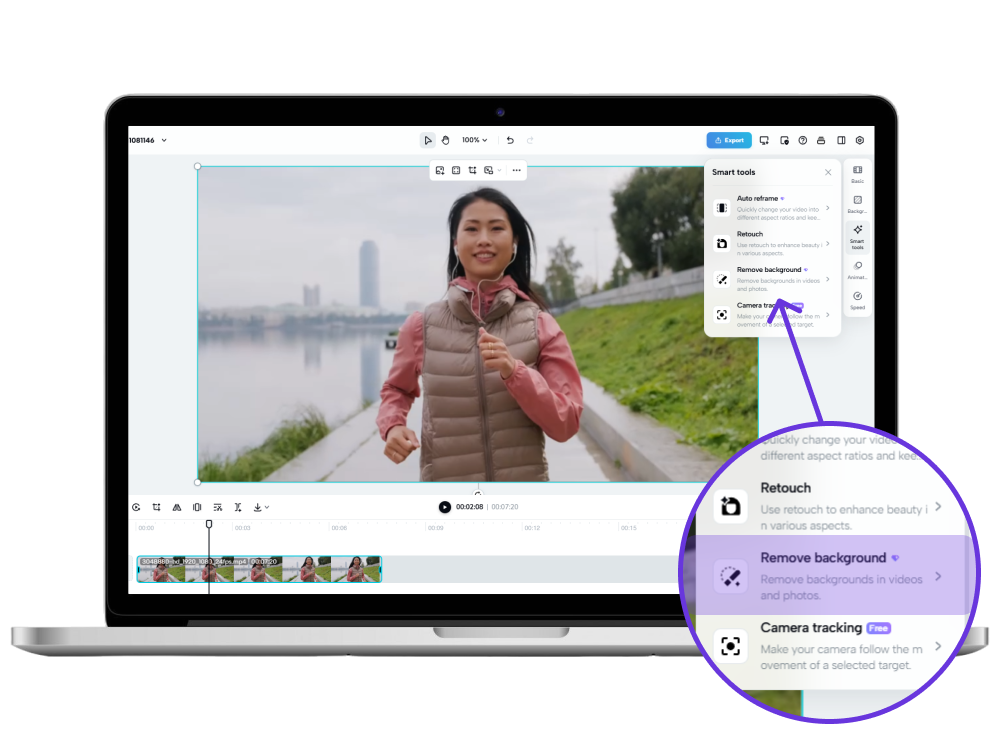
Step-by-step using an online tool:
- Upload your video.
- Let the AI automatically remove the background.
- Preview and fine tune using color palette options.
- Download your new video with a transparent background or add a background image.
Desktop & Mobile Apps for Background Removal
If you work on longer clips or want more editing tools, apps and video editing software may be better:
- Adobe Premiere Pro and DaVinci Resolve offer professional chroma keying.
- CapCut mobile app works for editing on the go.
Choose apps when you want full creative control or need to edit multiple videos at once.
Step-by-Step Guide: How to Remove Background from a Video
Using an Online Tool (Example Workflow)
- Upload your video.
- Let the AI process and automatically remove the background.
- Preview results and fine tune edges.
- Download your video as an MP4 or MOV file with a transparent background.
💡 Tips for Best Results
- Record with high contrast between the subject and original background.
- Keep lighting even to avoid shadows.
- Export in high resolution to maintain original quality.
Batch Editing: Removing Backgrounds from Multiple Videos
Some tools include a bulk editing feature to process multiple images or video clips at once. This is useful for businesses creating product photos or marketing materials where consistency matters. Just keep in mind that batch processing may reduce fine control over each video.
Download Unique Backgrounds from Zedge
Once you remove the background of a video, you’ll want something fresh to put behind your main subject. That’s where Zedge comes in.
Zedge offers millions of backgrounds, wallpapers, and designs that can double as video backdrops. Whether you need a clean white background for product photography, a black background for dramatic contrast, or a colorful design to match your brand’s color palette, you’ll find it.
For more inspiration:
- How to delete wallpaper on iPhone
- How to change wallpaper on iPhone easily
- Best wallpaper apps
- How to customize your home screen
- How to make your own phone wallpaper
✨ Tips for Achieving a Natural-Looking Result
- Match the color palette of your new background with the main subject.
- Use blur or depth-of-field effects to mimic natural camera focus.
- Always preview the whole process in your video editor before exporting.
👉 Ready to create your next background free video? Upload your video, remove the background, and head over to Zedge to find a new background that fits your style.
FAQs
Can I remove a video background without a green screen?
Yes, AI-powered tools automatically remove the background without needing special effects equipment.
What are the best free tools to remove video backgrounds?
Unscreen and CapCut are popular free options for short clips.
Does background removal affect video quality?
Not if you upload your video in high resolution and use a tool that preserves original quality.
Which video formats are supported by video background remover tools?
Most support MP4, MOV, WEBM, and GIF.
How do I add a new background after removing the original one?
You can import a new background image or video into video editing software and place it behind your subject.
Is it possible to batch process multiple videos?
Yes, some editing tools and bulk editing feature services allow it, though results may vary.
Can I remove backgrounds from videos on my phone?
Yes, apps like CapCut and AirBrush let you remove background directly from your smartphone.
What should I do if the background removal isn’t perfect?
Use editing tools like masking, chroma keying, or fine tune edges manually in Premiere Pro or DaVinci Resolve.
How long does it take to remove a video background?
Online tools can process short clips in seconds, while longer videos may take a few minutes.
Are there any file size or length limits when using online video background removers?
Yes, many free tools limit file size to 2GB and length to under 5 minutes.