

To personalize your Android lock screen, long-press an empty area of your home or lock screen, tap Wallpaper & style, then open the Lock screen tab. From there you can change the wallpaper, swap the clock style, color, and size, set the left and right shortcuts, and choose which notifications appear. Below you will find exactly how to change lock screen on Android for each major brand, as the steps differ slightly on Samsung, Xiaomi, and others.
Key Takeaways
Here is what to know before you personalize your Android lock screen on any device.
- The lock screen editor lives under Wallpaper & style, or open it by long-pressing directly on the lock screen.
- You can change the wallpaper, clock style, shortcuts, widgets, and notification behavior from one place.
- Menu names differ by brand and Android version, so Samsung, Xiaomi, and OnePlus each use a slightly different path.
- Lock screen widgets are limited on stock Android for security reasons; Samsung gives you more options.
- The fastest way to make your lock screen feel different is a new wallpaper.
Lock Screen Customization by Device
Menu names and available options depend on your phone's skin and Android version.
What You Can Personalize on Your Android Lock Screen
Your Android lock screen has several independent controls, and each one changes something different about how the screen looks and behaves.
Wallpaper: The background image on your lock screen. Options include static HD and 4K images, live wallpapers that animate (built in or from a live wallpaper app), and depth or Parallax wallpapers that shift as you tilt the phone.
Clock: Style, font, color, and size. Options vary by Android version; Android 16 added the most recent styling options.
Shortcuts: The two tappable icons at the bottom corners of the lock screen, typically camera and flashlight, but you can reassign them.
Widgets: At-a-glance information like weather or calendar. Stock Android keeps these limited; Samsung exposes more.
Notifications: You can show all, hide content, or hide everything. Sensitive content can be kept off the lock screen entirely.
Always-on Display (AOD): Shows the clock and certain notifications when the screen is technically off. Available on Pixel and Samsung.
Lock screen text: A short line of custom text, useful for a name, message, or contact number.
The lock screen and home screen work as a pair. Once you have the lock screen set, you will likely want to customize your Android home screen to match the same visual direction.
How to Change Your Android Lock Screen Wallpaper
Changing the Android lock screen wallpaper takes a few taps on stock Android.
- Long-press an empty area of the home screen.
- Tap Wallpaper & style.
- Tap the Lock screen panel or the Change wallpapers button.
- Browse categories or tap More wallpapers for the full library.
- Select an image and tap Set wallpaper.
- Choose Lock screen, Home screen, or Both, then confirm.
[SCREENSHOT: Wallpaper & style picker showing lock screen vs home screen options]
Set on lock screen vs home screen vs both: Setting both applies the same image everywhere. Setting it on the lock screen only lets you keep a separate home screen wallpaper, which many users prefer.
Live wallpapers: Select a live wallpaper from the Animated category. These move when you interact with the screen but consume slightly more battery than static images.
Depth wallpaper: On Pixel, select a photo with a subject in the foreground and the camera icon appears in the corner of the picker. Tap it to create a depth effect that makes the clock appear behind the subject. Available for portrait photos with clear foreground separation.
If you want something beyond the built-in options, you can also make your own phone wallpaper using editing tools and import it directly.
How to Change the Lock Screen Clock Style, Color, and Size
Here is how to change clock style on lock screen Android: the option lives inside the lock screen editor, not the display settings.
The Android lock screen clock is adjustable from step 2 onwards.
- Open the lock screen editor (long-press home screen, Wallpaper & style, Lock screen).
- Tap the clock on the preview to enter clock editing.
- Swipe left or right to cycle through available clock styles.
- Tap Clock color & size to open font color and size options.
- Under Size, choose Dynamic (resizes based on notifications) or Small (fixed size).
- Tap a color swatch or use the eyedropper to match a color from your wallpaper.
[SCREENSHOT: clock style picker and color & size options]
Version history: Android 12 introduced the large two-line lock screen clock as a new default design. Android 13 added a toggle to switch between one-line and two-line styles at Settings, then Display, then Lock screen, then Double-line clock. Android 14 is where full clock customization arrived: style selection, color, size (Dynamic vs Small), and font. Android 16 added a dedicated Clock menu on Pixel at Wallpaper & style, then Lock screen, then Clock. If options look limited, check your Android version in Settings, then About phone, then Android version.
For the full official reference on Pixel clock settings, see Google's Pixel lock screen guide (updated June 2026).
How to Add Lock Screen Shortcuts and Widgets
Shortcuts are the two tappable icons at the bottom of the lock screen. To change them:
- Open the lock screen editor.
- Tap Shortcuts.
- Tap the left or right shortcut slot.
- Choose from the available options: camera, flashlight, wallet, home controls, and more.
[SCREENSHOT: shortcut picker showing available options]
Android lock screen widgets work differently depending on your phone. On stock Android and Pixel, the lock screen shows at-a-glance information like upcoming calendar events and weather rather than interactive widgets. You cannot add arbitrary app widgets to the stock Android lock screen for security reasons.
Knowing how to add widgets to lock screen android depends on the brand. Samsung One UI 7 gives you true lock screen widgets. In Lock Screen Studio, tap the widget area in the preview and choose from compatible apps. OnePlus and Xiaomi offer limited widget-style elements through their AOD and signature style features.
If the option is missing on your device, it is most likely restricted by your Android skin or Android version rather than a bug.
Customize the Lock Screen on a Samsung Phone (One UI 7)
Samsung lock screen customization is more extensive than stock Android. The editor is called Lock Screen Studio.
- Long-press the lock screen directly (not the home screen).
- Authenticate with your PIN, pattern, or biometric.
- The Lock Screen Studio opens, showing a live preview of your lock screen.
[SCREENSHOT: Samsung Lock Screen Studio on One UI 7]
Clock and font color: Tap the clock in the preview. Swipe through clock styles, then tap Color to pick a font color or use a color extracted from your wallpaper.
Always-on Display: Tap AOD in the editor to turn it on and choose a style. AOD shows the clock and certain notifications on a dark background while the screen is off.
Shortcuts: Tap either shortcut icon to reassign it. Samsung offers camera, flashlight, voice recorder, and several other options.
Widgets: Tap the widget zone above the clock to add lock screen widgets. Compatible Samsung apps include Calendar and Weather.
Multiple lock screens: Samsung lets you save multiple lock screen setups and switch between them. Tap the plus (+) icon in Lock Screen Studio to add a new one.
Video wallpaper: Samsung supports video and GIF wallpapers on the lock screen. Tap Wallpaper in Lock Screen Studio and select a video from your gallery. [VERIFY-ZEDGE: confirm this is current on One UI 7]
For wallpaper options that work well with Samsung's editor, browse the best Samsung wallpapers and ringtones.
Customize the Lock Screen on Xiaomi, OnePlus, and Other Android Phones
Xiaomi (HyperOS):
- Wake the lock screen and long-press any empty area to open the editor directly.
- Swipe through lock screen styles: Classic, Rhombus, and Magazine.
- Tap Customize to change the wallpaper, clock font, and color.
- For shortcuts, go to Settings, then Lock screen, then Lock screen shortcuts, and assign the left and right corner actions.
- For AI dynamic wallpapers (HyperOS 3): open Settings, then Personalization, then AI dynamic wallpapers. Tap the plus icon, add a photo, and apply it to the lock screen or home screen.
The Magazine style uses intelligent object detection to layer the clock behind foreground subjects, similar to Pixel's depth effect.
OnePlus (OxygenOS 15 and 16):
- Open Settings.
- Tap Home Screen & Lock Screen.
- Tap Lock screen to change the wallpaper and clock style.
- For AOD, tap Always-on Display and choose a style.
- OxygenOS 16 (OnePlus 15 and newer): tap Lock screen wallpaper to use a video or animated GIF as the lock screen background. Font and layout options are also expanded in OxygenOS 16.
Other Android phones generally follow the stock Android path: long-press the home screen, tap Wallpaper & style, then Lock screen.
Control What Shows on Your Lock Screen
Android lock screen settings for notifications and display are separate from the wallpaper editor. These lock screen settings Android manages live in Settings, not in the visual editor.
Notifications: Go to Settings, then Notifications, then Notifications on lock screen. Options are: Show all notification content, Show conversations and default notifications only, or Don't show any notifications.
Hide sensitive content: In the same menu, toggle Hide sensitive content. This keeps notification previews off the lock screen while still showing the app name.
Always-on Display: On Pixel, go to Settings, then Display, then Lock screen, then Always show time and info. On Samsung, manage AOD from Lock Screen Studio or Settings, then Lock screen, then Always On Display.
Lock screen text: Go to Settings, then Display, then Lock screen, then Add text on lock screen. Type up to a short line of text. Useful for a name, emergency contact, or a message.
Samsung news and feed: Samsung devices may show a Glance or news feed widget on the lock screen. To remove it, long-press the lock screen, look for the Glance or news feed toggle, and turn it off.
Make Your Lock Screen Actually Stand Out with Zedge
The OS controls the clock, widgets, and notifications. Zedge handles the asset layer: the wallpapers and sounds that make the lock screen worth looking at.
Free Zedge wallpapers and ringtones cover every style in the library, and most are free to download. A Premium subscription removes ads. Here is what Zedge gives you for the lock screen specifically:
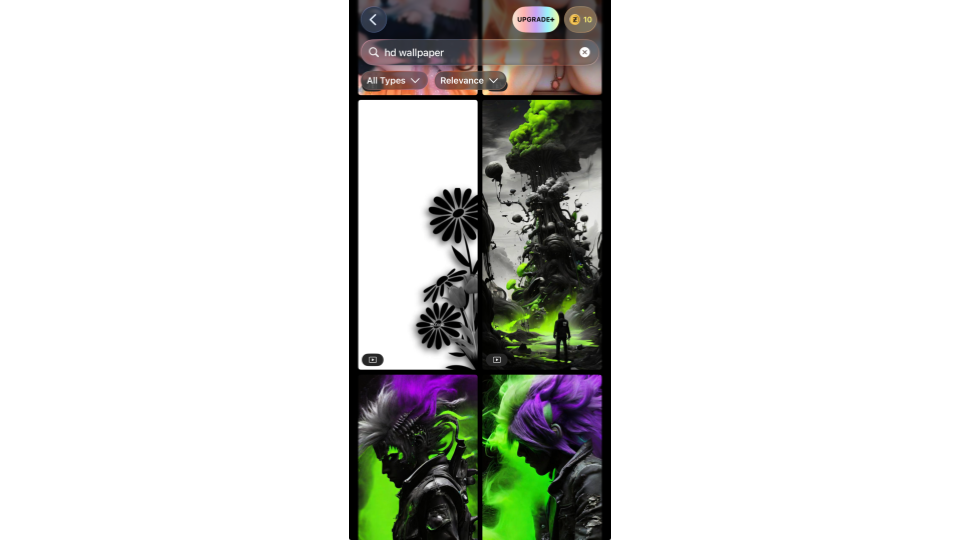
HD and 4K wallpapers: A large catalog sized for modern phone displays, from minimalist to vivid.
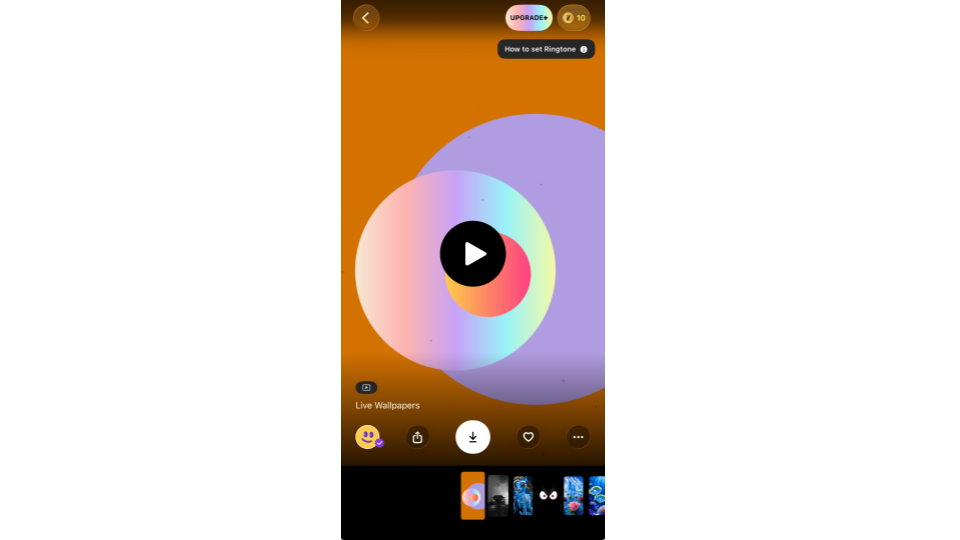
Live Wallpapers: Animated wallpapers that move on your lock and home screen. Battery impact is light compared to older live wallpaper formats.
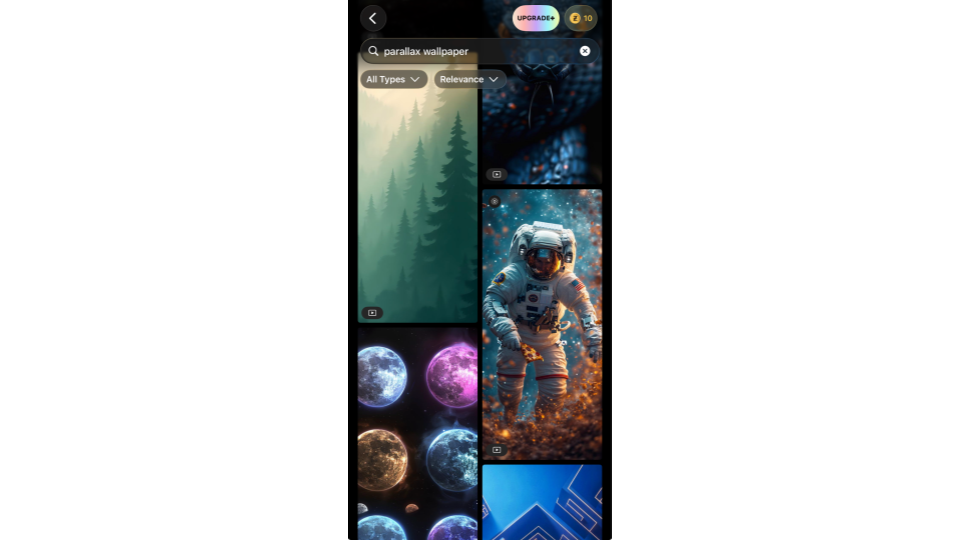
Depth / Parallax wallpapers: Wallpapers built to work with the Pixel depth effect and the parallax tilt behavior on other Android phones.
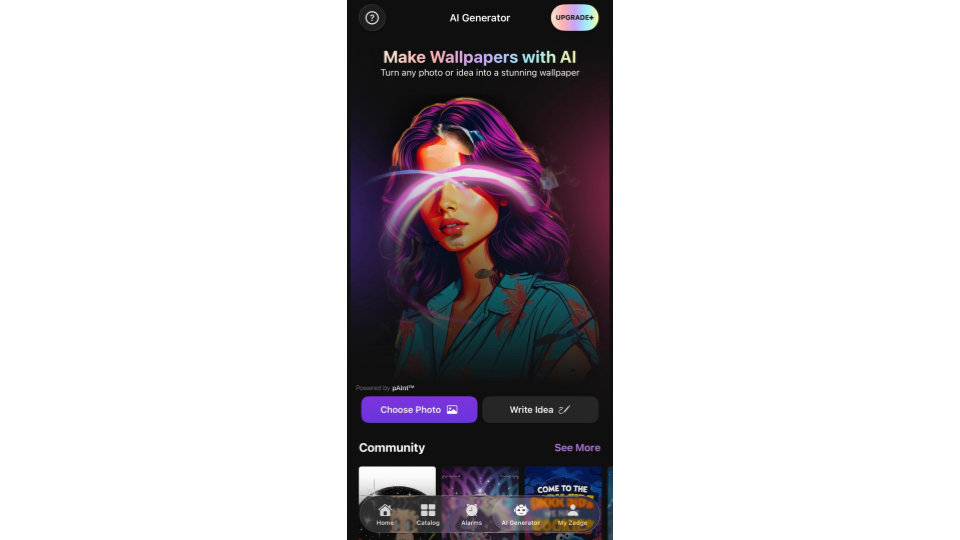
AI Wallpaper Maker: Describe what you want and Zedge generates a wallpaper. Good for something no one else has.
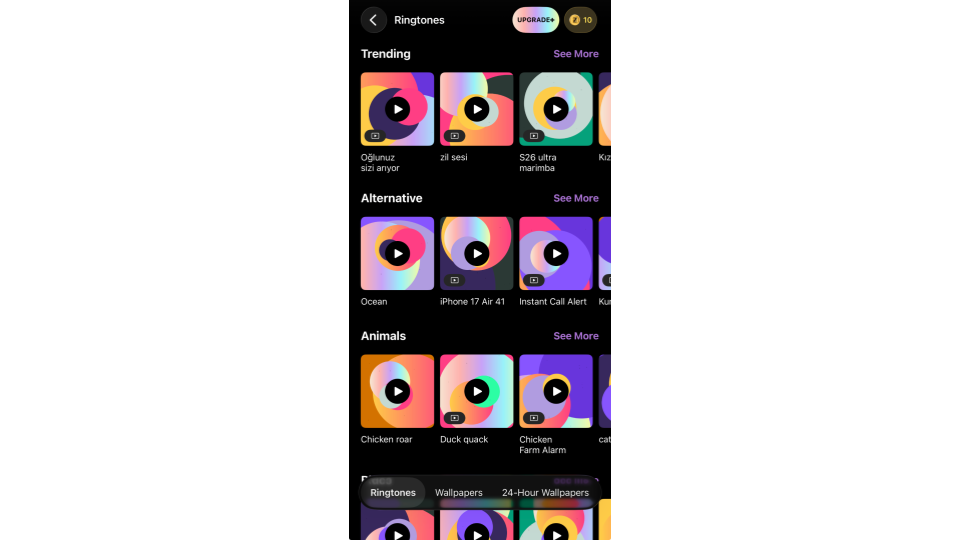
Ringtones and notification sounds: Once your lock screen looks right, pair it with a matching notification sound from Zedge, one of the free ringtone apps for Android that also covers notification tones. If you want something original, you can also make a custom ringtone using AI tools.
If you want your wallpaper to rotate rather than stay fixed, you can set your wallpaper to rotate automatically with a third-party app.
Personalize vs Secure: Changing Your Screen Lock (PIN, Pattern, Biometrics)
"Change lock screen" means two different things on Android. This guide covers the look of your lock screen. The other meaning is the security method you use to unlock your phone: PIN, pattern, password, fingerprint, or face unlock.
If you want to change screen lock on Android to a more secure method:
- Go to Settings.
- Tap Security or Security & privacy.
- Tap Screen lock.
- Choose PIN, Pattern, or Password and follow the prompts.
Biometrics (fingerprint, face unlock) are set up in Settings, then Security, then Fingerprint or Face unlock.
For the official guide to setting and changing your unlock method, see set or change your screen lock on Google Support.
Frequently Asked Questions
How do I change my lock screen wallpaper on Android?
Long-press the home screen, tap Wallpaper & style, then tap Lock screen or the wallpaper preview. Browse the library, select an image, tap Set wallpaper, and choose Lock screen only, Home screen only, or Both. On Samsung, long-press the lock screen directly and use Lock Screen Studio.
How do I change the clock style on my Android lock screen?
Open the lock screen editor, then tap the clock in the preview. Swipe through clock styles and tap Clock color & size to change the font color and choose between Dynamic and Small size. Options expanded significantly in Android 14; Android 16 added further presets. If you see limited choices, your device may not be on a recent enough version.
Can I add widgets to my Android lock screen?
Stock Android limits lock screen widgets for security reasons. Pixel shows at-a-glance information like calendar and weather but does not support full app widgets. Samsung One UI 7 supports true lock screen widgets through Lock Screen Studio. Xiaomi and OnePlus offer limited widget-style elements through their AOD and signature features.
How do I customize the lock screen on a Samsung phone?
Long-press the lock screen, authenticate, and Lock Screen Studio opens. From there you can change the wallpaper, clock style and color, Always-on Display, shortcuts, and lock screen widgets. Samsung also lets you save multiple lock screen setups and switch between them.
Why are some lock screen options missing on my phone?
Lock screen options depend on your Android version and phone brand. Features like depth wallpaper, clock color customization, and lock screen widgets are not available on all Android versions or skins. Check Settings, then About phone, then Android version to confirm you are on the latest update. Device manufacturers also vary in how many options they expose.
How do I remove news or notifications from my lock screen?
For notifications, go to Settings, then Notifications, then Notifications on lock screen, and choose to hide all or hide sensitive content only. On Samsung, a Glance or news feed widget may appear on the lock screen separately; long-press the lock screen and toggle it off.
What is the best app to personalize my Android lock screen?
Zedge is one of the best wallpaper apps for the asset layer: wallpapers, live wallpapers, and notification sounds. It does not control OS settings like the clock or widgets, but it gives you a large library of free content to work with. The app is free with ads; Premium removes them.
Is changing my lock screen wallpaper the same as changing my PIN?
No. Changing the wallpaper changes the visual appearance of the lock screen. Changing your PIN, pattern, or biometric changes the security method used to unlock the phone. Both are accessed through Settings, but they are separate features with no overlap.
Ready to Personalize Your Lock Screen?
Start with a wallpaper that makes you want to pick up your phone. Download the Zedge app to browse free HD and 4K wallpapers, live wallpapers, and notification sounds, then set them directly from the app. Free to use with ads; upgrade to Premium for an ad-free experience. Download Zedge and start.