

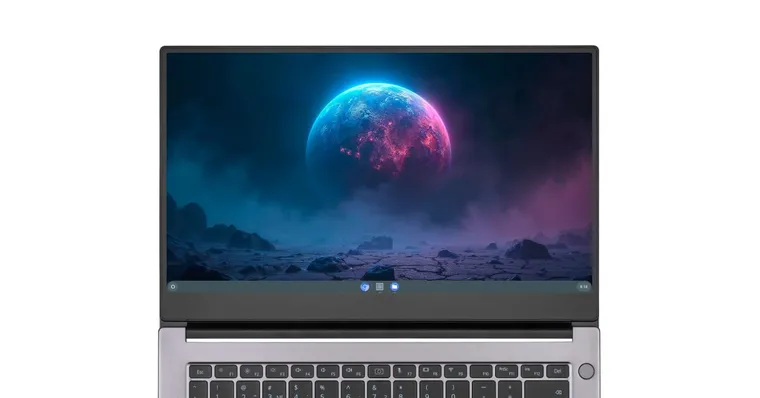
A plain Chromebook background is fine… but why settle for boring? Customizing your screen adds personality, helps your workflow, and makes your device feel truly yours. Whether you want a serene landscape, your favorite photo, or a quirky design as a custom wallpaper, it’s quick, easy, and even fun.
If you’ve been searching for how to change the background on a Chromebook, this guide will walk you through every method: using the built-in wallpaper picker, setting an image from Files, adjusting display settings, and syncing across devices.
How to Change Your Background on a Chromebook
Here’s the full step-by-step walkthrough for changing your background on a Chromebook.
Step 1: Open the Wallpaper Picker
- Right-click anywhere on your desktop.
- Select the wallpaper option from the menu.
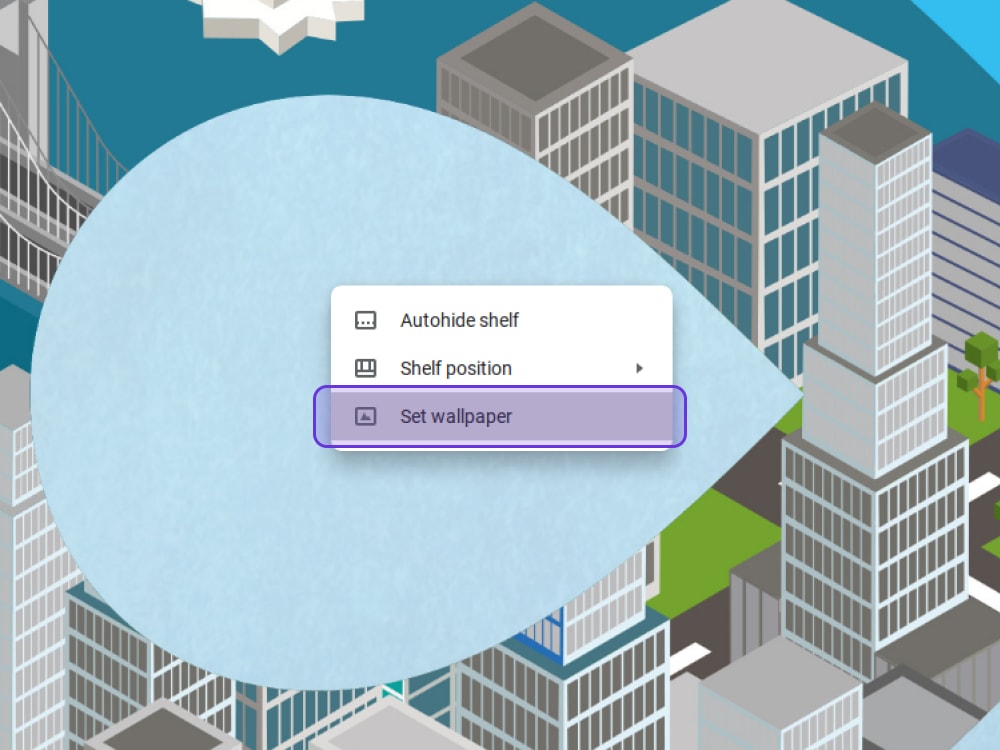
This opens the wallpaper picker, where you can explore preloaded backgrounds or add a custom wallpaper.
Step 2: Browse Preloaded Wallpapers
- Use the left sidebar to see categories like Cityscapes, Illustrations, Nature, or Abstract.
- Click any wallpaper to preview it on your Chromebook background.
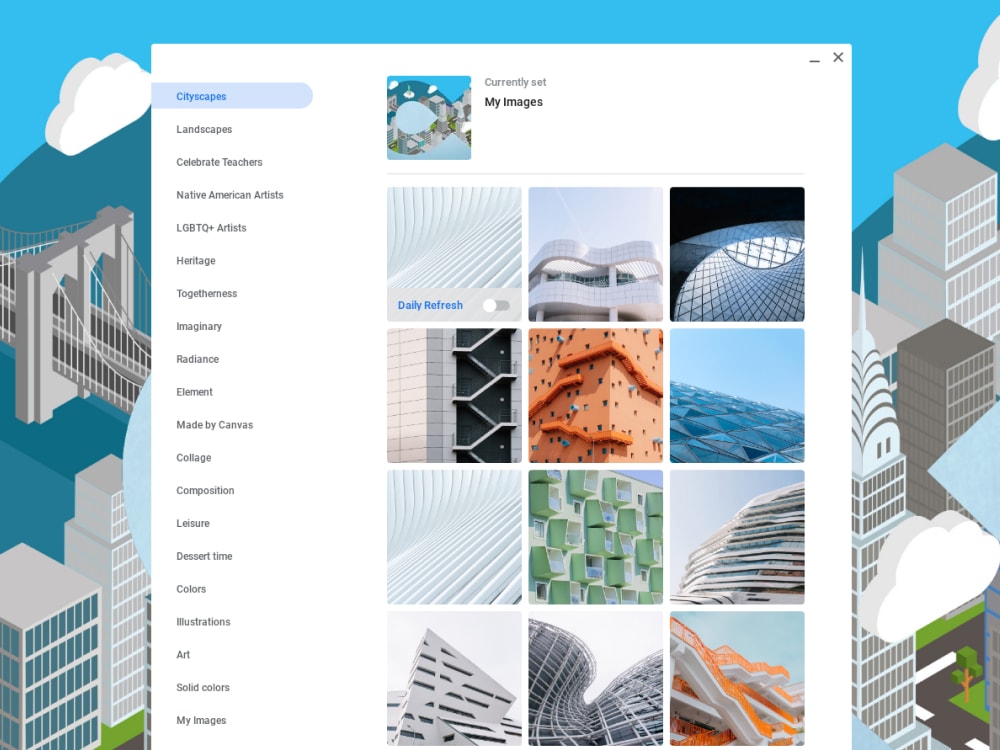
Preloaded wallpapers are perfect if you want something stylish fast without uploading a specific image.
Step 3: Set a Custom Wallpaper
- Click My Images in the left sidebar.
- Open the files app or Google Photos to find your photo.
- Click your image and select set wallpaper.
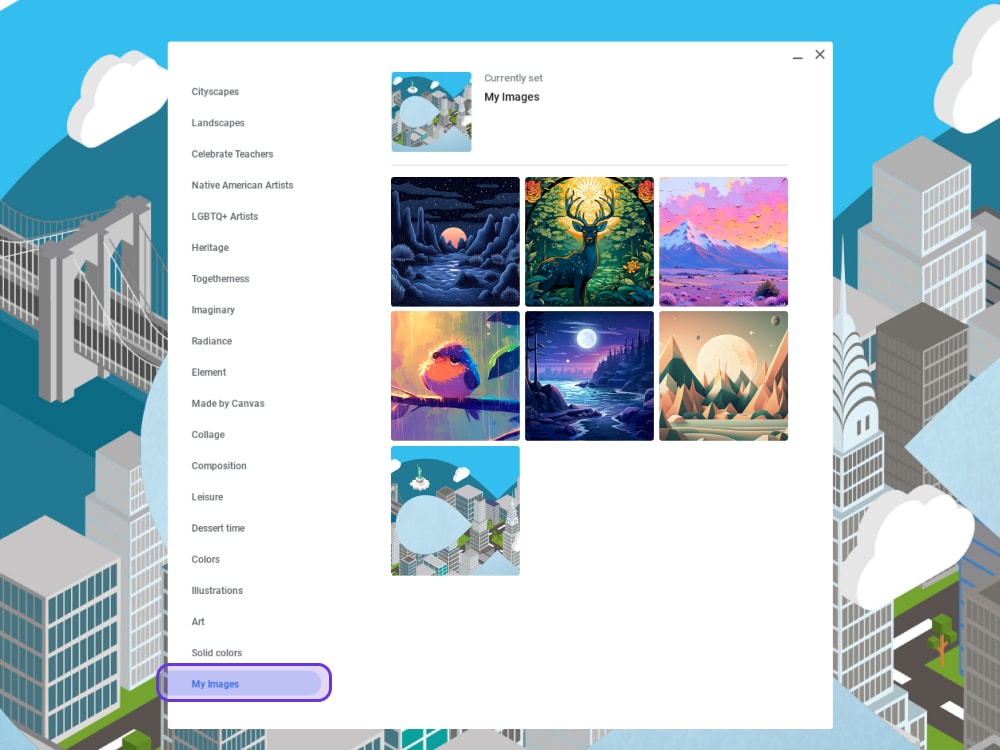
Now your Chromebook wallpaper is exactly the image you want, perfectly fitted to your screen.
Step 4: Use the Files App to Change Wallpaper
- Open the files app from the bottom left corner.
- Locate the image you want to use as a custom wallpaper.
- Right-click the image and select set wallpaper.
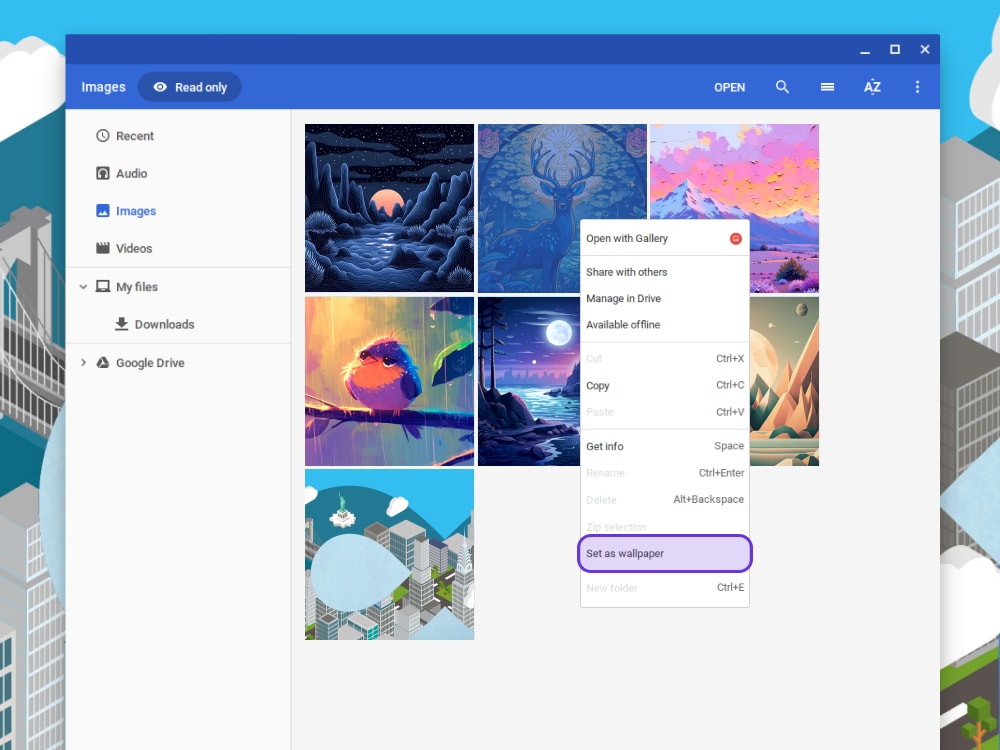
This works with images stored locally, in Google Photos, or on a USB drive.
Step 5: Adjust Wallpaper Settings
- Right-click the desktop and select set wallpaper & style.
- Or go to Settings > Wallpaper and style > set your wallpaper & style.
- Choose how the image displays: center, center cropped, or fill the screen.
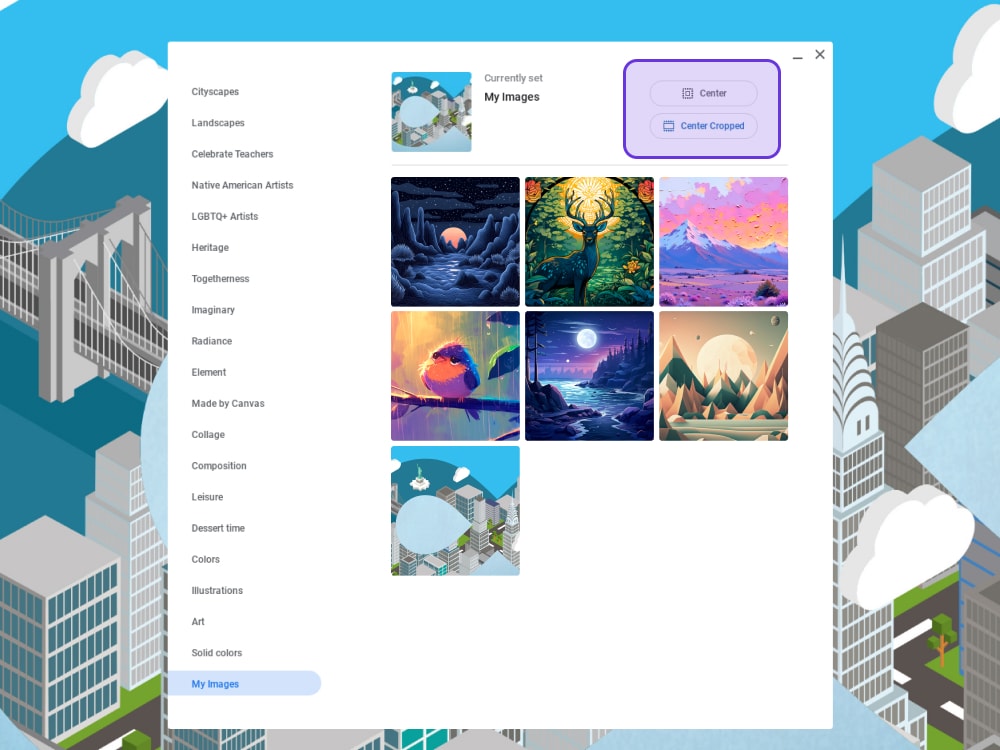
Tweaking these ensures your background looks clean, professional, and exactly how you want.
Step 6: Sync Your Wallpaper Across Devices
- Click the bottom right corner to open the Time/account menu.
- Select the gear icon to enter Chromebook settings.
- Go to Privacy and security > Sync and Google services.
- Click manage what you sync and choose sync everything or customize.
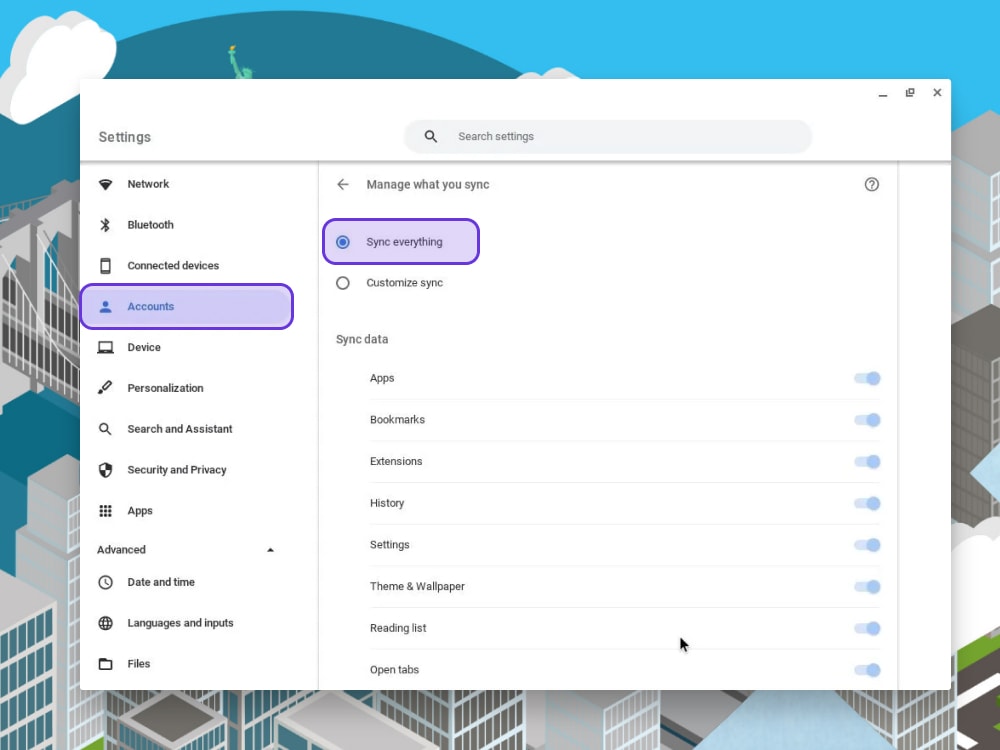
Now your Chromebook background follows you across devices logged into the same Google account. This is a huge win if you frequently switch between work and personal Chromebooks.
Tips for a Better Wallpaper
- Use high-resolution images to maintain quality.
- Avoid busy designs that hide icons or make the screen feel cluttered.
- Note: If you're on a school Chromebook, administrator restrictions may prevent changing the background.
How to Change Your Background on a School Chromebook
If you’re searching for how to change your background on a school Chromebook, the steps above are still the same, unless your administrator has restricted wallpaper changes. In many schools, you’ll see the wallpaper option missing or locked.
If it’s blocked:
- Try using a preloaded wallpaper (sometimes those are allowed).
- If everything is locked, you’ll need admin permission to change it.
Upgrade your Safari Homepage with Zedge
Want to match your Chromebook wallpaper to your Safari homepage? Zedge offers thousands of free, high-quality wallpapers that work perfectly as a screen saver or browser background.
- Visit Zedge Wallpapers
- Browse categories like Space, Nature, Anime, or Popular.
- Download the wallpaper you love and set it as your homepage.
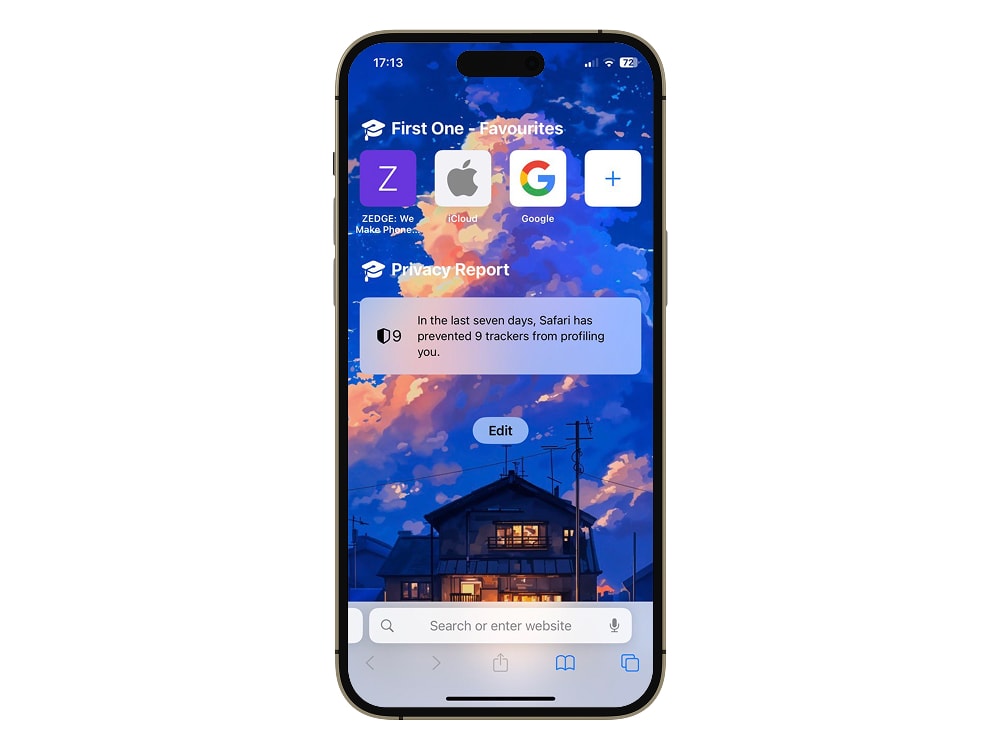
Refresh your digital spaces with professional visuals from Zedge and make every screen feel personal. 💻✨
Explore thousands of free wallpapers on Zedge Wallpapers and elevate your screen today!
To Sum It Up
Your Chromebook background is more than decoration, it's a power move! High-res images, smart cropping, and synced screens make your setup sharp and personal. Zedge is the best wallpaper app when you need to refresh your screen.
Grab fresh wallpapers from Zedge, use Google Photos or the Files app, and turn every screen into a workspace that works as hard as you do.
FAQs
How do I change the wallpaper on a Chromebook?
Right-click your desktop, open the wallpaper picker, and choose a preloaded background or upload your own image. This is the easiest answer to the 'how to change your wallpaper on a Chromebook' question.
How to change your wallpaper on a Chromebook using Files?
Open the Files app, right-click an image, and select Set wallpaper. This is exactly how to change the wallpaper on a Chromebook from files.
Can I use Google Photos to set a Chromebook background?
Yes. Open My Images in the wallpaper picker (or access Google Photos through Files), then select Set wallpaper.
Can I sync my Chromebook background across devices?
Yes. Go to Settings > Sync and Google services, then choose what to sync. This helps if you regularly change the background on a Chromebook and want the same look everywhere.
What if I have a school Chromebook?
Some school Chromebooks restrict personalization. If you’re trying to change your background on a school Chromebook and the option is missing, it’s likely blocked by your administrator.
How do I make a Safari homepage match my Chromebook wallpaper?
Download a wallpaper from Zedge and apply it as your Safari homepage background.
How to change wallpaper on iPhone easily?
If you want a quick refresh, how to change wallpaper on iPhone easily is simple: go to Settings > Wallpaper > Add New Wallpaper, pick a photo or style, and tap Add to apply it to the Lock Screen, Home Screen, or both.
How to delete wallpaper on iPhone?
To remove one you don’t want anymore, how to delete wallpaper on iPhone works like this: press and hold your Lock Screen to open the wallpaper gallery, swipe up on the wallpaper you want to remove, tap the trash icon, then confirm.
How to set video as wallpaper on iPhone?
People often ask how to set a video as wallpaper on an iPhone, but iOS doesn’t let you apply a raw video file directly. The usual workaround is converting a video into a Live Photo-style wallpaper, then setting it in Settings > Wallpaper > Add New Wallpaper (or using an app that provides live wallpapers).
How to set wallpaper on Apple Watch?
If you’re wondering how to set wallpaper on an Apple Watch, it works differently from an iPhone. Apple Watch uses watch faces instead of wallpapers. For a “wallpaper” effect, choose a Photos watch face in the Watch app, select the album or images you want, and set it as your current face.