


Tired of staring at the same plain Safari start page? Good news: you don’t have to. Whether you’re using an iPhone or a Mac, you can swap out the white backdrop for a custom Safari background image that feels more personal. It takes less than a minute, and the result is a Safari homepage that feels polished and uniquely yours.
How to Change Safari Background on iPhone
Changing your Safari background picture on iPhone is simple, and the process gives you the option of using Apple’s presets or your own photo.
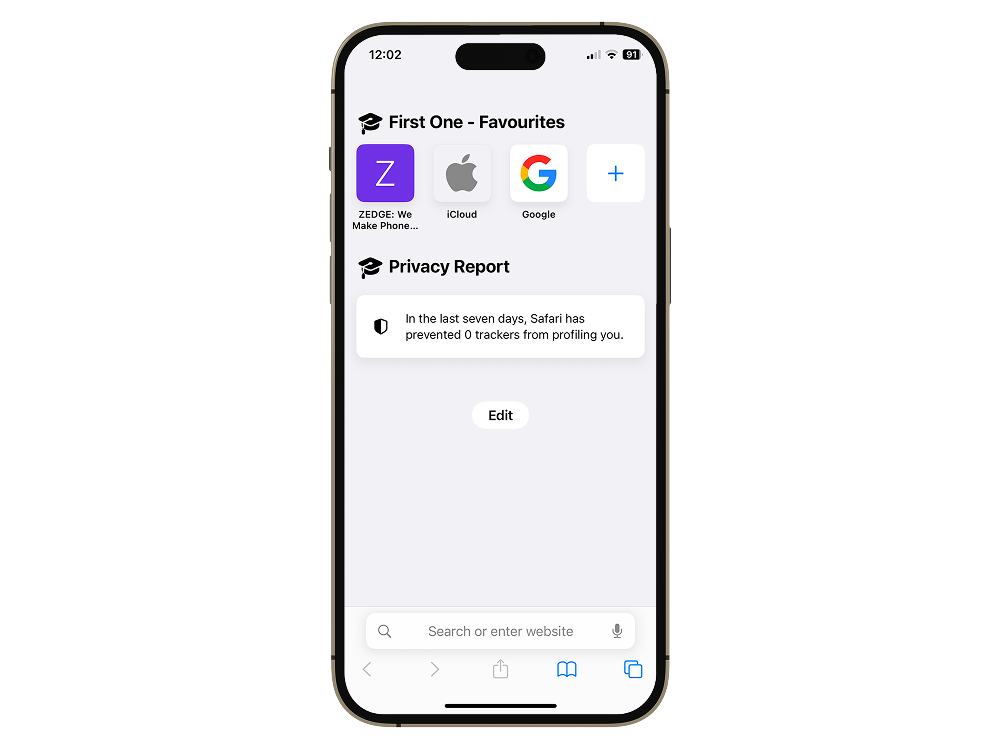
Step 1: Open the Safari app
- Tap the blue Safari app icon on your iPhone.
- Make sure you’re running iOS 15 or later — earlier versions don’t support custom backgrounds.
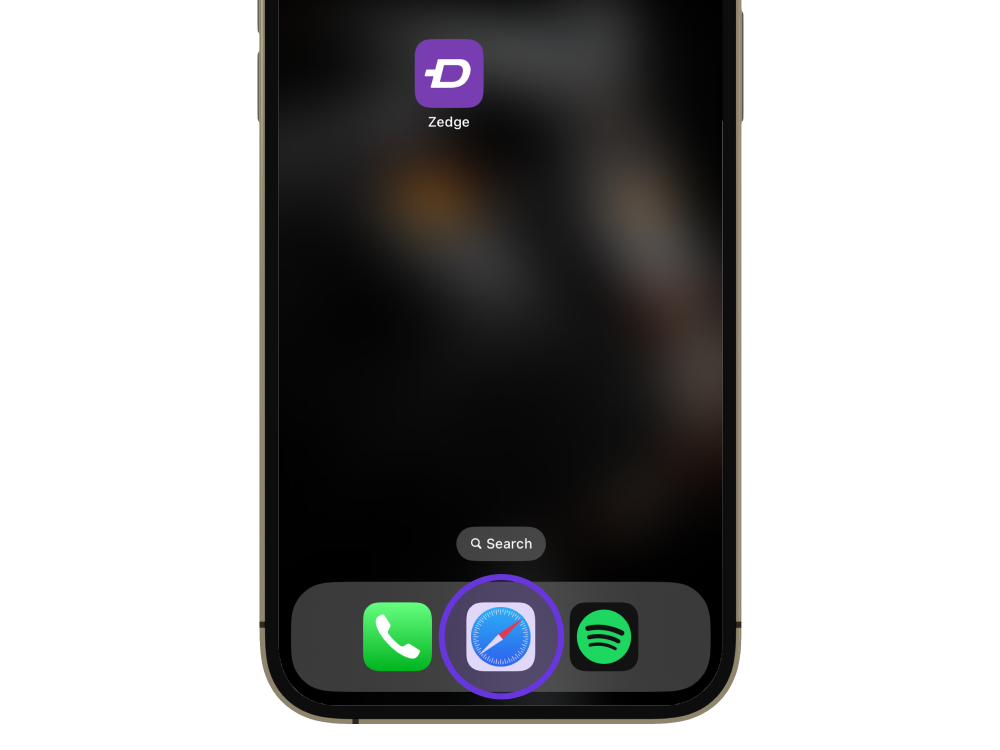
Step 2: Open a new start page
- Tap the two overlapping squares in the bottom right corner to view all open tabs.
- Tap the plus (+) sign in the bottom left corner to open a new tab.
- This takes you to the Safari start page.
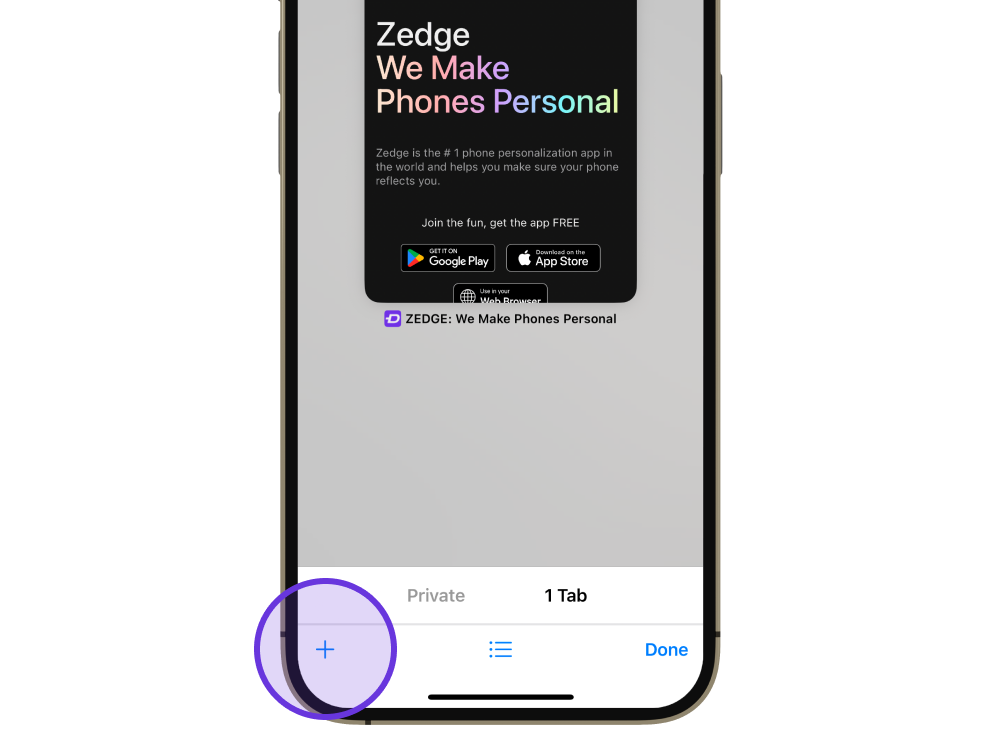
Step 3: Tap Edit
- Scroll to the bottom of the start page and tap Edit.
- If you’ve got lots of Favorites pinned, you might need to scroll down to spot it.
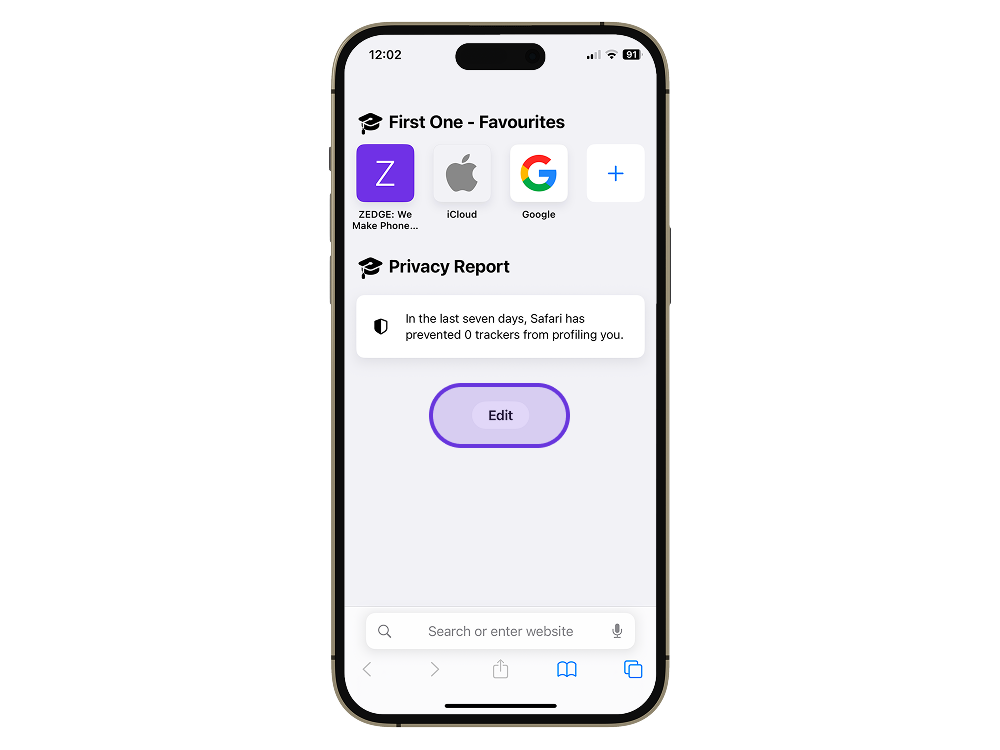
Step 4: Turn on Background Image
- Toggle the switch next to Background Image.
- A collection of built-in Apple wallpapers will instantly appear.
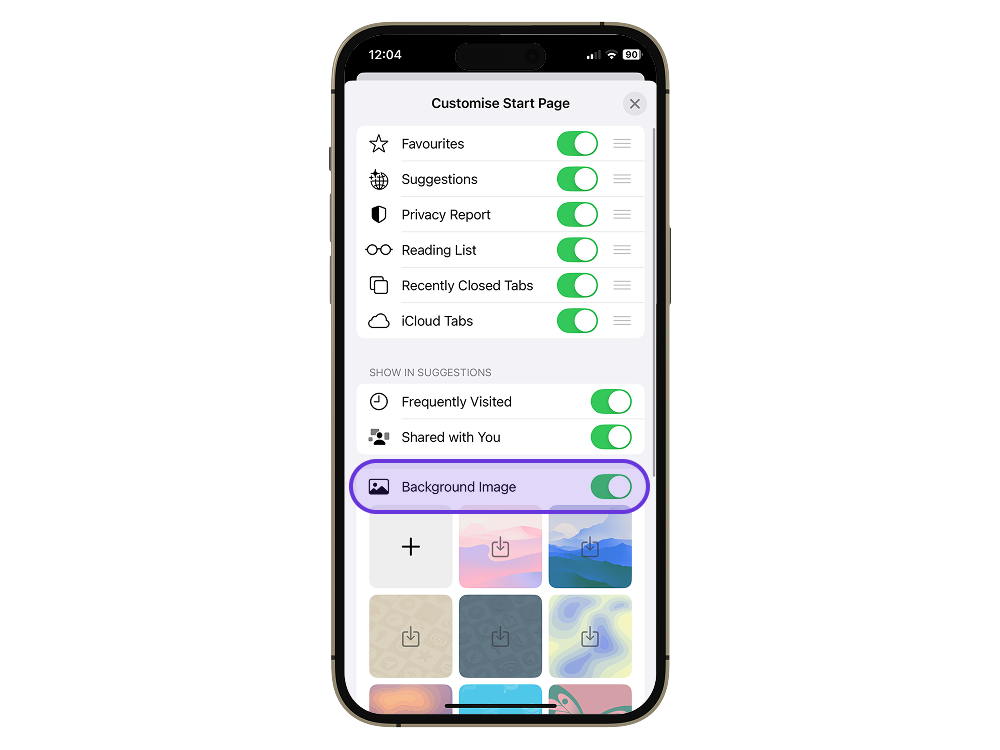
Step 5: Pick your background
- Tap one of Apple’s preset wallpapers, or
- Tap the + tile to upload your own image from your Photos library.
Your Safari start page updates instantly. If you ever want to reset to plain white, just head back to Edit in Safari settings and turn Background Image off.
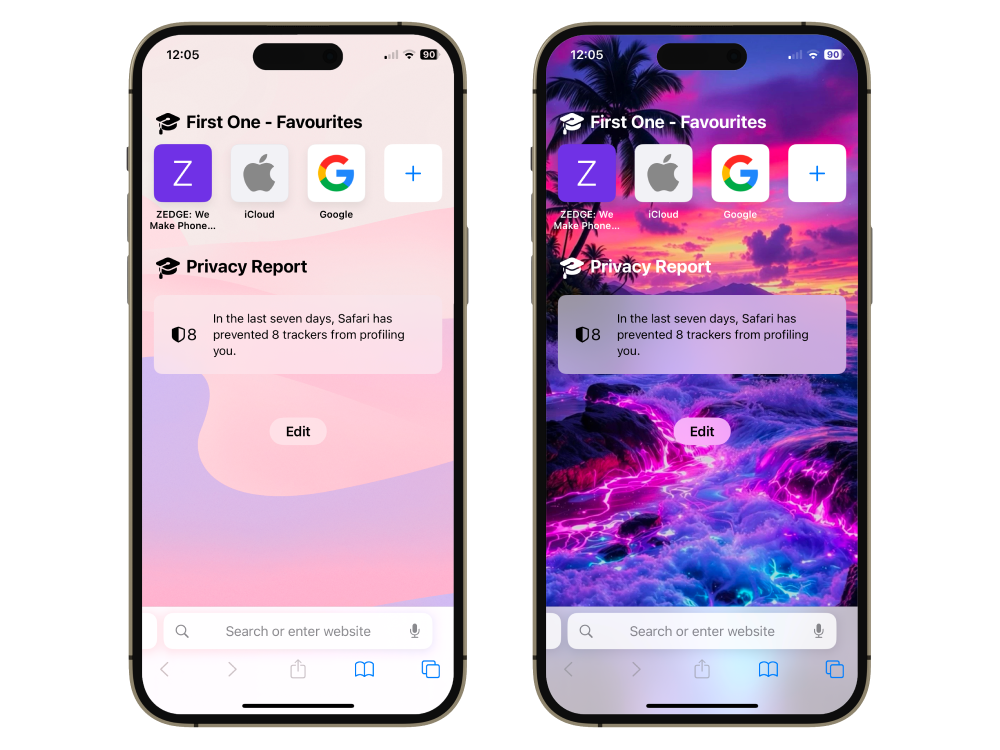
How to Change Safari Homepage Background on Mac
Safari on Mac gives you even more space to showcase a great background picture. Here’s how to make the switch:
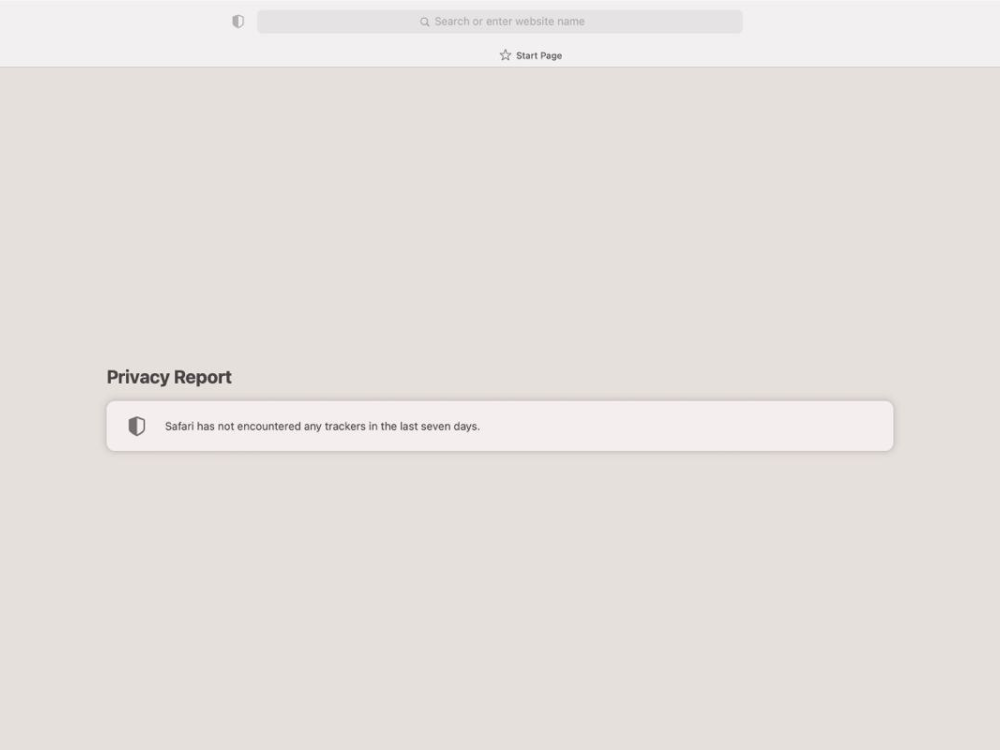
Step 1: Open Safari
- Launch Safari on your Mac.
- To get to a start page quickly, click Bookmarks > Show Start Page from the top menu.
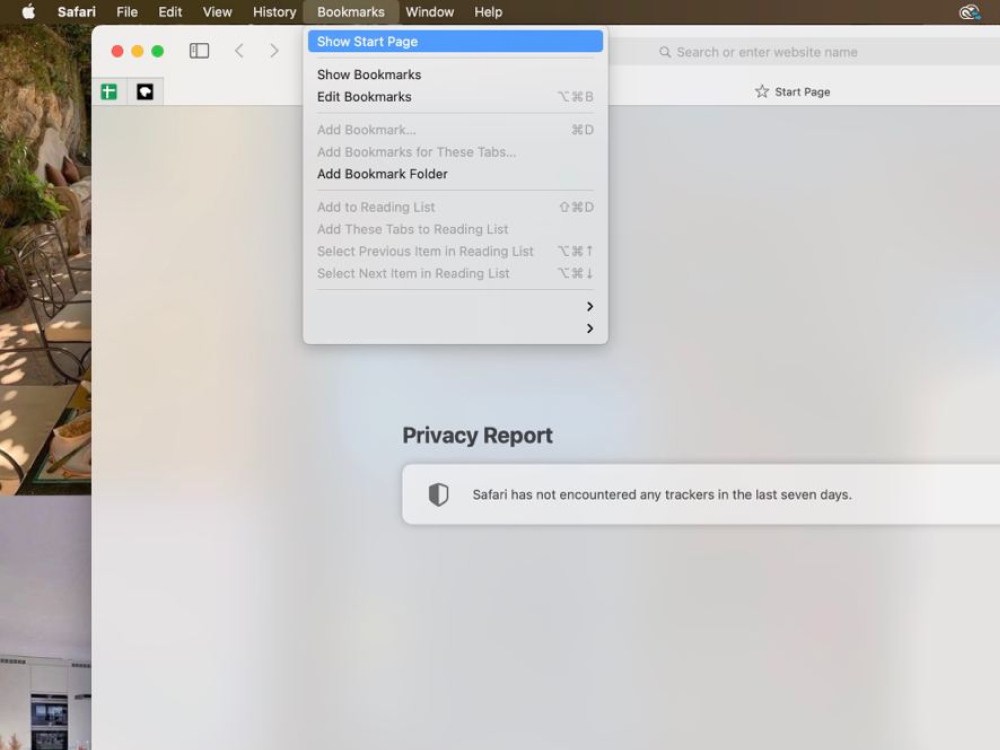
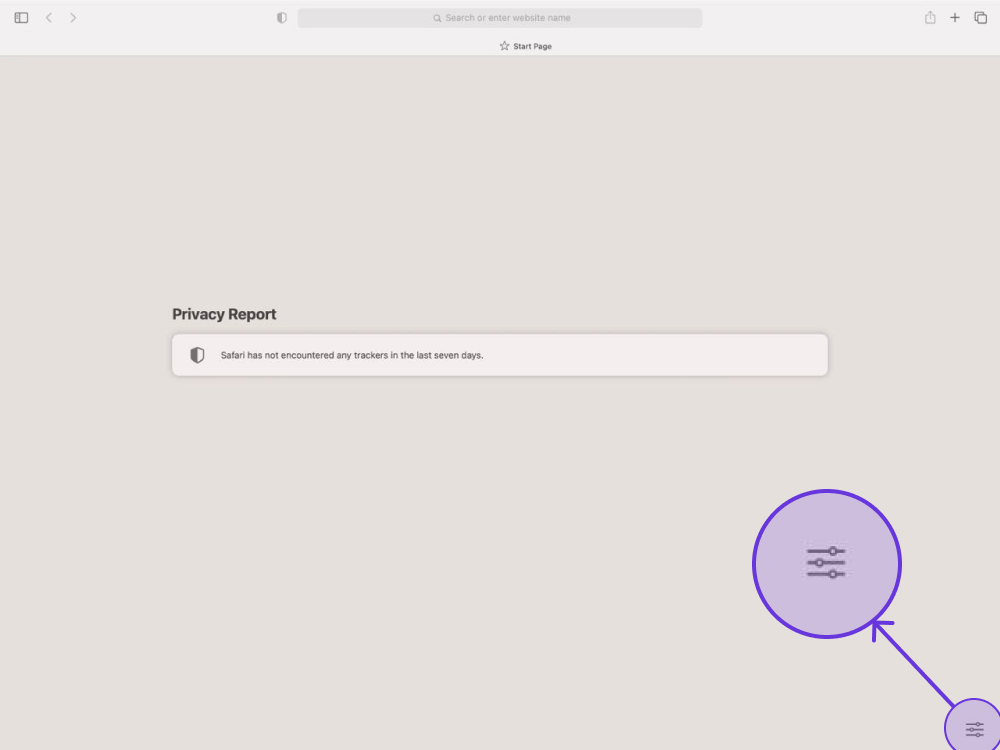
Step 2: Click Edit
- On the bottom right corner of the start page, click Edit.
- A customization panel will slide open.
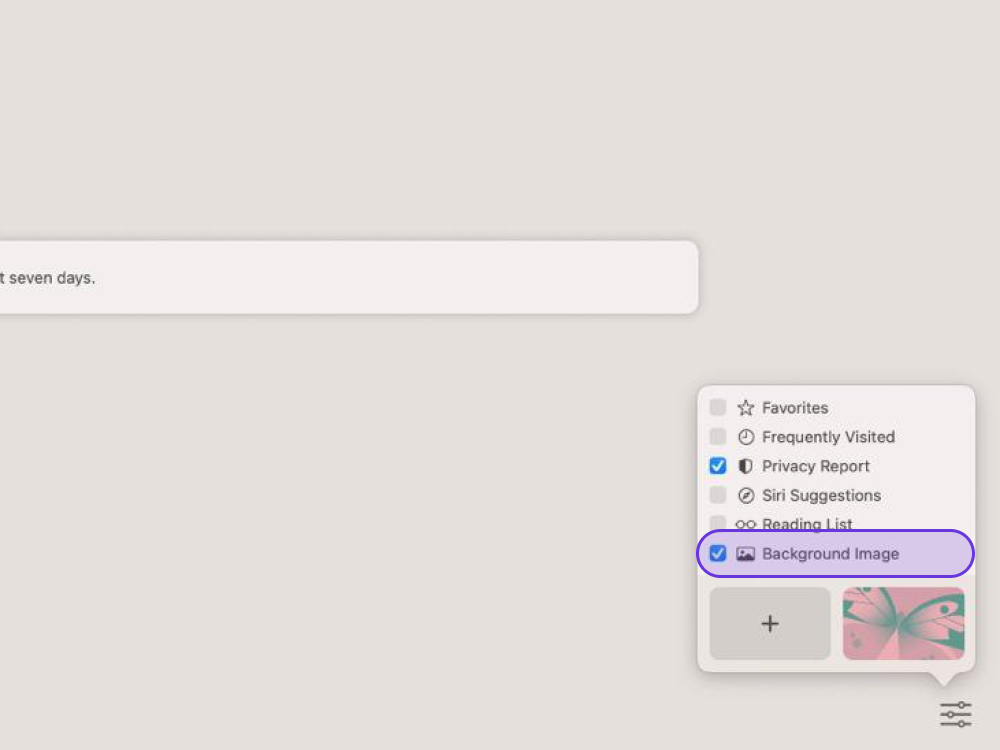
Step 3: Enable Background Image
- Check the box labeled Background Image.
- A selection of thumbnails will appear at the bottom, including both Apple’s presets and any new background images you’ve added.
Step 4: Pick your background
- Choose from Apple’s preset wallpapers, or
- Click the + tile to browse Finder and upload your own image.
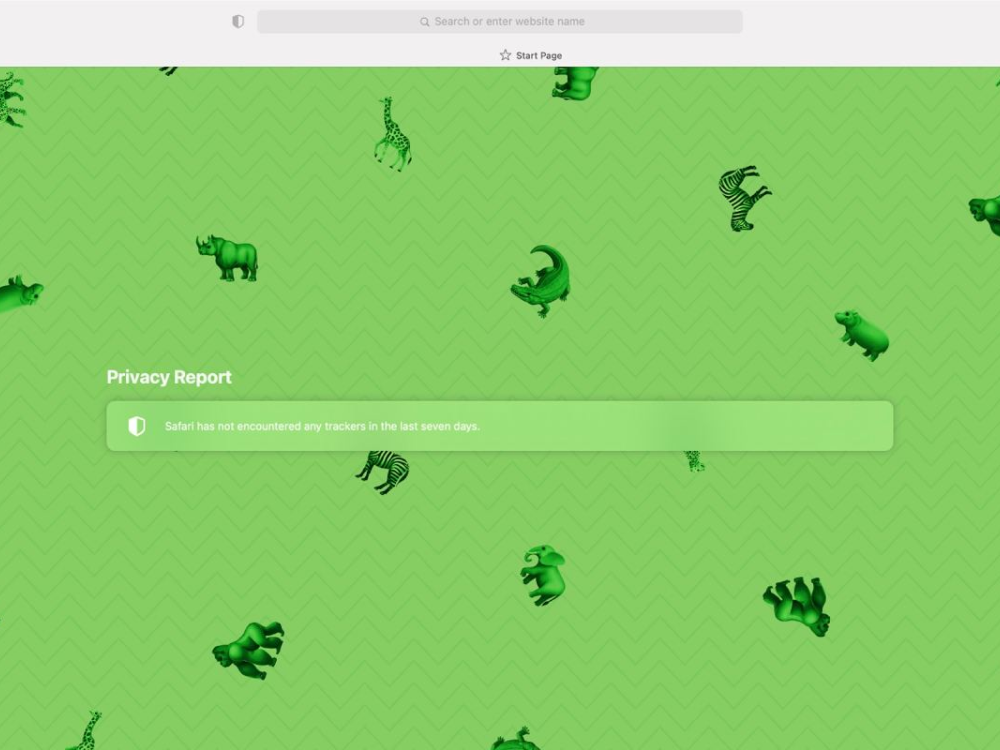
Safari will refresh instantly with your new background. To remove it later, uncheck the Background Image box in the same menu.
Upgrade Your Safari Homepage with Zedge
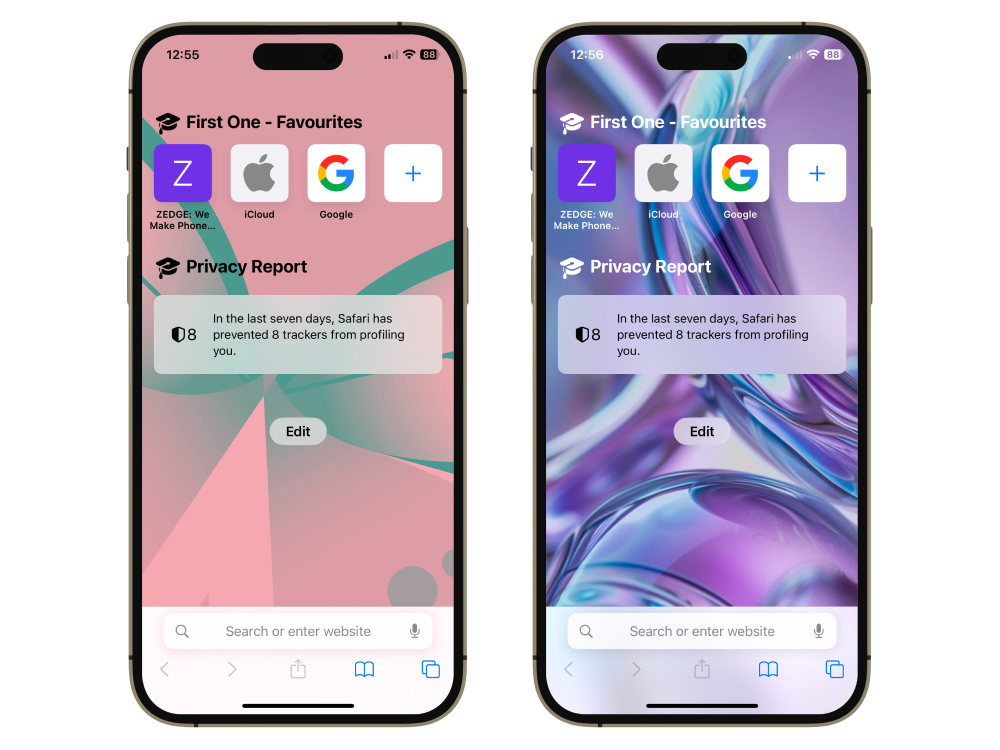
Apple gives you a handful of default backgrounds, but why stop there? With Zedge wallpapers, you can take your Safari start page to the next level. Think:
- Minimalist gradients for a clean, modern vibe
- Cinematic landscapes that make opening a new tab feel like traveling
- Bold patterns and colors that pop every time Safari loads
Whether you prefer abstract art or moody cityscapes, Zedge has something that beats Apple’s small preset selection. You can even make your own wallpaper and sync it across devices for a seamless look.
FAQs
How do I customize my Safari homepage?
On iPhone or Mac, open Safari, go to your start page, tap or click Edit, and enable new background images. From there, pick one of Apple’s presets or upload your own image.
How do I change the Safari display on my iPhone?
To change your Safari background image, follow the steps above. If you’re looking to switch the theme between light and dark, open Settings > Display & Brightness and select Light or Dark. This setting affects Safari and other apps.